
Get Started with PeerBie in 5 Minutes
This guide takes you from sign-up to a working team in about five minutes. Every screenshot comes from our demo workspace, Brightloop Agency, a made-up 12-person marketing agency. You can click around the same workspace yourself: open the live demo. It resets every night, so nothing you do there can break anything.
Before you start
- PeerBie runs in your browser at my.peerbie.com and in the PeerBie apps for iPhone and Android.
- The free Starter plan is enough to follow this guide. Lucy, your AI Chief of Staff, comes with the Lucy AI add-on ($20 per user a month on Pro and above). The 14-day free trial includes it, so you can try every step.
- Plan to spend two minutes on steps 1–3 now and the rest whenever you are ready.
Step 1: Create your workspace
- Go to my.peerbie.com and choose Continue with Google or Continue with Email.
- Answer the short questions about your company. They only shape your starting setup; you can change everything later.
- You land on Home. Your workspace name is shown at the top of the left menu.
Step 2: Get to know Home
Home is your start page. It shows what is due today and what is overdue, the workday clock, and My Work: your tasks grouped into overdue, today and upcoming.
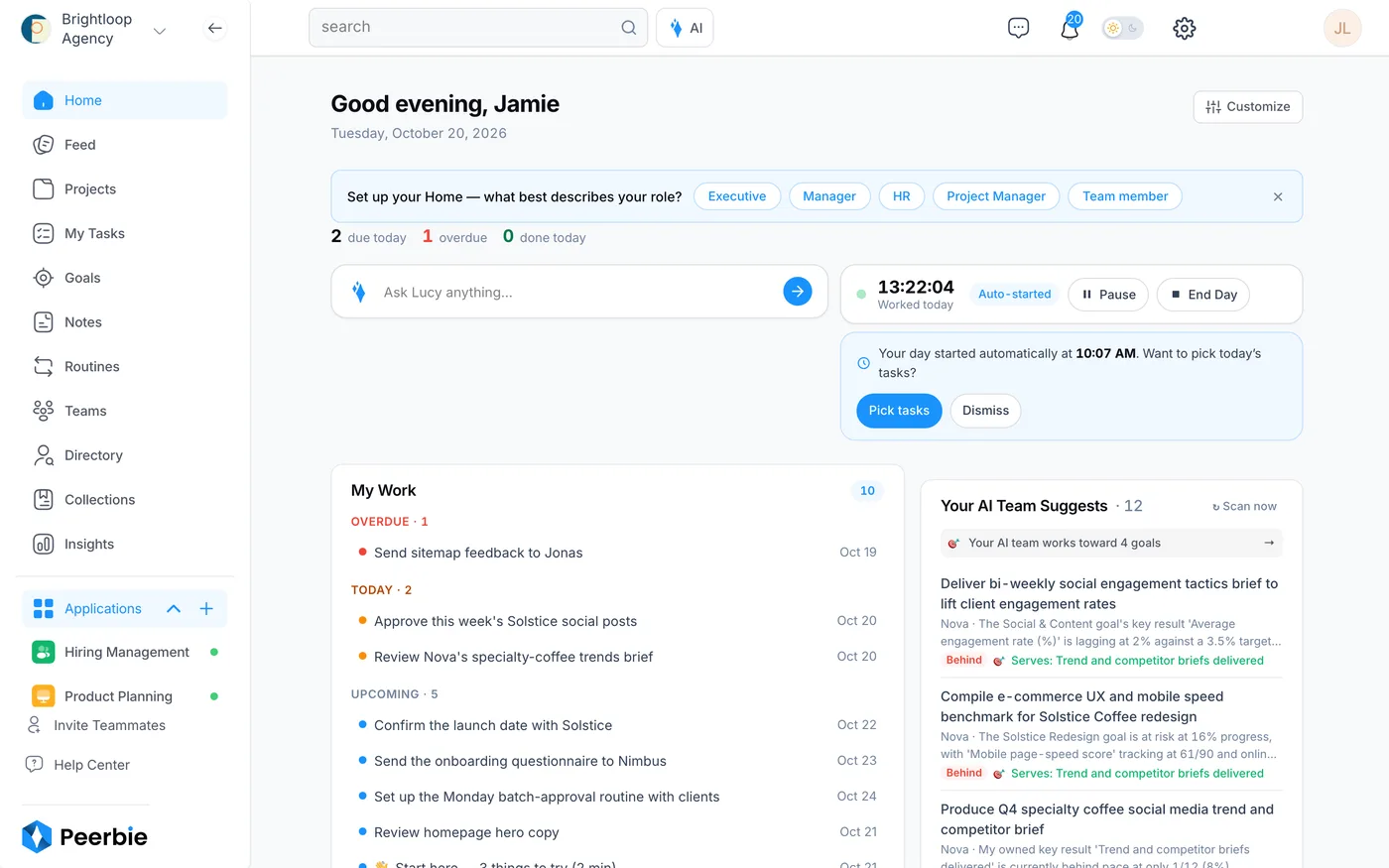
- At the top, pick the role that describes you best under Set up your Home — what best describes your role?. Home rearranges itself for an executive, a manager, HR, a project manager or a team member.
- Use the workday clock to start, pause and end your day. Breaks are taken off your hours, and the time flows into timesheets.
- With the Lucy AI add-on, Your AI Team Suggests on the right lists work that Lucy and your AI employees propose. Nothing happens until you approve it.
Step 3: Invite your team
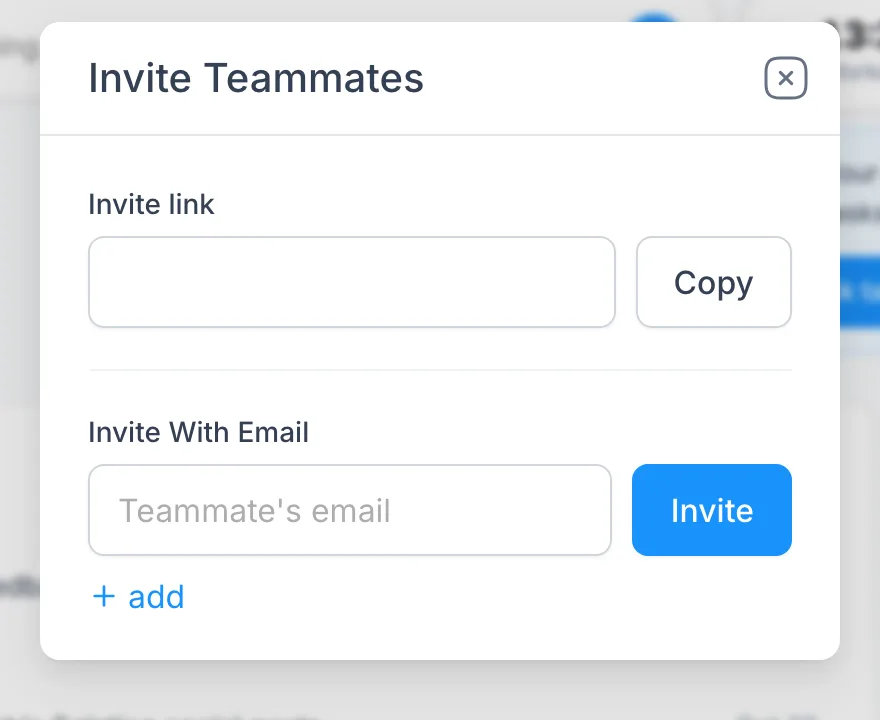
- Click Invite Teammates at the bottom of the left menu.
- Copy the Invite link and share it, or type an email address under Invite With Email and click Invite. Click + add to invite several people at once.
- People who accept appear in Directory. Admins can change roles there later; see Managing members and roles.
Step 4: Create your first project
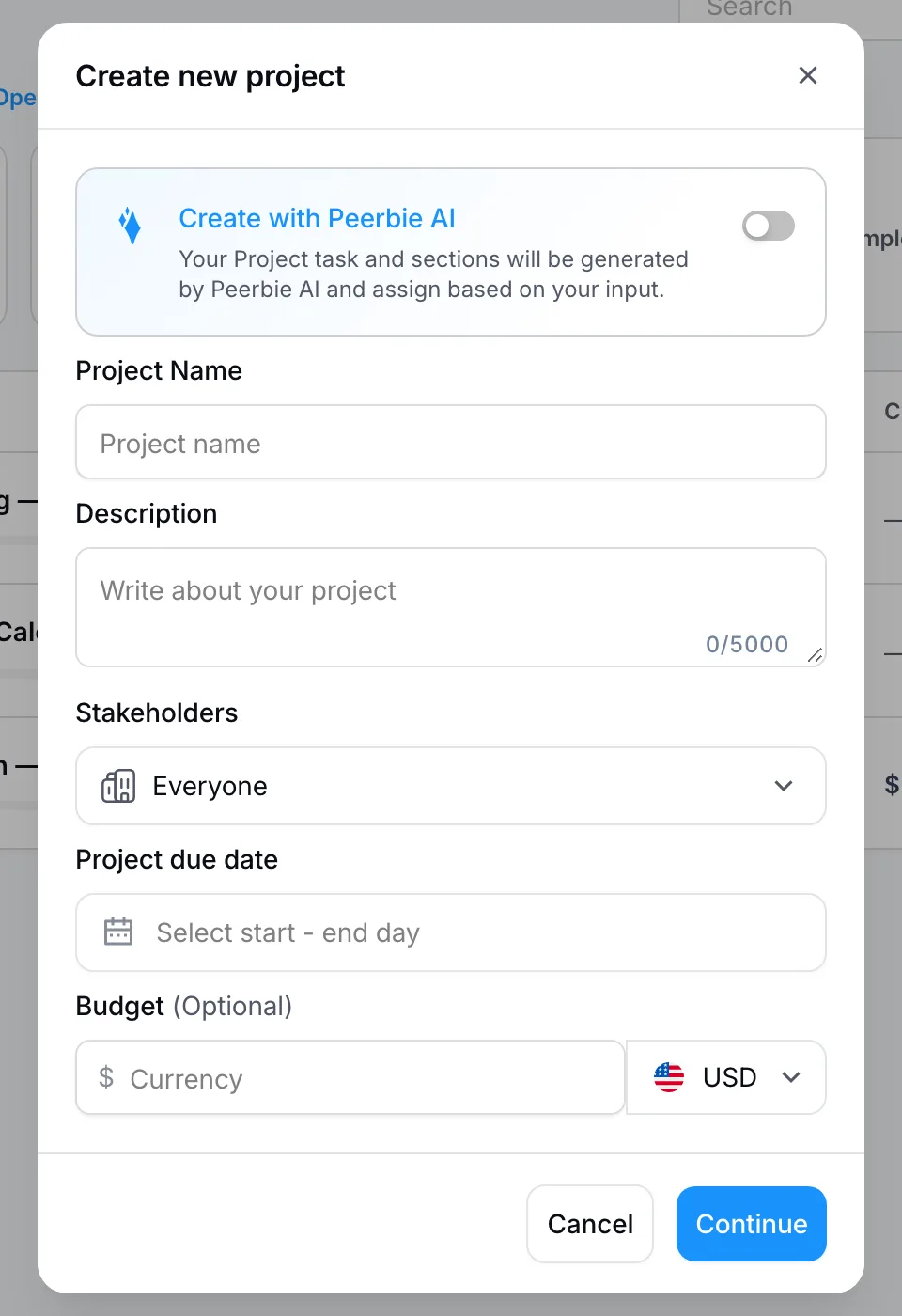
- Open Projects in the left menu and click Create Project.
- Give the project a name and a short description.
- Optional: switch on the AI option at the top of the window. With a one-line description, PeerBie drafts the sections and tasks for you, and you can change them afterwards.
- Choose who can see it under Stakeholders, set a due date and, if you track costs, a budget. Click Continue.
The next guide, Tasks & projects, shows everything you can do inside a project.
Step 5: Add your first tasks
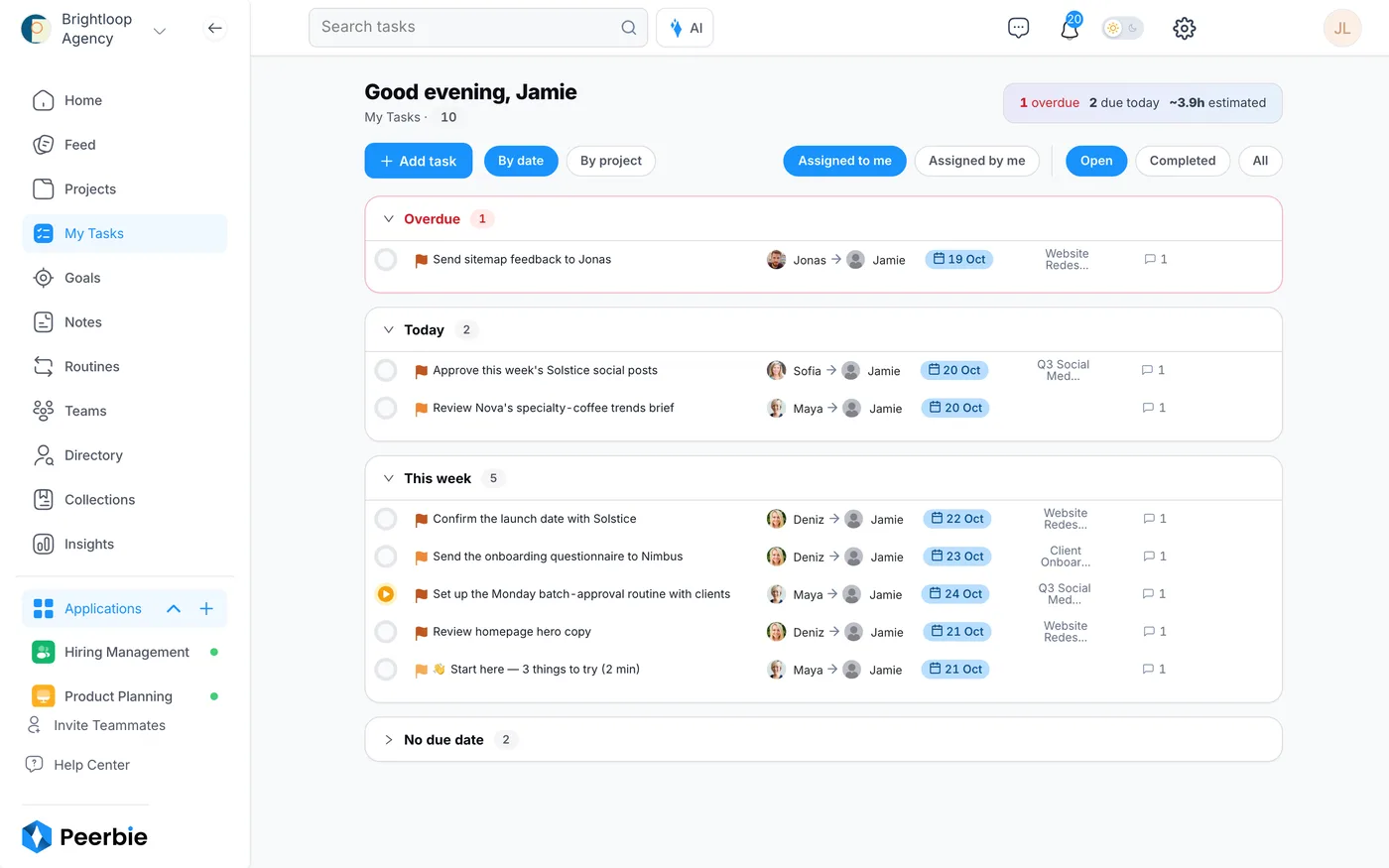
- Open My Tasks and click Add task.
- Type a title, pick who does it and the due date, then click Add.
- Tick the circle in front of a task when it is done. Switch between By date and By project, or between Assigned to me and Assigned by me, to see your work from another angle.
Step 6: Connect your calendar and email
Connecting your accounts lets PeerBie book meetings and lets Lucy read your calendar and mail when you ask her to.
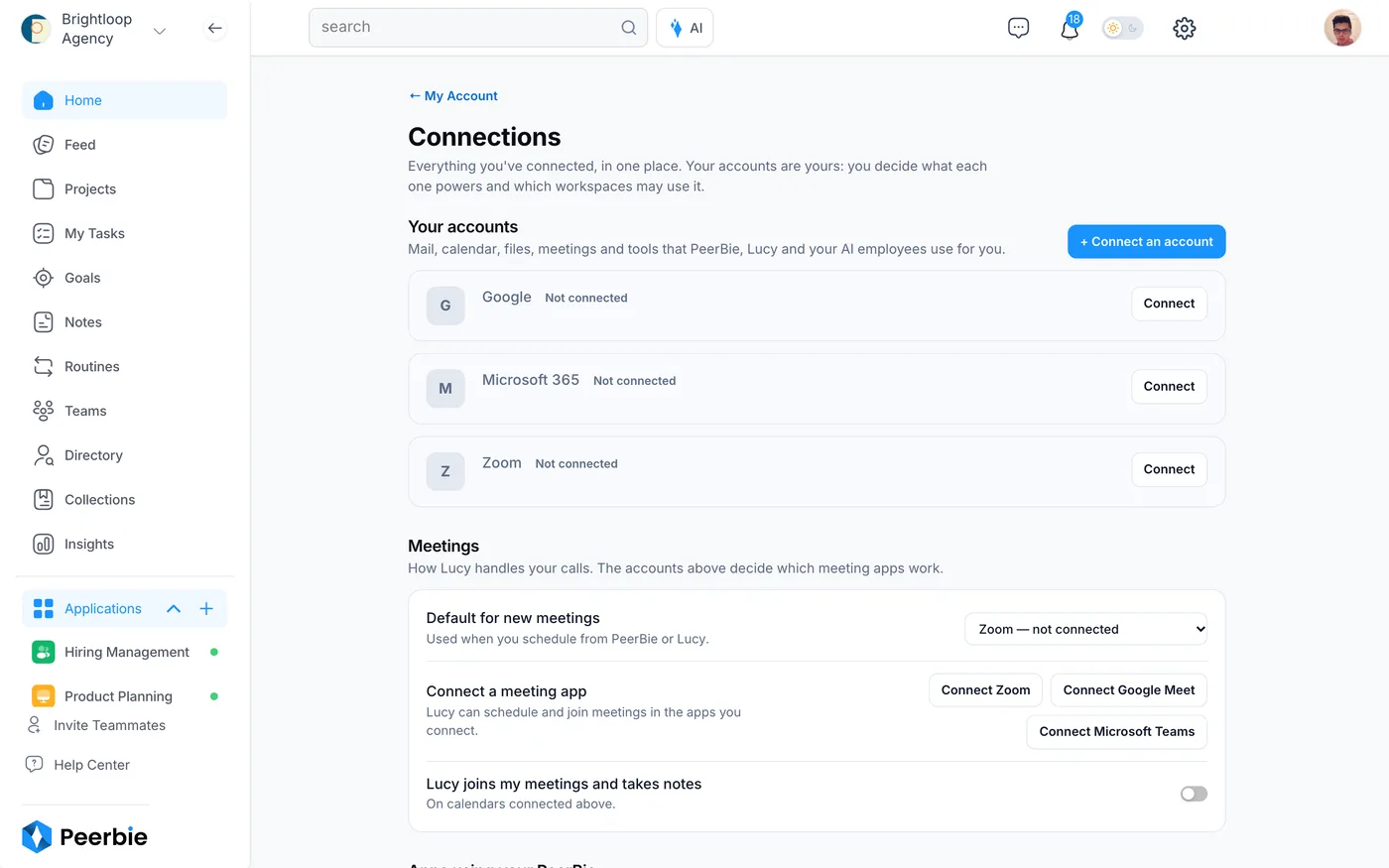
- Click your photo at the top right and choose My Account. Under Connections, click Manage.
- Click Connect next to Google or Microsoft 365 and sign in. Add Zoom if your team uses it.
- Each account shows what it powers. You can disconnect it here at any time.
Step 7: Ask Lucy your first question
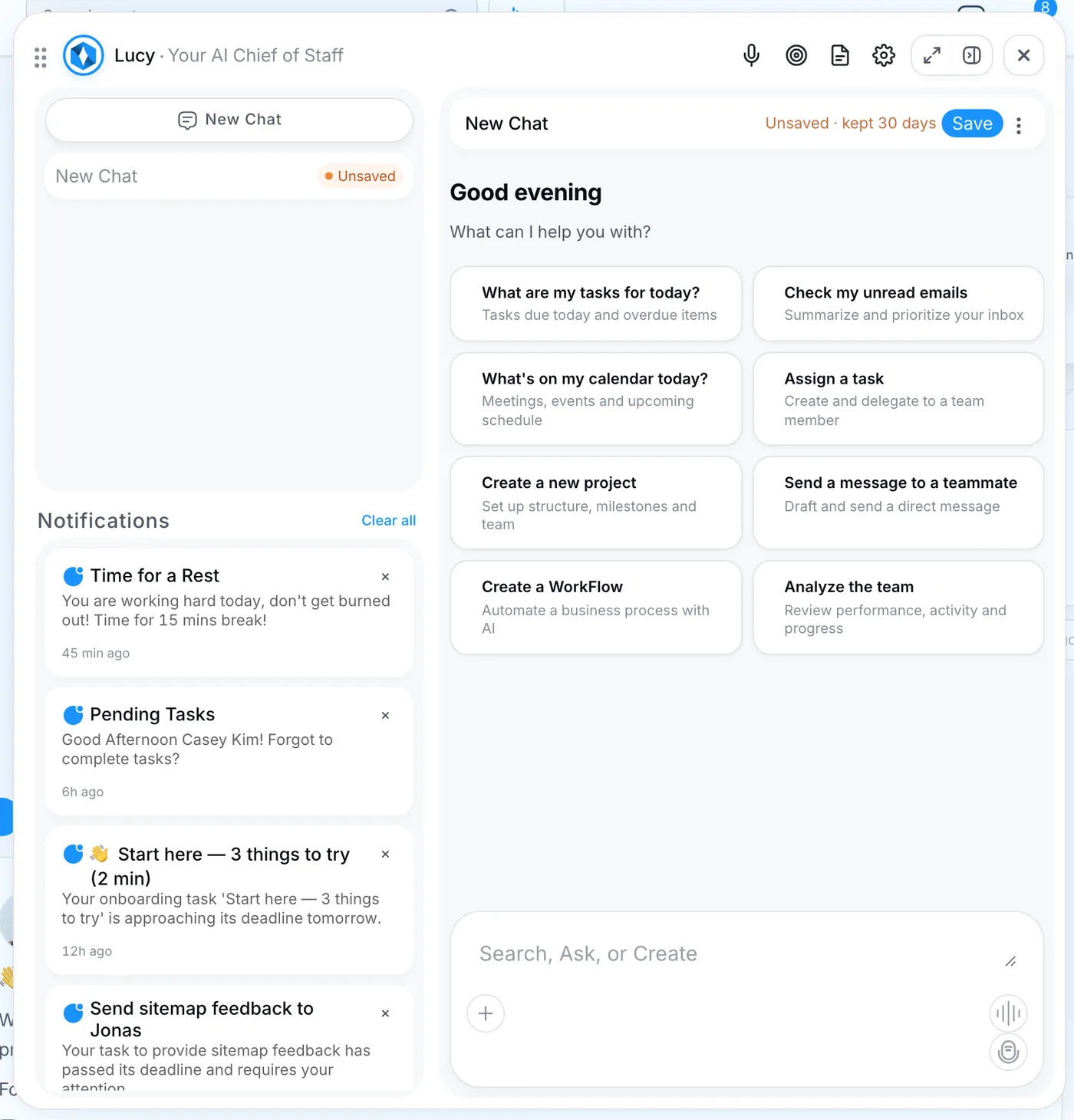
- Click AI at the top of the screen, or the Lucy button on Home (⌘K on a Mac, Ctrl+K on Windows).
- Pick a suggestion or type in your own words, for example “What should I focus on today?”
- Lucy answers from your tasks, projects and connected calendar. When she is about to do something, such as create a task or send a message, she shows it to you first.
More ideas: Lucy basics, and what to ask her.
What to do next
- Bring your meetings in: Meetings & notes.
- Set the quarter’s goals: Goals & OKRs.
- Automate a recurring process: Workflows.
- Rolling PeerBie out to a whole team? Use the 30-day rollout plan.
Questions
Is PeerBie free?
Yes, the Starter plan is free. Basic is $10 and Pro $15 per user a month, billed yearly. Lucy and AI employees come with the Lucy AI add-on, $20 per user a month on Pro and above. See pricing.
Do I need the Lucy AI add-on to follow this guide?
No. Steps 1–6 work on every plan. Step 7 needs the add-on, which the 14-day free trial includes.
Can I try PeerBie without creating an account?
Yes. The live demo opens the Brightloop Agency workspace shown in these screenshots. It resets every night.
Is there a mobile app?
Yes, PeerBie works on iPhone and Android too. Your tasks, feed and messages stay in sync with the web.
