
Admin & Security in PeerBie: Settings, Members, Two-Step Sign-In and Your Data
This guide is for the people who run a PeerBie workspace: the person who created it and anyone they made an admin. It covers the workspace settings, bringing people in and managing them, two-step sign-in, single sign-on, and what happens to your data. The screenshots come from our demo workspace, Brightloop Agency, a made-up marketing agency you can open yourself in the live demo.
Who is an admin? The person who creates a workspace is its first admin, and admins can make other members admins. In Directory, admins carry an Admin badge next to their name. The settings below are only shown to admins.
Open Workspace Settings
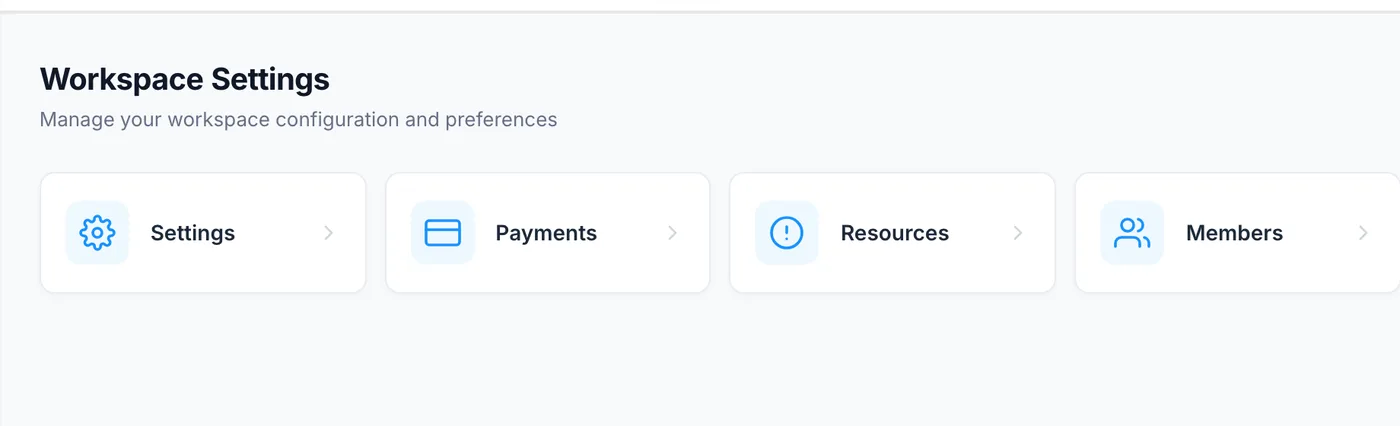
- Click the gear icon (⚙) at the top right of PeerBie.
- Choose Workspace Settings. You only see this item if you are an admin.
- Pick one of the four tiles:
- Settings: your company details, work week, time zone, currency, sharing options and, on Pro, the advanced options below.
- Payments: your plan and billing.
- Resources: opens these guides.
- Members: opens Directory, where you manage people (see below).
Basic settings: company, schedule and sharing
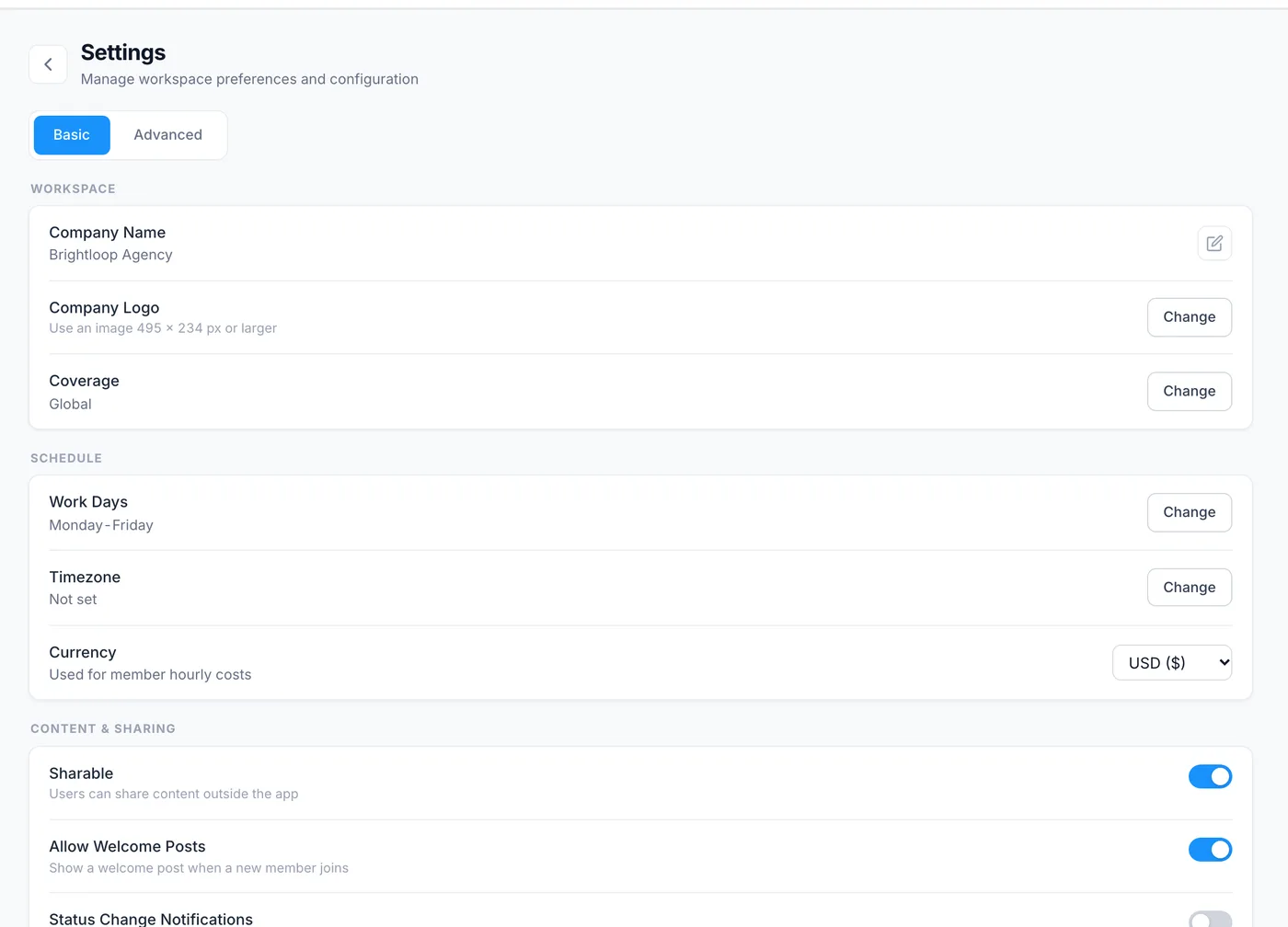
The Basic tab has three groups. Click Change (or the pencil) next to any line to edit it.
- Workspace: Company Name, Company Logo (use an image 495 × 234 px or larger) and Coverage.
- Schedule: Work Days, Timezone and Currency. The currency is used for members’ hourly costs, which feed project costs and budgets.
- Content & Sharing: Sharable lets people share content outside the app, Allow Welcome Posts posts a welcome in the feed when someone joins, and Status Change Notifications tells members when their status changes.
Advanced settings (Pro and above)
The Advanced tab is part of the Pro plan and above. On Starter and Basic it shows a lock and the message “Upgrade to Pro plan to access Advanced admin settings”. It holds:
- Security: Require two-step verification for all members (see below).
- Departments: add, rename or remove the departments people and goals belong to.
- Custom Task Fields: add text, number, date or dropdown fields to every task.
- Services & Messaging: the services list and the preset quick-reply messages for chat.
- Access & Security: Customer Visibility (which departments see customers) and Email Domain, which restricts sign-ups to your company’s email domain.
Invite people
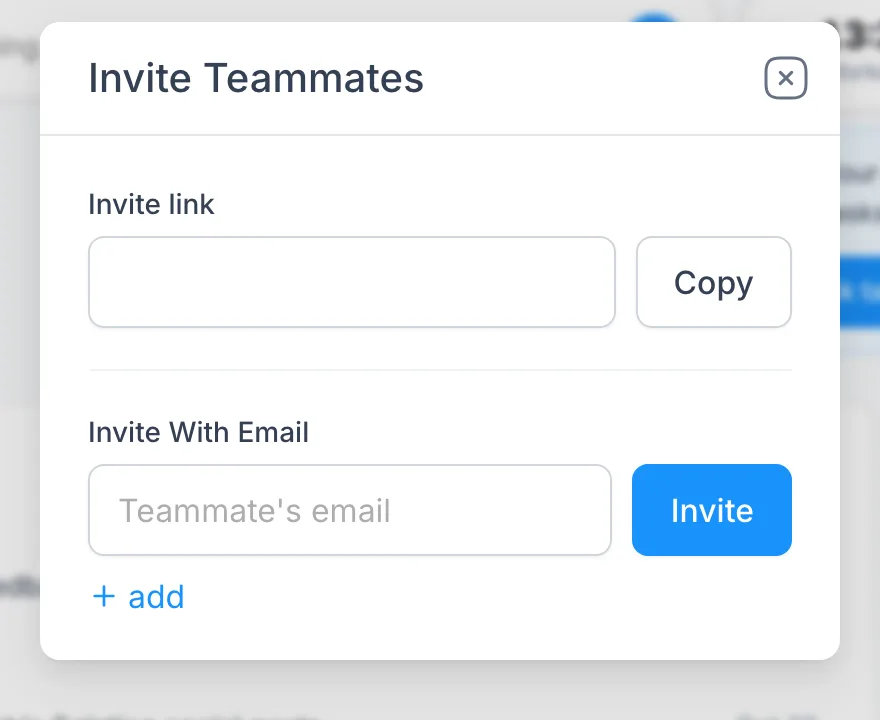
- Click Invite Teammates at the bottom of the left menu (or the same button at the top of Directory).
- Copy the Invite link and share it, or type an email address under Invite With Email and click Invite. Click + add to invite several people at once.
- If someone asks to join and needs approval, they appear under Pending Members in Directory until an admin lets them in.
Members and roles
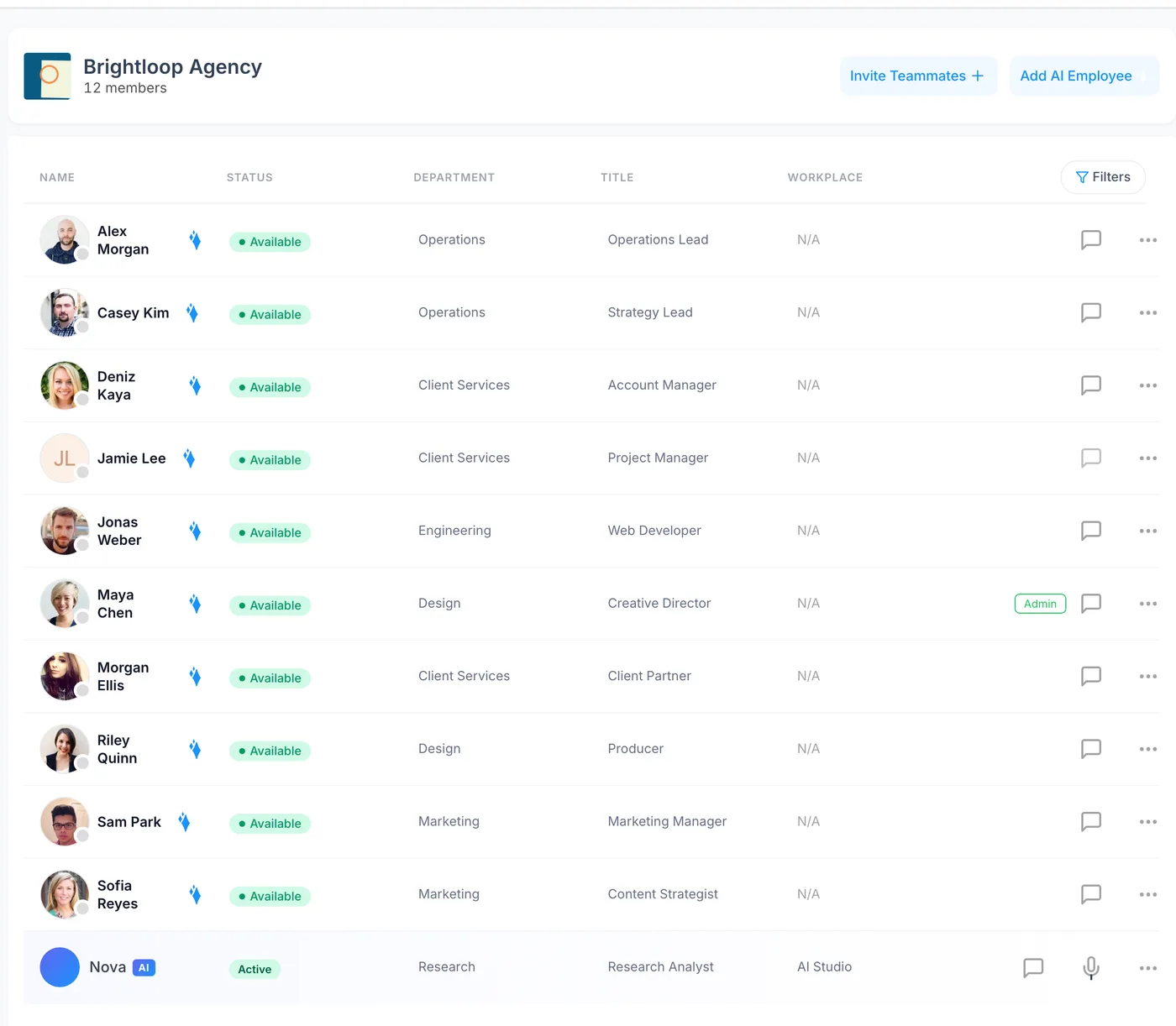
Directory in the left menu lists everyone in the workspace, people and AI employees, with their status, department, title and workplace. Use Filters to narrow it down.
- Click ⋯ at the end of a person’s row.
- Choose Make admin to give them admin rights, or Dismiss as admin to take them away.
- Choose Edit profile to fix their department or title.
- When someone leaves, choose Delete and confirm. They lose access to the workspace. Hand over their open tasks first; with the Lucy AI add-on, ask Lucy “What is still open for Maya?” to get the list.
AI employees appear in the same list with an AI badge. How to hire, edit or remove them is in AI employees.
Two-step sign-in
Two-step sign-in means that after the password, PeerBie asks for a 6-digit code from an authenticator app on your phone, so a stolen password is not enough.
Turn it on for yourself (every plan):
- Click your photo at the top right and choose My Account.
- Under Security, next to Two-step verification, click Set up.
- Scan the QR code with an authenticator app (Google Authenticator, Microsoft Authenticator, 1Password or similar), or type the key by hand, then enter the 6-digit code the app shows.
- Save your recovery codes somewhere safe. Each one works once if you lose your phone.
Require it for everyone (admins, Pro and above):
- Open ⚙ → Workspace Settings → Settings → Advanced.
- Under Security, switch on Require two-step verification for all members. The line shows how many members have set it up so far.
- Members who have not set it up are asked to do so at their next sign-in.
Single sign-on (SAML) and SCIM
On the Enterprise plan, PeerBie connects to your identity provider, such as Microsoft Entra ID or Google Workspace. People sign in with SAML single sign-on, under your company’s own password and device rules, and SCIM provisioning adds and removes people in PeerBie when you add or remove them in your directory. Enterprise is arranged with our team: contact us to start.
Connections: whose accounts are whose
Each person connects their own Google, Microsoft 365 or Zoom account in My Account → Connections, and decides what it powers. Lucy only ever uses the signed-in person’s own accounts. Work tools such as Slack or HubSpot, which AI employees use, are connected for the workspace. The full picture is in Connections & integrations.
Your data: the basics
- Where it is stored: PeerBie’s servers and databases are hosted by Hetzner in Germany (EU). Some AI features are processed by providers in the United States; the security page lists every one.
- AI training: we do not use your data to train AI models, and our AI providers’ business terms do not allow them to either.
- Sessions: a sign-in lasts one day and renews for up to 30 days. Changing your password ends every session.
- Mail and files: Lucy reads a mailbox or a file when someone asks, not in the background. Disconnecting an account deletes what was derived from its mail and files, and such data is deleted after 90 days at most anyway.
- Approvals: Lucy asks before she sends an email or deletes a task, and AI employees act only after a person approves.
- Leaving: any member can delete their own account under My Account → Delete My Account. This cannot be undone.
Security questionnaire or a data-processing question? Write to [email protected].
Questions
I don’t see Workspace Settings in the gear menu. Why?
Only admins see it. Ask an admin in your workspace (they have an Admin badge in Directory) to make you one, or to change the setting for you.
Can I make two-step sign-in compulsory on the Basic plan?
Not today. The switch that requires it for everyone is in the Advanced settings, which come with Pro and above. On every plan, each person can still turn it on for themselves under My Account.
Do you offer SSO and SCIM?
Yes, on the Enterprise plan: SAML single sign-on and SCIM provisioning with identity providers such as Microsoft Entra ID. Contact us to get started.
Does PeerBie use our data to train AI?
No. We do not use your data to train AI models, and the AI providers we use do not either under their business terms. Details are on the security page.
Where is our data hosted?
In Germany (EU), with Hetzner. Some AI features are processed by providers in the United States, listed on the security page.
