
How to Turn Emails into Tasks in Gmail and Outlook (5 Ways)
Half the tasks in a typical week arrive by email: “Can you send the revised quote by Thursday?”, “Please review the contract before the call”, “Could your team fix the login page?”. Each one is a task with an owner and a date, except it lives in an inbox, where it gets buried under the next forty messages.
This guide shows every practical way to turn an email into a task in Gmail and Outlook: the free buttons that are already there, forwarding addresses in task tools, automation, and AI assistants. For each, we say where the task ends up, who can see it, and what it costs. Steps and prices were checked on each vendor’s own help and pricing pages on 22 October 2026. We make one of the tools here (PeerBie, with the AI assistant Lucy), and we say where something else is the better fit.
The short answer
- Just for you, in Gmail: click Add to Tasks. Free, built in.
- Just for you, in Outlook: flag the email; it shows up in Microsoft To Do. Free with a Microsoft-hosted account.
- Your team already uses Asana, Trello, ClickUp, monday.com or Todoist: forward the email to the tool’s own address.
- The same kind of email, every day: set a rule once, with Zapier, Power Automate or a workflow trigger.
- You want the sorting done for you: ask an AI assistant to find the requests in your inbox and propose the tasks.
First, decide where the task should live
Every method below answers one question differently: who needs to see the task?
- Only you. A personal list is enough. Gmail and Outlook both have a free, built-in way to do this.
- Your team. The task needs an owner, a due date and a place where a colleague or manager can see it. That means a shared task tool, and a way to get the email into it.
- The same kind of email, again and again. Orders, support requests, invoices, applications. Here you want a rule that does it for you every time, not a button you have to remember.
A task copied out of an email should carry three things with it: a clear title (the request, not the subject line), an owner and a due date, and a link back to the original message, so nobody has to search for the context.
Option 1: Gmail’s built-in “Add to Tasks”
Google’s help page “Create a task in Gmail” describes two ways on a computer:
- Open the email and click Add to Tasks at the top (or More → Add to Tasks if you cannot see it).
- Or open Tasks in the right-hand side panel and drag the email into it.
On Android, iPhone and iPad, open the email, tap More (⋮) and then Add to Tasks. The task lands in Google Tasks, which you see in Gmail’s side panel, in Google Calendar and at tasks.google.com, and you can give it a date and time.
With an eligible Google Workspace or Google AI plan, you can also ask Gemini in Gmail to add a task, or create one from a Gemini summary of the email.
Limits: Google Tasks is a personal list. You cannot assign a task to a colleague from it, and Tasks has no place for attachments, so files stay in the email.
Option 2: Outlook flags and Microsoft To Do
In Outlook, the quickest route is a flag. Microsoft’s help page “Using Microsoft To Do with flagged email from Outlook” explains how it works: switch on the Flagged email list in To Do (under Settings → Connections), and every email you flag appears there as a task, named after the subject, with a preview of the text.
Three conditions, all from that page:
- It works only with accounts hosted by Microsoft (a work or school account, Outlook.com, Hotmail or Live, or your own domain hosted by Microsoft). A Gmail account added to Outlook does not sync.
- Only emails flagged in your primary mailbox sync; shared mailboxes do not.
- When you switch it on, To Do brings in the 100 most recently flagged emails from the last 30 days.
Two more ways: in the new Outlook, open My Day from the toolbar and drag the message onto its To Do tab. In classic Outlook for Windows, drag the email onto the Tasks icon in the navigation pane; the task contains the email’s content and syncs to To Do.
What about Planner and Copilot? We found no built-in button that turns an email into a Planner task for your team; the usual route is an automation (option 3b below). Microsoft documents Copilot in Outlook for summaries and drafts, and we found no Microsoft page saying it creates the task for you, so you still flag or drag. Our guide to task management in Microsoft 365 explains how To Do, Planner and Teams fit together.
Limits: like Google Tasks, To Do is for your own work. A flagged email does not become a task anyone else can see.
Option 3a: Forward the email to your task tool
Most team task tools give every project or board its own email address. Forward an email there and it becomes a task, usually with the subject as the title and the text as the description.
| Tool | How | What comes along | Plan |
|---|---|---|---|
| — | — | — | — |
| Asana | Forward to [email protected] (My Tasks) or to a project’s own address | Subject → task name, text → description, attachments, people in CC become collaborators; up to 30 MB | Every plan, including the free one |
| Trello | Board menu → Email-to-board: a personal address for each board | Subject → card title, text → description, attachments; up to 10 MB in total | Not stated on Trello’s help page |
| ClickUp | List menu → Email to List | Subject → task name, text and sender → description, attachments under 10 MB | Every plan |
| monday.com | Board settings → Create items via email | Subject → item name, text and files → an update on the item | Not stated on monday.com’s help page |
| Todoist | Project menu → Email tasks to this project | Subject → task name, text in a comment; AI that writes the task name and finds the date is on Pro and Business | Forwarding on every plan |
Two tips. Forwarding addresses are private keys to your board: monday.com warns that its address contains your personal API key, so do not share them. And forwarding still needs a person to remember to forward, which is why the next two options exist.
Option 3b: Automate it with a rule
When the same kind of email arrives every day (orders, support requests, leads), set up a rule once and let it run:
- Zapier connects Gmail or Outlook to almost any task tool: “when a new email matches this search, create a task in Asana”. The free plan includes 100 tasks a month with two-step Zaps; Professional starts at $19.99 a month billed annually ($29.99 monthly).
- Power Automate has a ready-made template, “Create Planner tasks for flagged emails”: flag an email in Outlook and a Planner task is created in the plan you choose. Check that your Microsoft 365 plan includes Power Automate before you rely on it.
- Make and similar tools work the same way, with their own free tiers.
Limits: rules are literal. A filter on the subject “Order” misses the customer who writes “Re: my purchase”. Rules that use AI to read the email (described below) handle that better, but are newer.
Option 4: Ask an AI assistant to do it
The newest route is an AI assistant that reads your inbox for you. Instead of turning emails into tasks one by one, you ask: “Which emails need something from me this week? Make tasks for them.” A good assistant finds the requests, proposes tasks with a title, owner and date, and waits for your OK before creating anything.
Things to check before you connect your mailbox to one:
- Does it propose or act? Creating a task is low risk; sending a reply is not. The assistant should show you what it is about to do.
- Which mailboxes? Gmail only, Outlook only, or both, and more than one account?
- Where do the tasks go? Into a list only the assistant can see, or into the task tool your team already uses?
- Security. An app that reads Gmail needs a restricted Google permission, and Google requires such apps to pass an annual security assessment (CASA). Ask whether the vendor has, and whether your mail is used to train AI models.
How PeerBie turns emails into tasks
PeerBie is a work platform where a team’s tasks, projects, goals, chat and meetings live together. There are two ways in from email, and they suit different jobs.
1. Ask Lucy: Gmail and Outlook
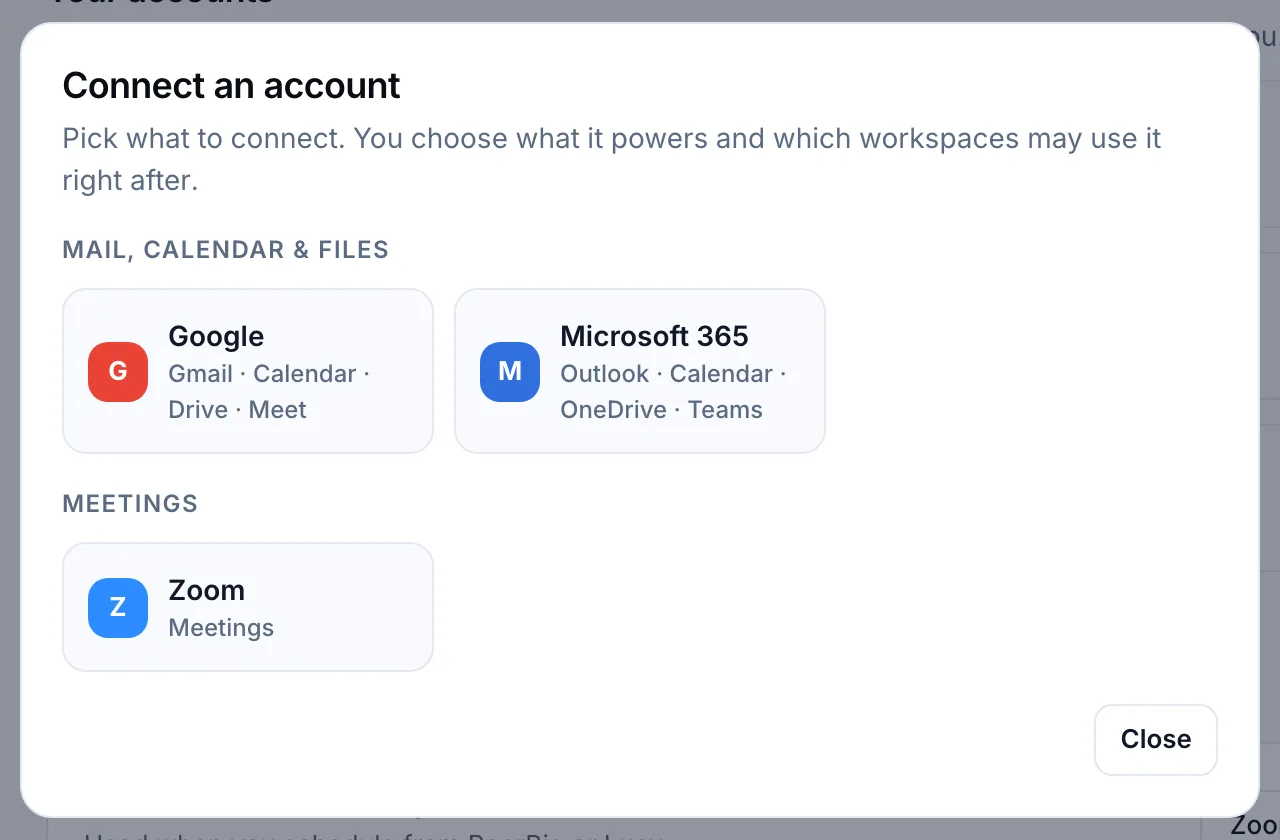
With the Lucy AI add-on, you connect your Google or Microsoft 365 account under My Account → Connections and then ask in plain words:
- “Summarise my unread emails.”
- “Which emails from this week ask me for something? Turn them into tasks.”
- “Make a task for Jonas from the latest email from Solstice: send the menu page by Thursday.”
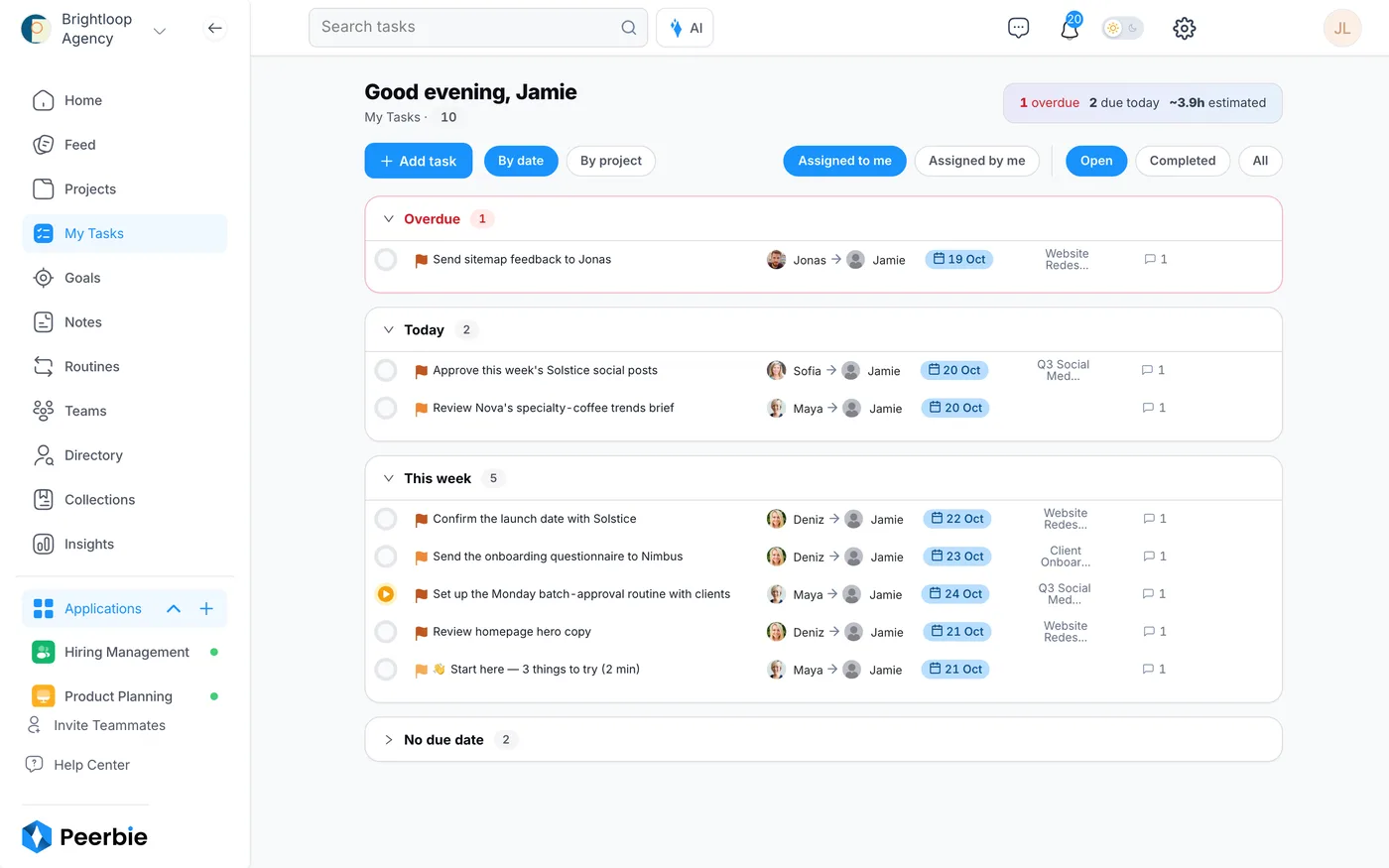
Lucy reads the messages, proposes each task with an owner and a due date, and creates them in PeerBie once you confirm, so the tasks land in the same My Tasks list and projects as the rest of your team’s work. She can also draft the reply for you to approve. Lucy works with Gmail and Outlook alike. See Connections & integrations for what to connect.
For replies you write again and again, Lucy’s Routines can do the first draft every time, for example “Every time a customer emails me, draft a reply in my tone”. Nothing is sent until you approve it. More examples are in What to ask Lucy.
2. An email rule that starts a workflow: Gmail or Outlook
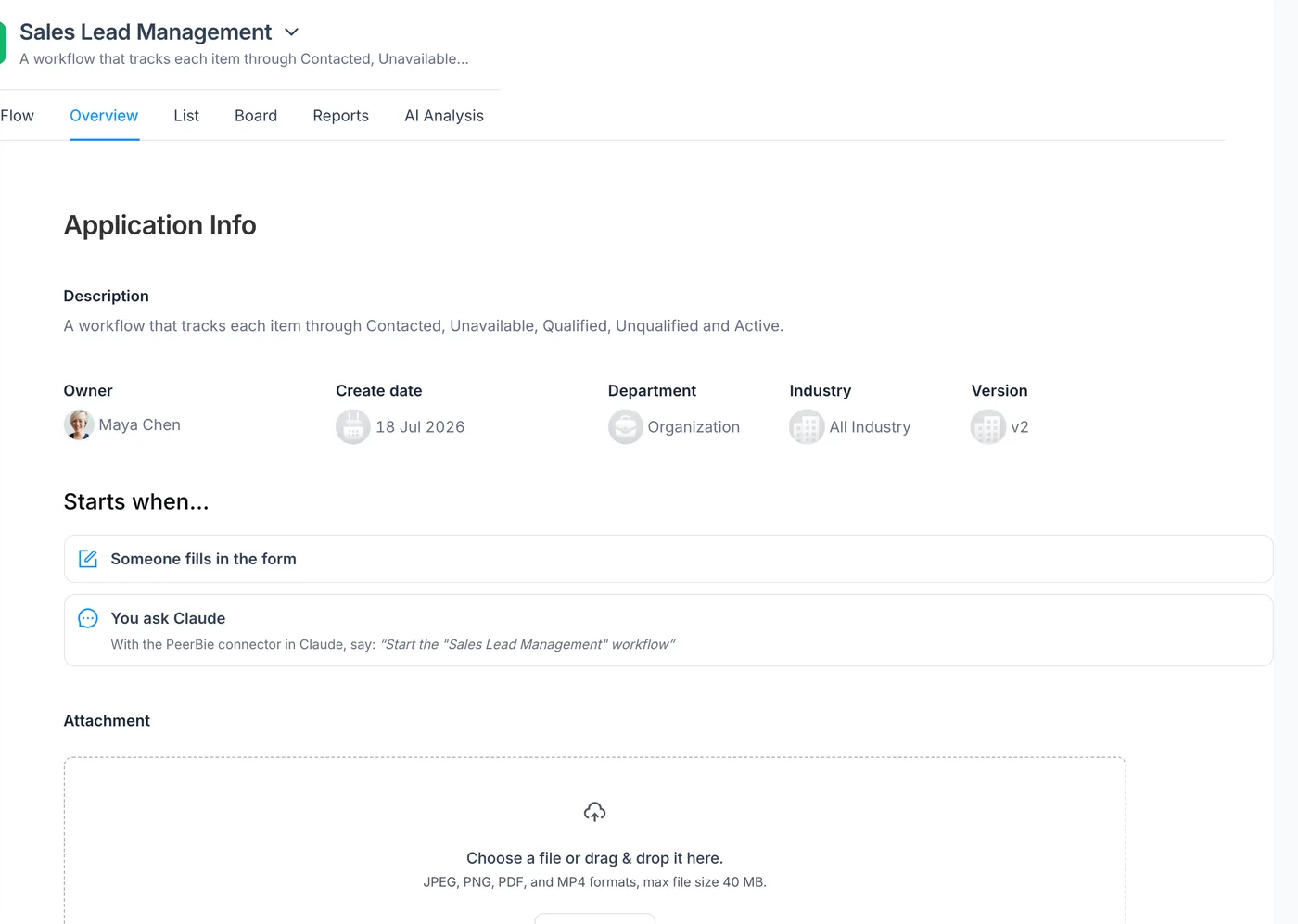
For a stream of similar emails (purchase requests, inbound leads, support tickets), a rule is better than asking each time. In a PeerBie workflow, open Starts when… and add An email arrives. Set who it is from (addresses or @domains), words in the subject or body, or describe the email for the AI, for example “Is this a purchase request?”. Every matching email starts a run of the workflow, with the sender, subject and text filled into its fields, and each stage has an owner, a person or an AI employee, who is notified when it is their turn.
Good to know: email rules work with Gmail and Outlook (Microsoft 365). Gmail starts the workflow as soon as the email arrives; Outlook is checked every few minutes. The rule reads the mailbox you connected yourself, and only acts on a published workflow. Workflows are on every plan: the free Starter plan includes up to 5 (3 ready-made and 2 of your own). The step-by-step guide is Workflows in PeerBie.
What it costs
Lucy comes with the Lucy AI add-on: $20 per user a month on Pro ($15) and above, $35 in total billed annually, with no credits. It is not available on the free or Basic plans; the 14-day PeerBie trial includes it. Just for yourself? The Lucy app connects Gmail and Outlook on its Pro plan ($9.99 a month); it is on Google Play, and the iPhone app is coming soon to the App Store.
Where PeerBie is not the best fit
- You only need a personal to-do list. Gmail’s “Add to Tasks” or an Outlook flag is free and already there.
- Your team is happy in another task tool. Then that tool’s own forwarding address, or an automation, is the shorter path; moving your tasks to PeerBie only for this is not worth it.
- Lucy is an add-on. Asking Lucy needs Pro plus the add-on; the free plan has workflows, but no Lucy.
Five habits that make email-to-task work
- Rewrite the title. “Re: Fwd: Q4” is not a task. “Send Dana the revised Q4 quote” is.
- One owner, one date. If nobody’s name is on it, nobody will do it.
- Keep the link to the email, so the context is one click away, not one search away.
- Archive the email once the task exists. The inbox is not the to-do list any more; keeping both means checking both.
- Look at the list, not the inbox, each morning. A daily review of tasks due today and overdue is where the method pays off.
Frequently asked questions
How do I turn an email into a task in Gmail?
Open the email and click Add to Tasks at the top (or More → Add to Tasks). On a phone, tap More (⋮) and then Add to Tasks. The task goes to Google Tasks, where you can add a date. You can also drag the email into the Tasks side panel.
How do I turn an email into a task in Outlook?
Flag it. With a Microsoft-hosted account and the Flagged email list switched on in Microsoft To Do, every flagged email appears there as a task. In the new Outlook you can also drag the message onto the To Do tab in My Day; in classic Outlook for Windows, drag it onto the Tasks icon.
Can emails become tasks for my team automatically?
Yes, in two ways. Forward them to your task tool’s email address (Asana, Trello, ClickUp, monday.com and Todoist all have one), or set up a rule in Zapier, Power Automate or a workflow tool so matching emails create tasks or workflow items without anyone forwarding them.
Can AI turn my emails into tasks?
Yes. An AI assistant connected to your mailbox can find the emails that ask something of you and propose tasks with an owner and a due date. A good one waits for your OK before it creates tasks or sends anything. Lucy in PeerBie does this with Gmail and Outlook.
Do PeerBie’s email rules work with Outlook?
Yes. Email rules that start a PeerBie workflow work with Gmail and Outlook (Microsoft 365); Outlook is checked every few minutes. Lucy can also read your Outlook mailbox and turn emails into tasks when you ask her.
Try it with your own inbox
Try PeerBie Pro with the Lucy add-on free for 14 days, no credit card needed, or walk around the live demo workspace without signing up.
Steps, plans and prices checked on each vendor’s website on 22 October 2026. If you spot something out of date, tell us at [email protected].
