
Every meeting ends with notes, decisions and tasks.
Book Zoom, Google Meet or Microsoft Teams calls from PeerBie, or just ask Lucy. Her silent note-taker joins the meetings you choose, and the summary, decisions and action items land in your workspace — ready to become tasks with owners and dates.
Meetings on every plan · note-taker with the Lucy AI add-on
From the invite to the follow-up.
One loop instead of four tools: book it, let Lucy listen, read the notes, hand out the work.
Book the call
Create a Zoom, Google Meet or Teams meeting from PeerBie — or tell Lucy who and when.
Lucy listens quietly
The note-taker joins the meetings you switch on. She doesn’t speak; she listens.
Notes are filed
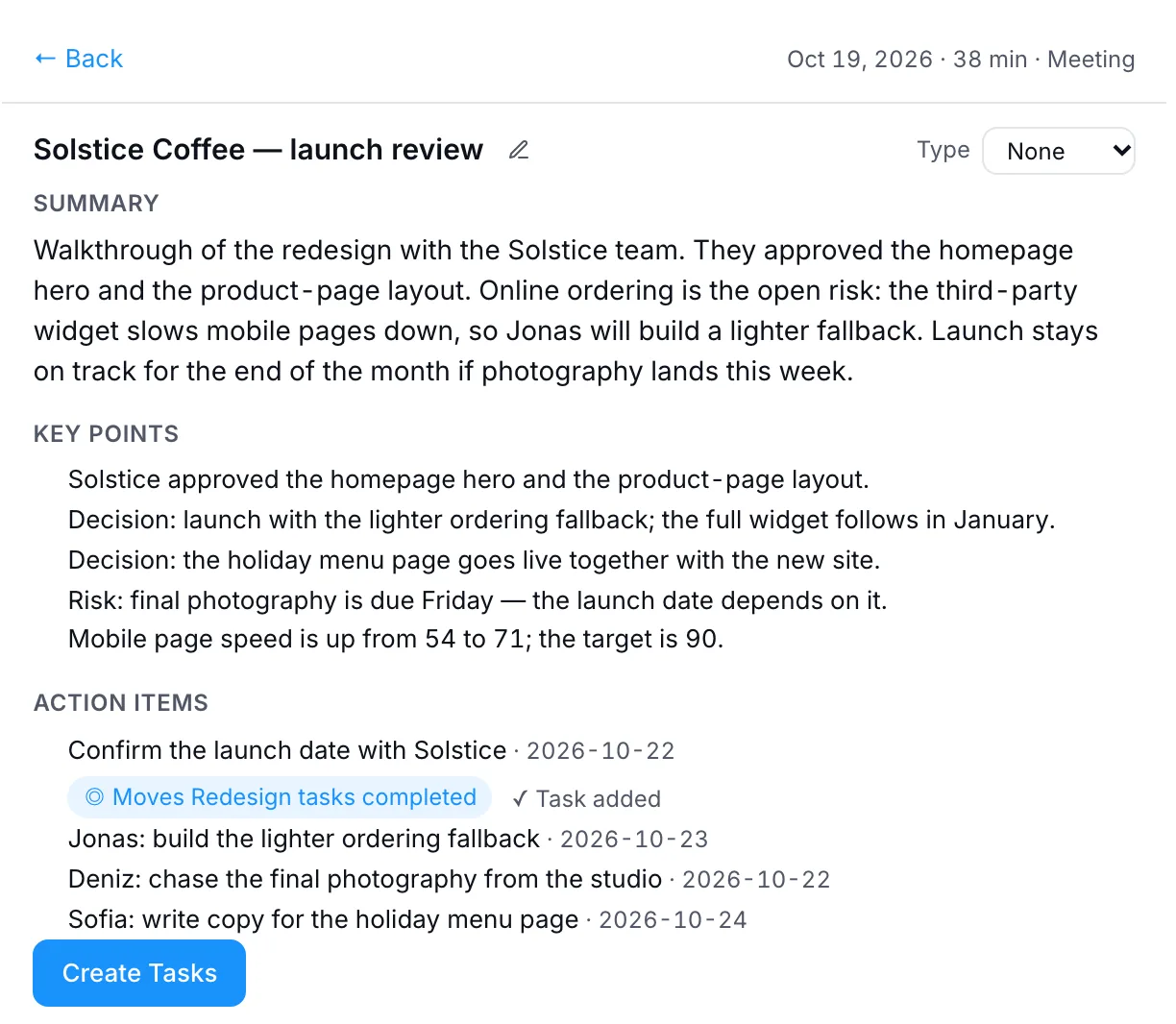
Summary, key points, decisions and action items appear on the Notes & meetings page.
Action items become tasks
One click turns them into PeerBie tasks, each with an owner and a due date.
Ask about it later
Every recording has its own conversation with Lucy. Ask what was said, or what was agreed.
Follow up
Ask Lucy to draft the recap email from the notes. You read it and press send.
The cards show example content.
Zoom, Google Meet or Teams. Booked from where you work.
Connect your Zoom, Google or Microsoft account once. Then every meeting starts in PeerBie, and everyone joins from the meeting card.
- From PeerBie: schedule a meeting from the feed composer or from the Notes & meetings page, on every plan.
- By asking Lucy, in chat or by voice: “Set up a 30-minute Meet with Dana tomorrow at 10.”
- Invites only with your OK. Lucy shows who will be invited and waits for you to confirm before anything is sent.
- Lucy comes along. If you use the note-taker, the meetings Lucy books get notes too.
Revised quote — Northwind
Thu, 10:00–10:30 · your calendar
Invite: [email protected]
Every conversation, in one searchable place.
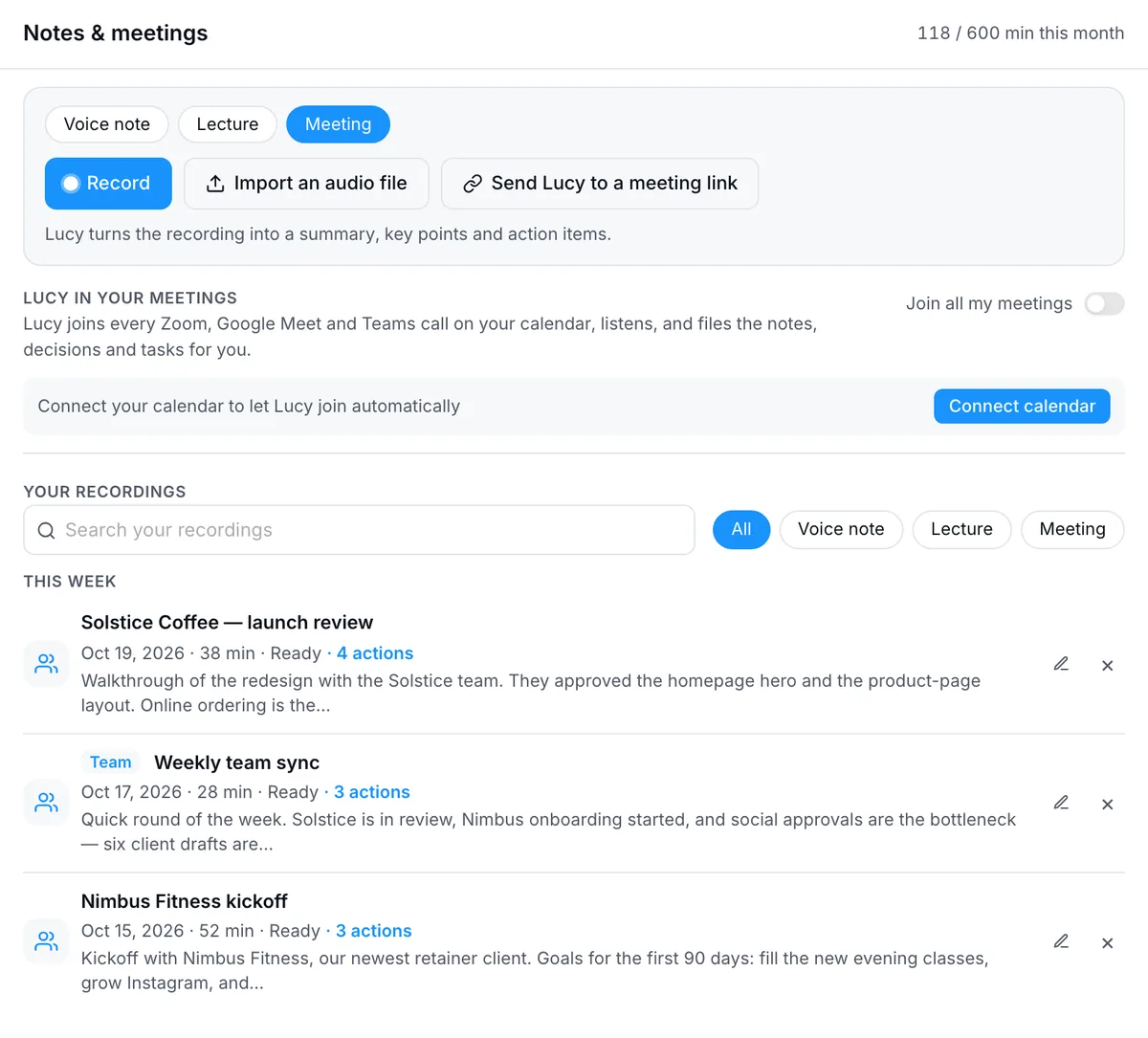
Meetings Lucy joined, recordings you made and audio you imported all live on one page in PeerBie — next to the projects they are about.
- Record, import or send Lucy to a link from the top of the page.
- Meeting, voice note or lecture — pick the kind and the notes take the right shape.
- Search and filter every recording, see how many action items each one has, and rename it.
- Play the audio back for 30 days; the notes and transcript stay.
Action items don’t stay in a document. They become work.
Lucy pulls the action items out of the conversation with who said they would do it and by when. You check them, and they become tasks your team can see.
- Owners and dates taken from what was said in the meeting.
- Decisions kept with the notes, so “what did we agree?” has an answer.
- Tracked like any other task, with reminders, comments and a status everyone can see.
The launch moves to November 12. Dana signs off on the homepage copy.
A call in your browser, a voice note, a lecture.
Not every conversation is on your calendar. Record it from PeerBie on the web and get the same notes.
- Calls in a browser tab: the web recorder captures the tab’s audio and your microphone together — for a call in any web app. Works in Chrome and Edge on a computer.
- In the room: record with your microphone when everyone is at the same table.
- Voice notes and lectures: think out loud or record a class; the notes are shaped for each.
- Already recorded? Import an audio file and Lucy writes it up.
Quick talks and in-person meetings, too.
For a two-minute question you don’t need a meeting link. For a meeting across the table you don’t need a laptop.
Huddles
Drop-in audio rooms with screen share, on PeerBie for the web. No link to send — your team just joins. Huddles are audio by design; for camera video, book Zoom, Meet or Teams and bring Lucy.
Lucy in the Huddle
Lucy joins by voice, listens and writes the summary when you finish — including what was shown on a shared screen. AI employees can join too and answer when you address them.
Lucy app for in-person meetings
Put your phone on the table and record a meeting, a lecture or a call. Lucy turns it into notes, decisions and dated tasks. The app has its own plans, starting free.
See the Lucy appWhat’s in your plan.
Booking meetings and Huddles come with PeerBie. Lucy’s notes come with the Lucy AI add-on.
Starter (free), Basic, Pro and Enterprise.
- Create Zoom, Google Meet and Teams meetings
- Join from the meeting card in PeerBie
- Huddles: audio rooms with screen share
On Pro and above, with Lucy and your AI employees.
- Note-taker for Zoom, Google Meet and Teams
- Notes, decisions and action items into tasks
- Recording, voice notes, lectures and audio import
- Book meetings by asking Lucy, in chat or by voice
- Lucy and AI employees in Huddles
Pro is $15 per user a month billed annually ($19 monthly); with Lucy it is $35. 14-day free trial. Just for yourself? The Lucy app has its own plans. Full pricing →
Lucy only joins where you ask her to.
The note-taker is off until you switch it on, and you can switch it off for any single meeting.
Lucy joins as a named participant, “Lucy (notes)”, so everyone can see she is there.
Recordings can be played back for 30 days. The notes and transcript stay in your workspace.
Plus Google’s OAuth verification for the calendar connection.
For Teams and Outlook calendars.
Your Google and Microsoft connections are stored encrypted.
Where your data is: PeerBie is hosted in Germany (EU). The note-taker uses Recall.ai, and the notes are written by AI providers based in the US (Google Gemini and OpenAI), so meeting audio and text are processed there.
Questions people ask.
Does PeerBie have its own video calls?
No. PeerBie creates Zoom, Google Meet and Microsoft Teams meetings for you, and the call itself opens in that app. For quick talks inside PeerBie there are Huddles: audio rooms with screen share on the web.
Which meetings does Lucy join?
Only the ones you choose. Connect your Google or Outlook calendar, then switch on “Join all my meetings”, pick single meetings for the week ahead, or paste a meeting link. She joins meetings that have a Zoom, Google Meet or Teams link.
Will the other people see Lucy?
Yes. She joins as a participant called “Lucy (notes)”. She does not speak. If the meeting has a waiting room, the host needs to admit her, and Lucy lets you know she is waiting.
What do the notes include?
A summary, key points, decisions and action items with suggested owners and dates, plus the transcript. You can turn the action items into PeerBie tasks in one step and ask Lucy questions about the meeting later.
Which languages work?
Lucy transcribes more than 40 languages, and a meeting can switch between languages.
Do I need a Microsoft 365 account for Teams?
To create Teams meetings from PeerBie, yes: a Microsoft 365 work or school account. Lucy’s note-taker can join any Teams meeting on your calendar or from a link.
How much does it cost?
Creating meetings and Huddles are on every plan, including Free. The note-taker, recordings and AI notes come with the Lucy AI add-on: $20 per user a month on Pro and above, with no credits. The Lucy app for individuals has its own plans, starting free.
How long are recordings kept?
Audio can be played back for 30 days. The notes, decisions and transcript stay in your workspace until you delete them.
Leave the meeting. The follow-up is already done.
Start free and book your first meeting from PeerBie, or walk around the live demo and open a meeting Lucy took notes in.