
Lucy Basics, and What to Ask Her
Lucy is your AI Chief of Staff inside PeerBie. She knows your tasks, projects, goals, meeting notes and team, and, once you connect them, your calendar, email and files. You ask in your own words; she answers, drafts, plans and, with your OK, does the work.
Who has Lucy? Lucy comes with the Lucy AI add-on: $20 per user a month on the Pro plan and above. The 14-day free trial of PeerBie includes it. Lucy, the personal app for your phone, is a separate app with its own plans; see the Lucy app.
Open Lucy
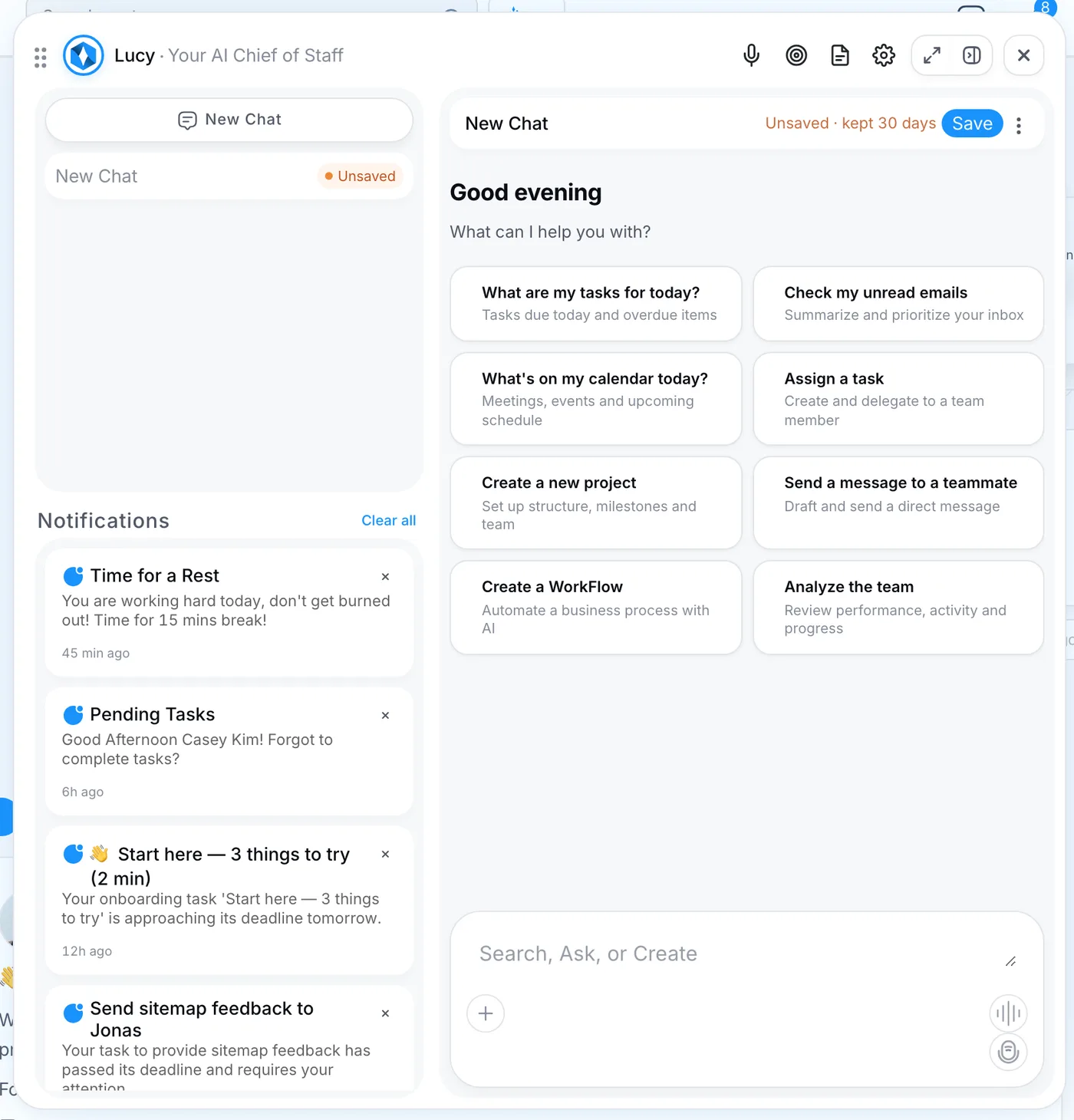
- Click AI at the top of any screen, or the Lucy button on Home. The keyboard shortcut is ⌘K on a Mac and Ctrl+K on Windows.
- Lucy opens in a panel. On the left are your chats and your notifications; on the right is the conversation.
- Pick one of the suggestions, such as What are my tasks for today? or Create a new project, or type in the box at the bottom. Click the microphone at the top of the panel to talk instead of typing.
Ask your first question
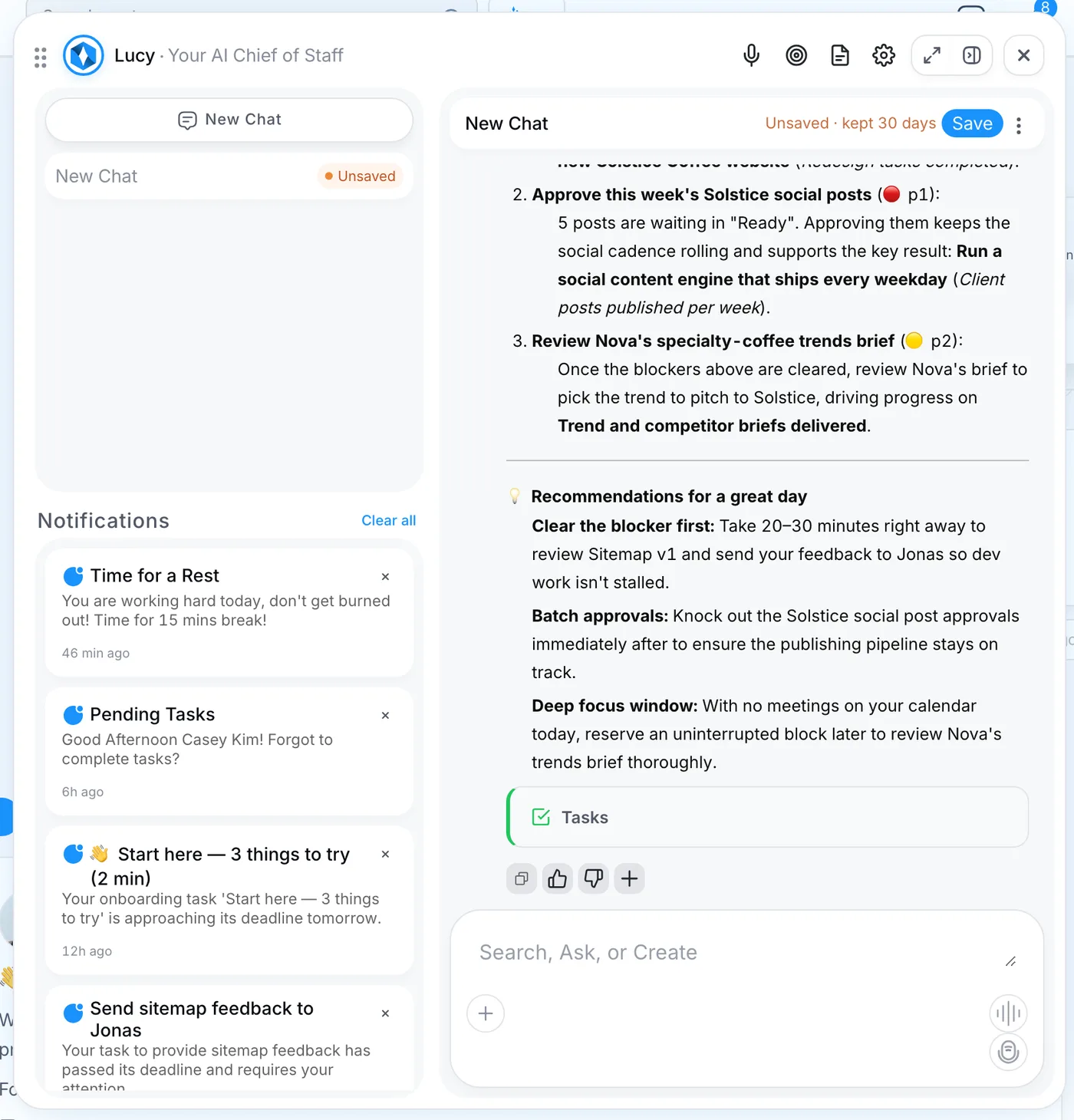
- Type a question, for example “What should I focus on today?”, and press Enter.
- Lucy reads your tasks, deadlines, goals and calendar and answers in a few seconds. In the demo she put the overdue task that blocks a colleague first and explained why.
- Ask a follow-up in the same chat: “Move the second one to tomorrow” or “Draft the message to Jonas.”
- When Lucy is about to change something, such as creating a task, sending a message or booking a meeting, she shows you exactly what she will do and waits for your OK.
New chats are kept for 30 days. Click Save at the top of a chat to keep it for good.
What Lucy can do in PeerBie
- Tasks and projects: create, assign and update tasks, summarise a project, find what is overdue or blocked, and draft a whole project from a sentence.
- Meetings: book Zoom, Google Meet or Teams meetings, join them to take notes, and answer questions about what was decided. See Meetings & notes.
- Email and calendar: read and summarise your inbox, draft replies, check your schedule and find a time, once your Google or Microsoft 365 account is connected.
- Files: open a file in Google Drive, OneDrive or SharePoint when you ask about it, and write a Word, PDF or Google Docs file and attach it to a task.
- Goals: draft goals and key results, check which ones are slipping and log a check-in. See Goals & OKRs.
- Workflows: design a workflow from a description and start runs. See Workflows.
- Team updates: what the team finished this week, who is overloaded and what is stuck.
- The web: search the internet and answer with sources.
40 things worth asking
To start the day
- What should I focus on today?
- What is overdue, and what is due this week?
- What meetings do I have today, and what do I need for each?
- Any emails I must answer today?
- What happened in the team yesterday?
Tasks
- Create a task for Jonas: send the sitemap by Friday.
- Turn this list into tasks for the Solstice project: …
- Move the hero copy review to Monday.
- Mark the budget review as done.
- What is Sofia working on this week?
- Which tasks are blocking other people?
Projects and the team
- How is the Solstice Coffee website project going?
- What is at risk in my projects, and why?
- Create a project for the Nimbus Fitness launch, with sections and tasks.
- Who has the most open tasks right now?
- Summarise what the design team did this week.
- Write this week’s status update for the client.
Meetings and notes
- Book a 30-minute Google Meet with Deniz and Maya tomorrow afternoon.
- What did we decide in the Solstice launch review?
- Turn the action items from yesterday’s team sync into tasks.
- Join my 3 pm call and take notes.
- What did the client say about the photography?
Email and calendar
- Summarise my unread emails.
- Draft a reply to the latest email from Solstice: we will send the menu page on Thursday.
- When are Maya, Jonas and I all free for an hour this week?
- Block two hours tomorrow morning for focus work.
Goals
- Draft our Q1 goals from this sentence: grow retainer revenue and keep every client happy.
- Which goals are behind pace?
- Log a check-in: 61 qualified leads this month, confidence medium.
- Which projects move our revenue goal?
Files and documents
- What does the Solstice launch brief say about the deadline?
- Write a one-page project summary as a Word file and attach it to the task.
- Compare the two proposals in our shared folder.
For leaders
- What are the three things I should know this week?
- Which teams are behind, and what would help?
- Prepare my one-to-one with Deniz: what did she work on in the last two weeks?
- How many tasks did we finish this month compared with last month?
Anything else
- Find three recent trends in specialty-coffee marketing, with sources.
- Make this message friendlier: …
- Explain how our approval workflow works.
Routines: things Lucy does every time
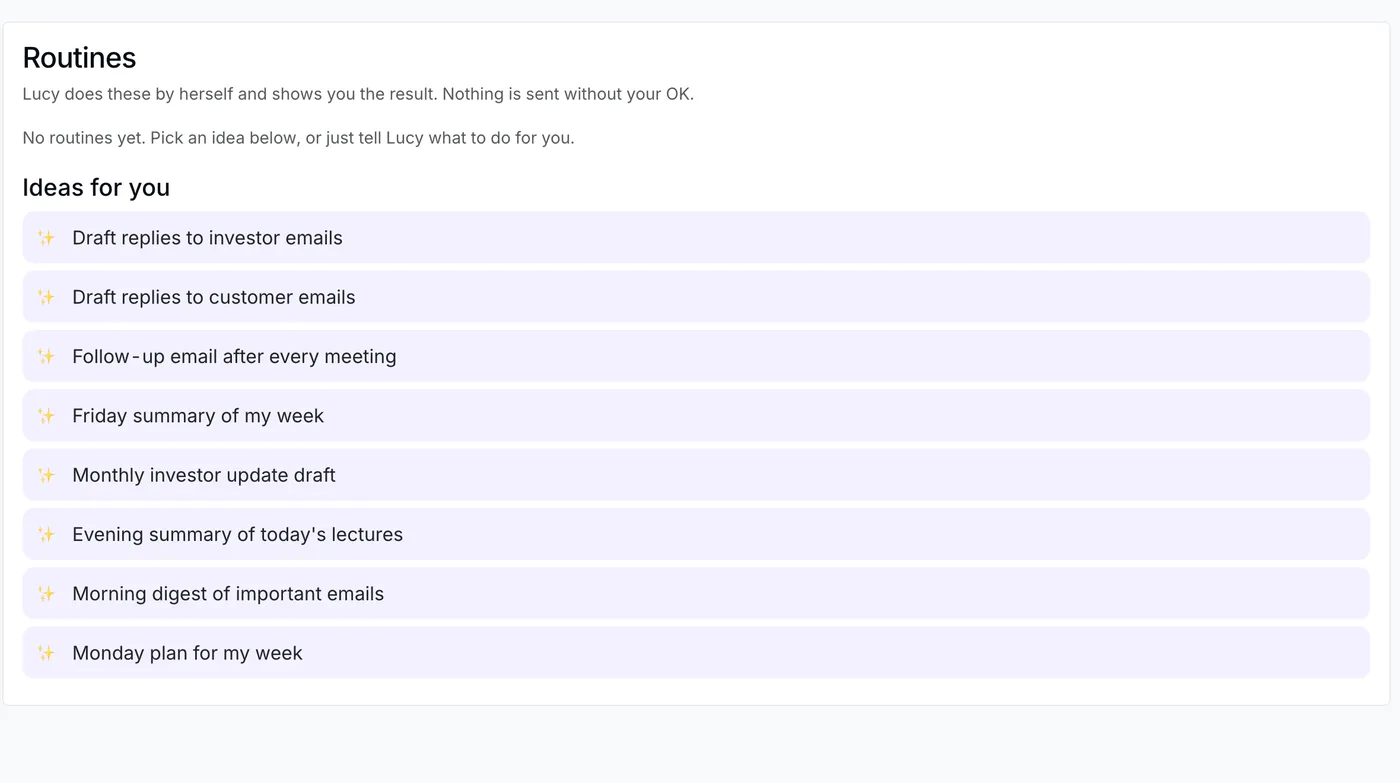
- Open Routines in the left menu.
- Pick an idea, such as Friday summary of my week or Follow-up email after every meeting, or tell Lucy in a chat, for example “Every time a customer emails me, draft a reply in my tone.”
- Lucy confirms the routine in one sentence. From then on she prepares the result and shows it to you. Nothing is sent until you approve it.
Notifications
Lucy’s panel also lists your notifications: new tasks, mentions, comments, reminders and updates from your AI employees. Click one to open it, or clear them once you have seen them. You choose how much you hear in your notification settings: Everything, Only about me, or None.
Good habits
- Say who, what and when. “Create a task for Jonas to send the sitemap by Friday” works better than “remind Jonas”.
- Use names as they appear in PeerBie. Lucy matches people and projects by name.
- Keep one topic per chat. It makes chats easier to find and to save.
- Ask Lucy instead of a status meeting. “How is the Solstice project going?” often answers what a meeting would.
More: Lucy & AI employees · Pricing
Questions
Is Lucy included in every PeerBie plan?
No. Lucy comes with the Lucy AI add-on, $20 per user a month on Pro and above. The 14-day free trial includes it, so you can try everything in this guide first.
Can Lucy see everything in the workspace?
Lucy works with what you can see in PeerBie. She opens your email, calendar or files only when a question needs them, and only after you have connected that account.
Will Lucy send something without asking me?
No. Before she sends a message or an email, creates or changes work, or invites people to a meeting, she shows you what she is about to do and waits for your OK. Routines work the same way.
How long are my chats kept?
New chats are kept for 30 days. Click Save at the top of a chat to keep it.
Is Lucy in PeerBie the same as the Lucy app?
It is the same assistant. The Lucy app is a personal app for your own meetings, notes and tasks. Lucy in PeerBie works for your whole team, with your projects, goals, chat and AI employees.
