
Tasks & Projects in PeerBie: A Step-by-Step Guide
A project in PeerBie holds related work: its tasks, the people involved, its costs and its reports. A task is one piece of work with an owner and a due date. This guide walks through both, using the “Website Redesign — Solstice Coffee” project from our demo workspace, Brightloop Agency. You can open the same project in the live demo.
Your projects at a glance
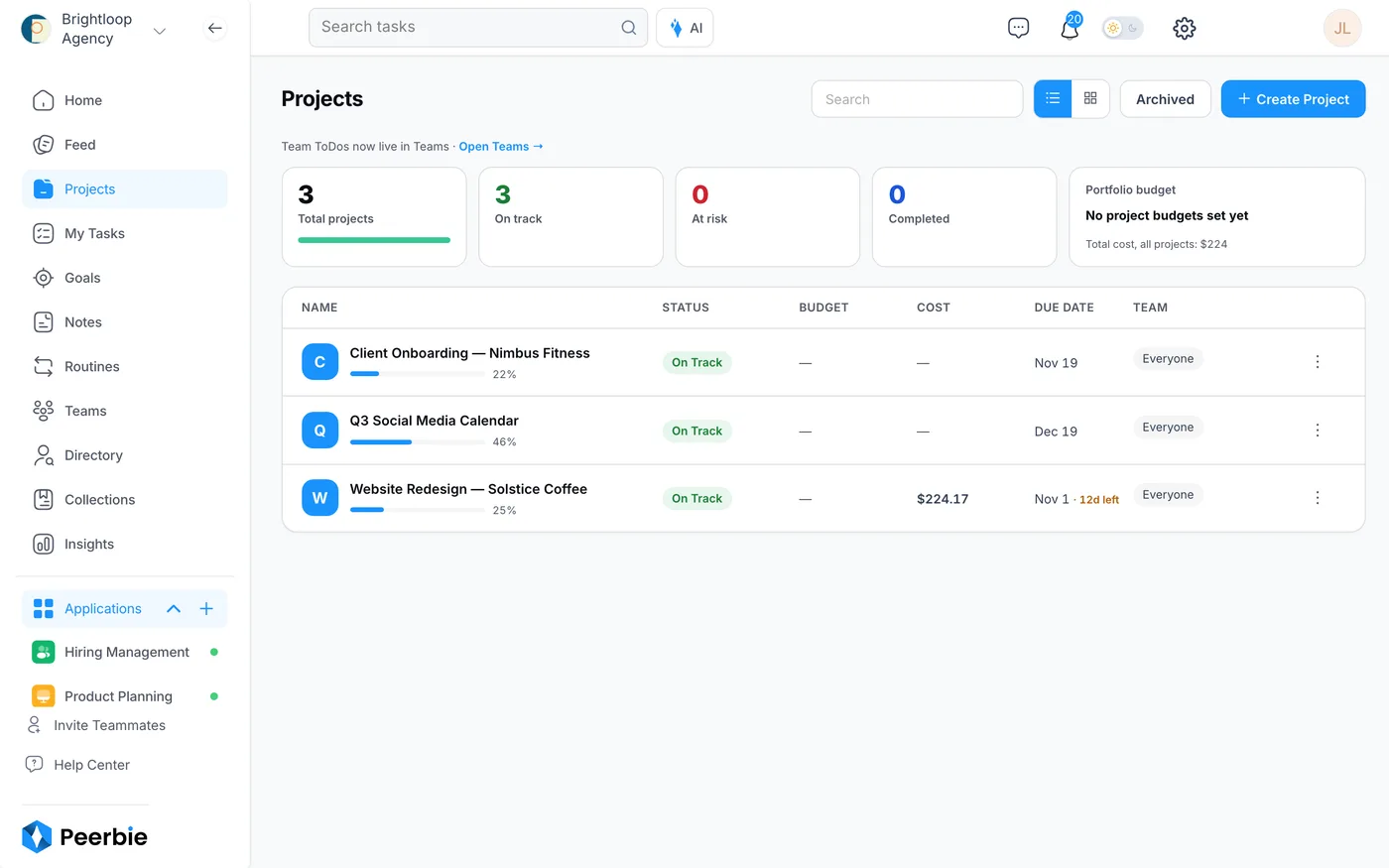
Open Projects in the left menu. The top row counts your projects that are on track, at risk and completed, and shows the budget across all of them. Each row shows a project’s progress, status, budget, cost to date, due date and team. Switch between List and Cards at the top right; finished projects live under Archived.
Create a project
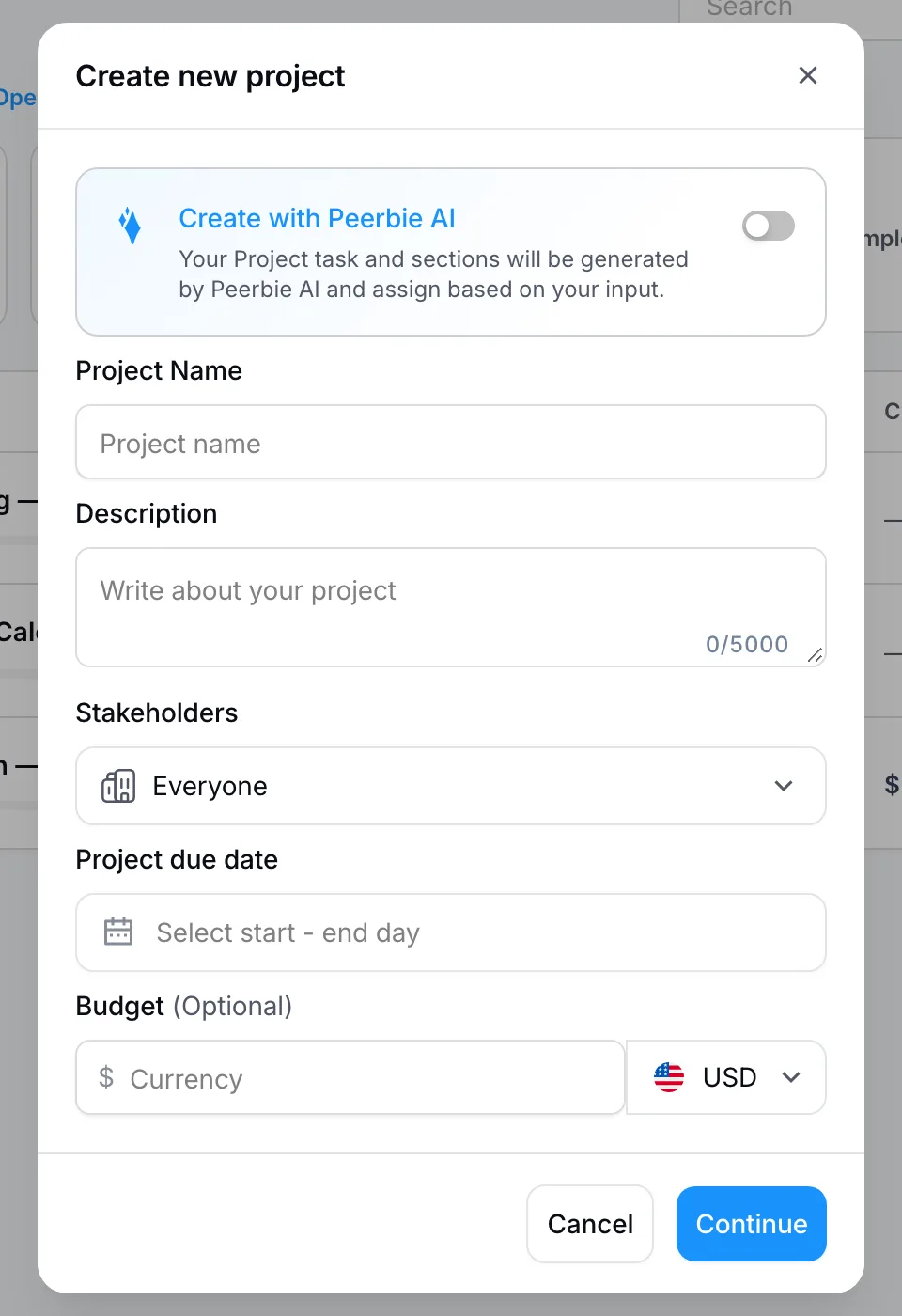
- Click Create Project.
- Type a name and a short description. Optional: switch on the AI option at the top of the window, and PeerBie drafts the sections and tasks from your description.
- Choose the Stakeholders (everyone, or one team), the due date and, if you want to track costs, a budget and its currency.
- Click Continue. The project opens on its Overview tab.
Before you start a bigger project: write a one-line goal in the description, make sure every task has one owner and a due date, and set priorities sparingly. If everything is urgent, nothing is.
The six project tabs
Overview
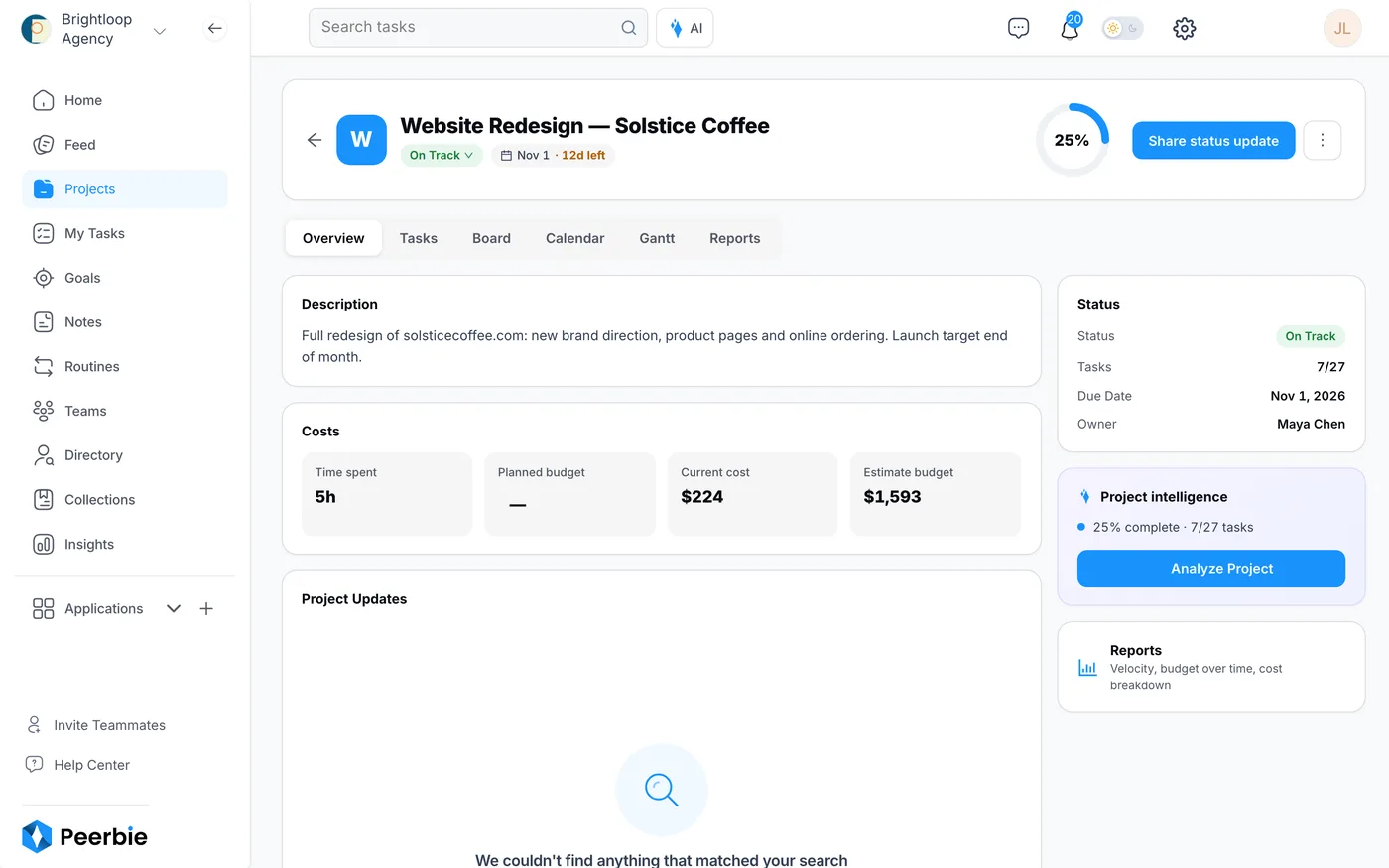
The Overview shows the description, the time spent, the current cost against the budget, the status, how many tasks are done and the owner. Click Share status update at the top to post a short update for everyone on the project.
With the Lucy AI add-on, Project intelligence has an Analyze Project button. Lucy reads the project and tells you what is going well, what is at risk and what to do next.
Tasks
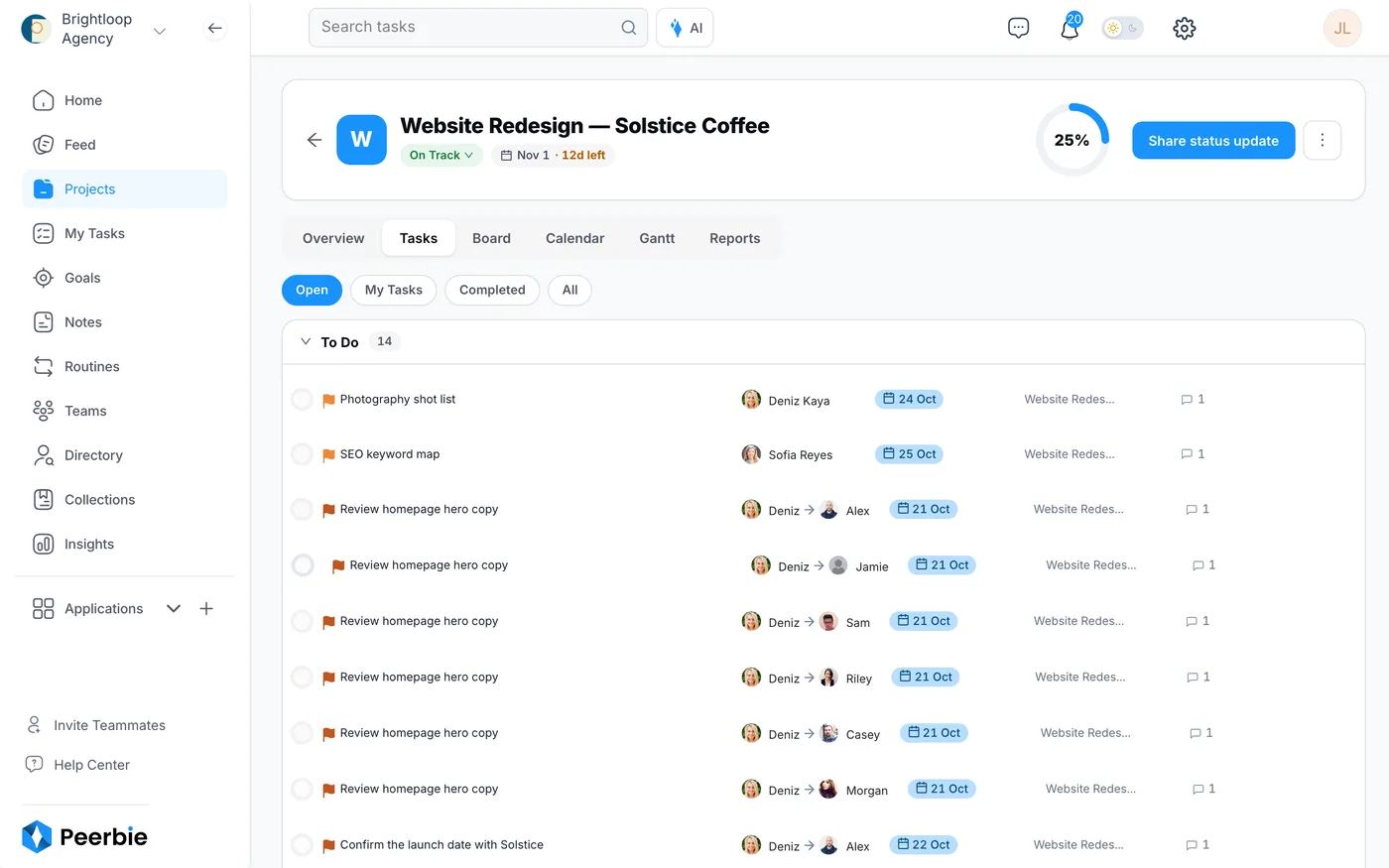
Every task in the project, grouped by section. Use Open, My Tasks, Completed and All to filter.
Board
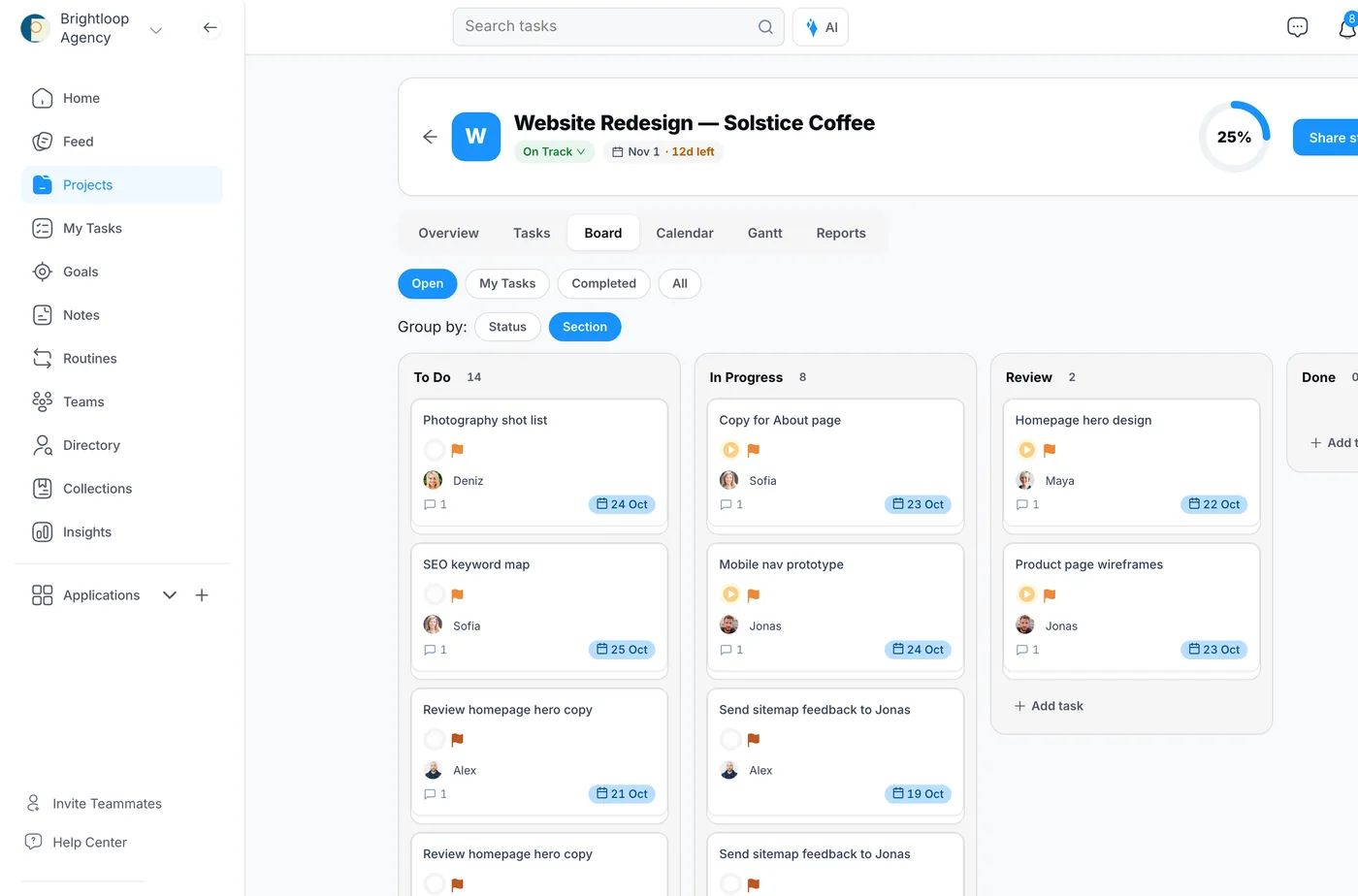
- Open Board.
- Next to Group by, choose Status (Open, In Progress, Closed, Paused) or Section (your own columns, such as To Do, Review and Done).
- Drag a card to another column to move it. Click + Add task at the bottom of a column to add a task straight into it.
Calendar and Gantt
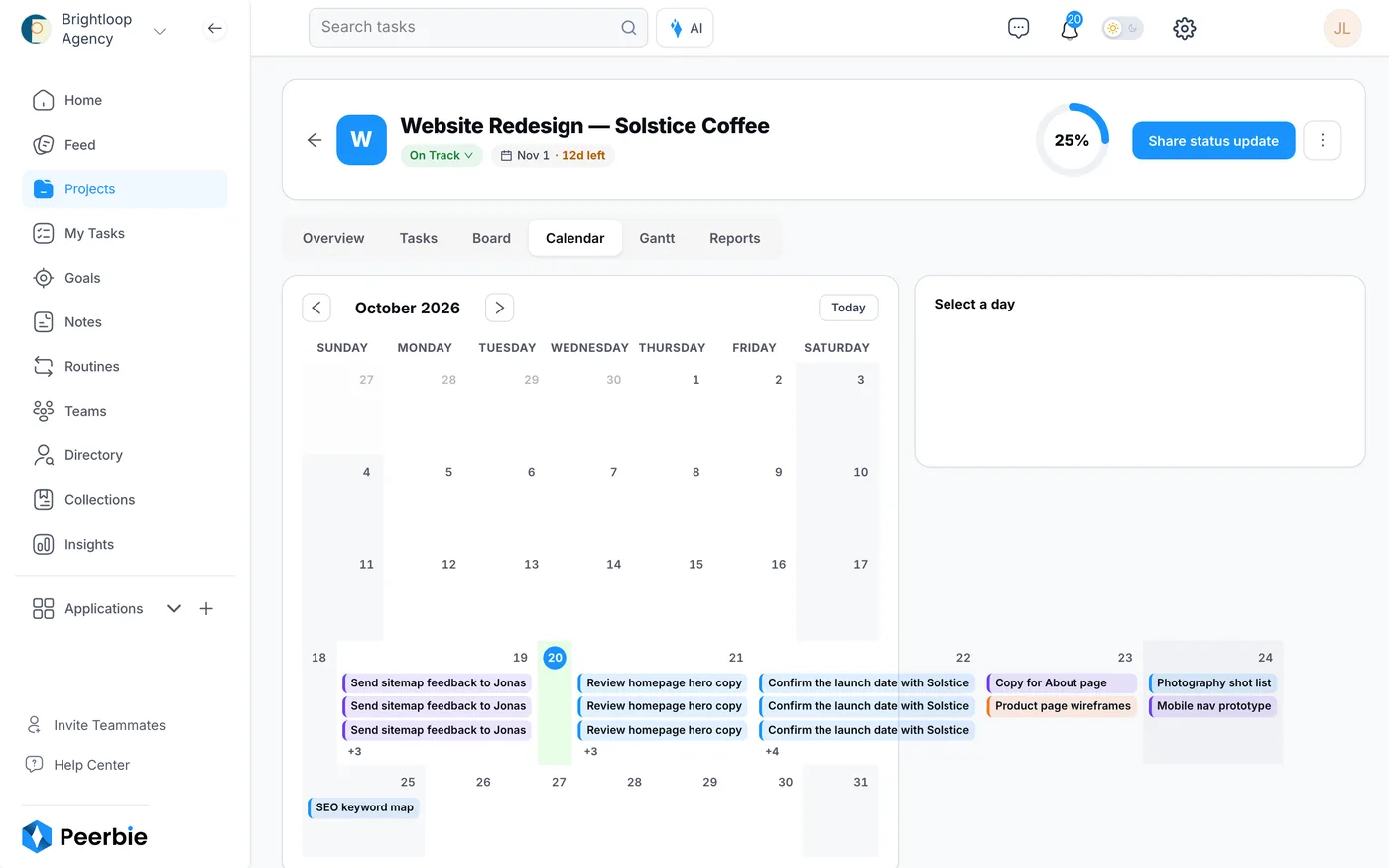
The Calendar puts every task on its due date; click a day to see its tasks. The Gantt tab shows the same work as bars on a timeline, by day, week, month or year, so you can see what overlaps and what depends on what.
Reports
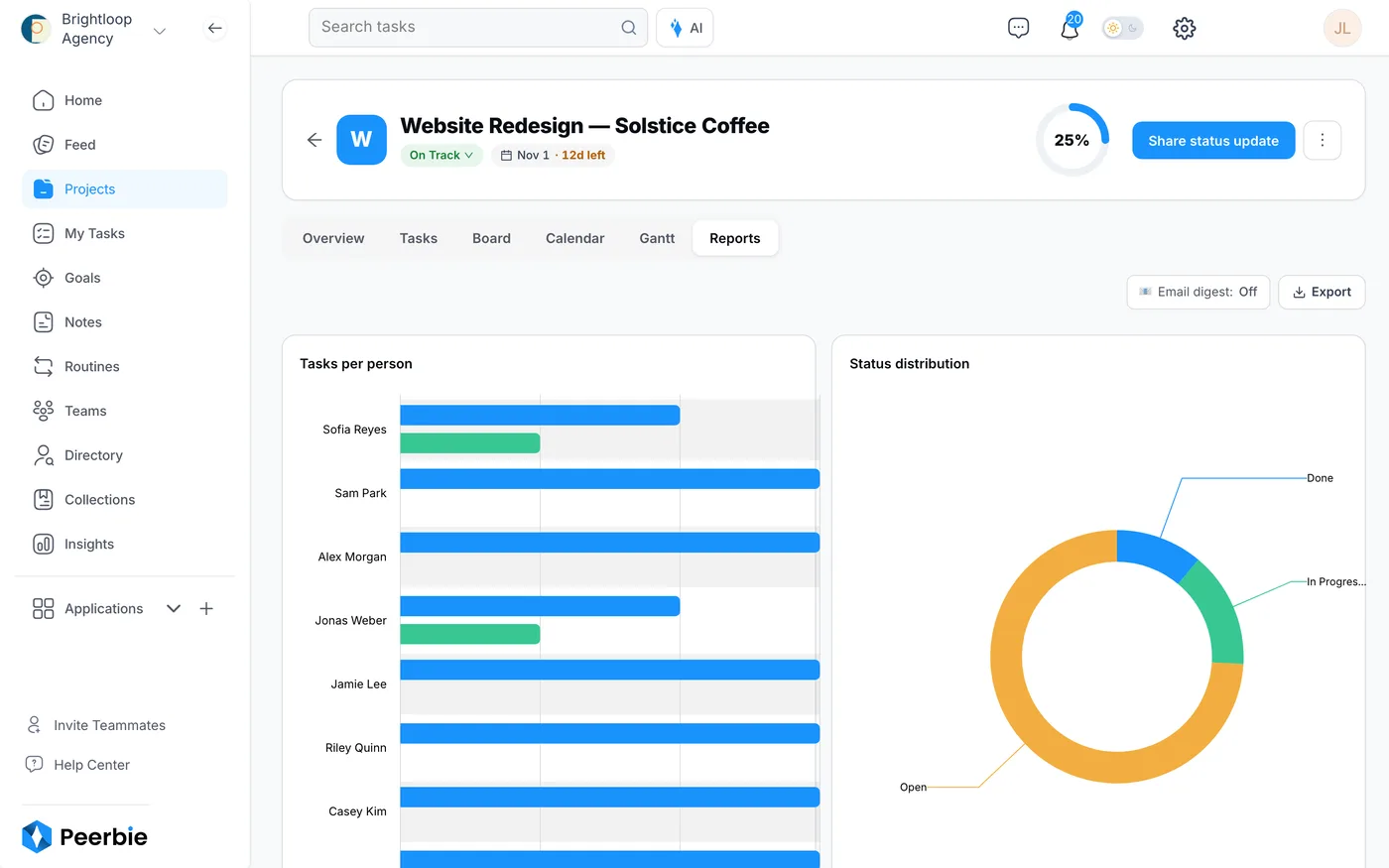
Reports show tasks per person, the status of all tasks and the open tasks that are blocking others. Click Export to download the data, or switch on the Email digest to receive the report by email. Paid plans add velocity and burn-up charts.
Work on a task
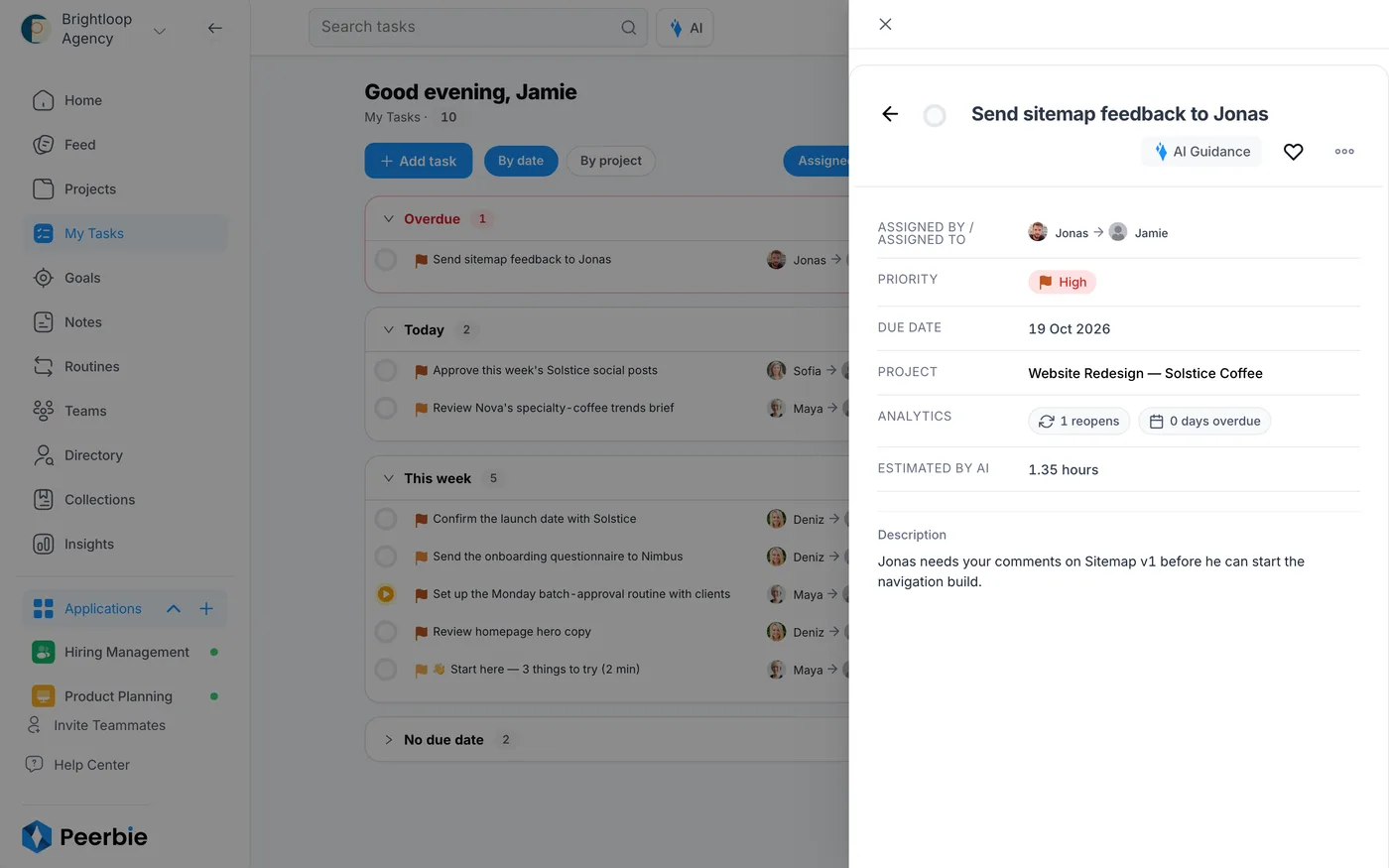
- Click any task to open it on the right.
- See and change who assigned it and who does it, the priority, the due date and the project.
- Read the description and add a comment at the bottom. Type @ and a name to bring someone in.
- The Analytics row shows how often the task was reopened and how many days it is overdue. PeerBie also estimates how long it will take.
- With the Lucy AI add-on, click AI Guidance for a suggested way to get the task done.
Tasks can repeat, for example every Monday, and you can start, pause and finish a task to track the time spent on it.
My Tasks: everything assigned to you
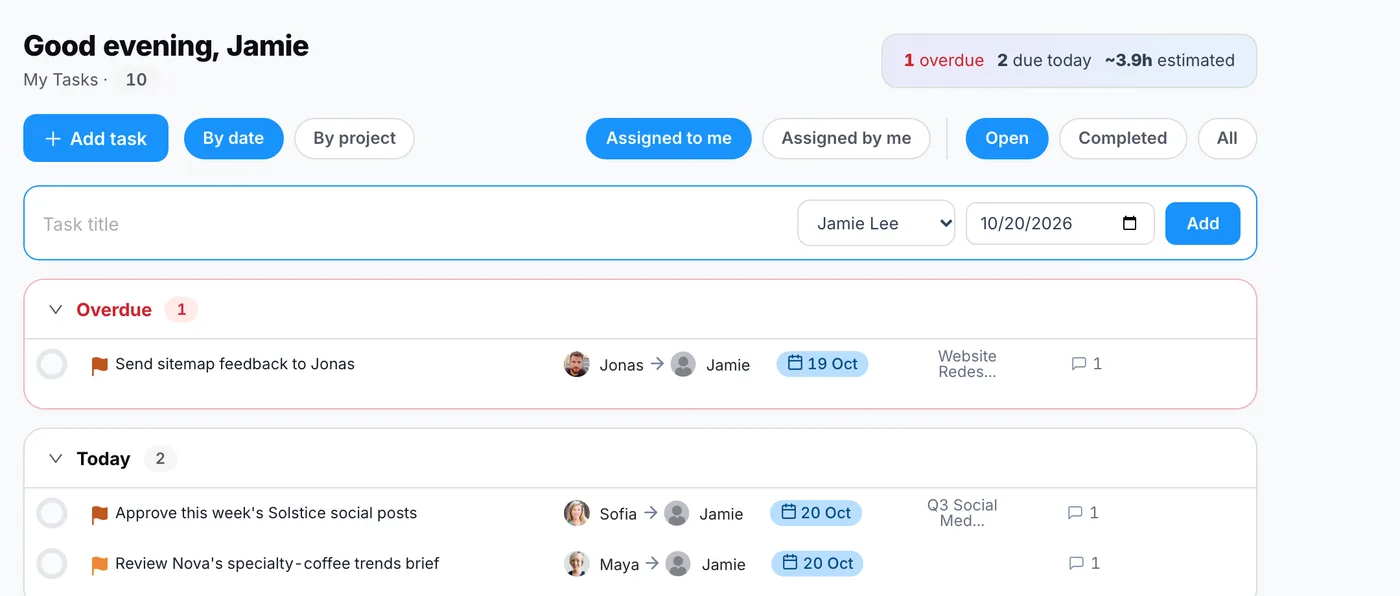
- Open My Tasks in the left menu. You see every task assigned to you, across all projects, grouped into overdue, today, this week and later.
- Click Add task, type a title, choose a person and a date, and click Add.
- Use By date or By project, Assigned to me or Assigned by me, and Open, Completed or All to change the view.
Costs and budgets
Each project shows what it costs: the time spent on its tasks multiplied by each person’s hourly rate. Set a budget when you create the project. The project owner and workspace admins are alerted when the cost reaches 80% and 100% of the budget. An admin chooses the currency in the workspace settings.
When a project ends
- Ask the team three questions: what went well, what slowed us down, and what would we do differently? A poll in the feed works well for this.
- With the Lucy AI add-on, use Analyze Project for a summary of what finished on time and where work got stuck.
- Post a short thank-you in the feed and mention everyone who worked on it.
- Archive the project. It leaves the active list but stays searchable under Archived.
More: Project management in PeerBie · Pricing
Questions
What is the difference between a section and a status?
Sections are your own columns, such as To Do, Review and Done. Status is the same for every project: Open, In Progress, Closed or Paused. On the Board you can group by either.
Can I get a project’s report by email?
Yes. On the project’s Reports tab, switch on the Email digest. Click Export to download the numbers instead.
Can I see all my tasks from every project in one place?
Yes. My Tasks shows everything assigned to you, from every project, and Home shows the same list in short.
Can Lucy create tasks for me?
Yes, with the Lucy AI add-on ($20 per user a month on Pro and above). Ask her, for example, “Create a task for Jonas to send the sitemap by Friday.” She shows you the task before she creates it. See Lucy basics.
