
Connections & Integrations: Google, Microsoft 365, Slack, Zoom and More
PeerBie works with the tools your team already uses: more than 30 integrations, from Gmail and Outlook to Slack, HubSpot and SharePoint. Everything you connect lives on one page, Connections, where you see what each account powers, where it is used, and can disconnect it at any time. The screenshots come from our demo workspace, Brightloop Agency, which you can open in the live demo.
There are three kinds of connections:
- Your accounts: your own Google, Microsoft 365 and Zoom. They power your meetings, and Lucy’s work with your mail, calendar and files.
- Work tools: Slack, HubSpot, Notion and the like, which you share with a workspace so its AI employees can use them.
- Apps using your PeerBie: outside assistants such as Claude and ChatGPT that you allow to read, and if you want, change your PeerBie work.
Open Connections
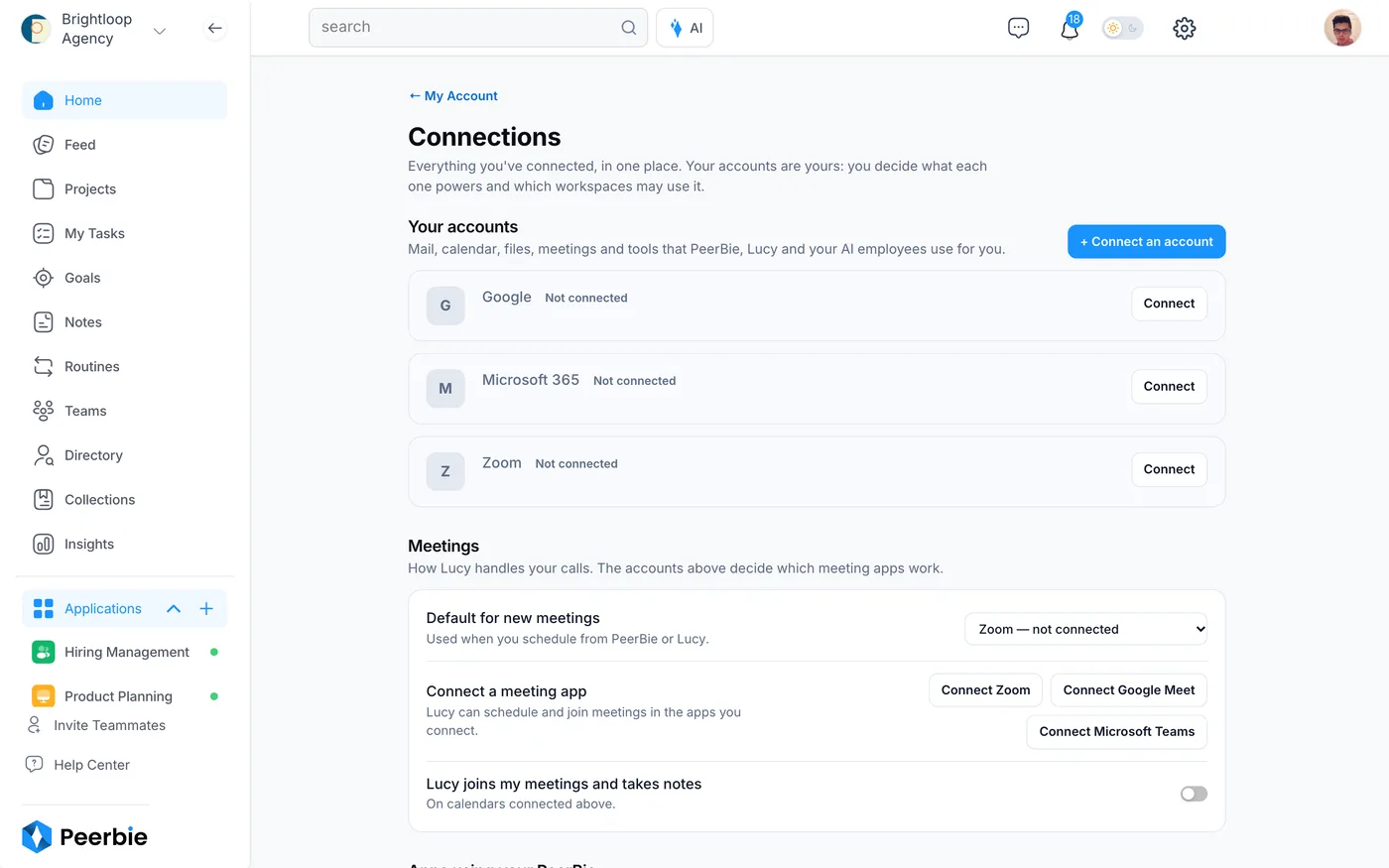
- Click your photo at the top right and choose My Account.
- Under Connections, click Manage. You can also open it from the gear icon (⚙) → Connections.
- Your accounts lists Google, Microsoft 365 and Zoom, connected or not. Each connected account shows its address, when it was last used and where it is used.
Connect an account
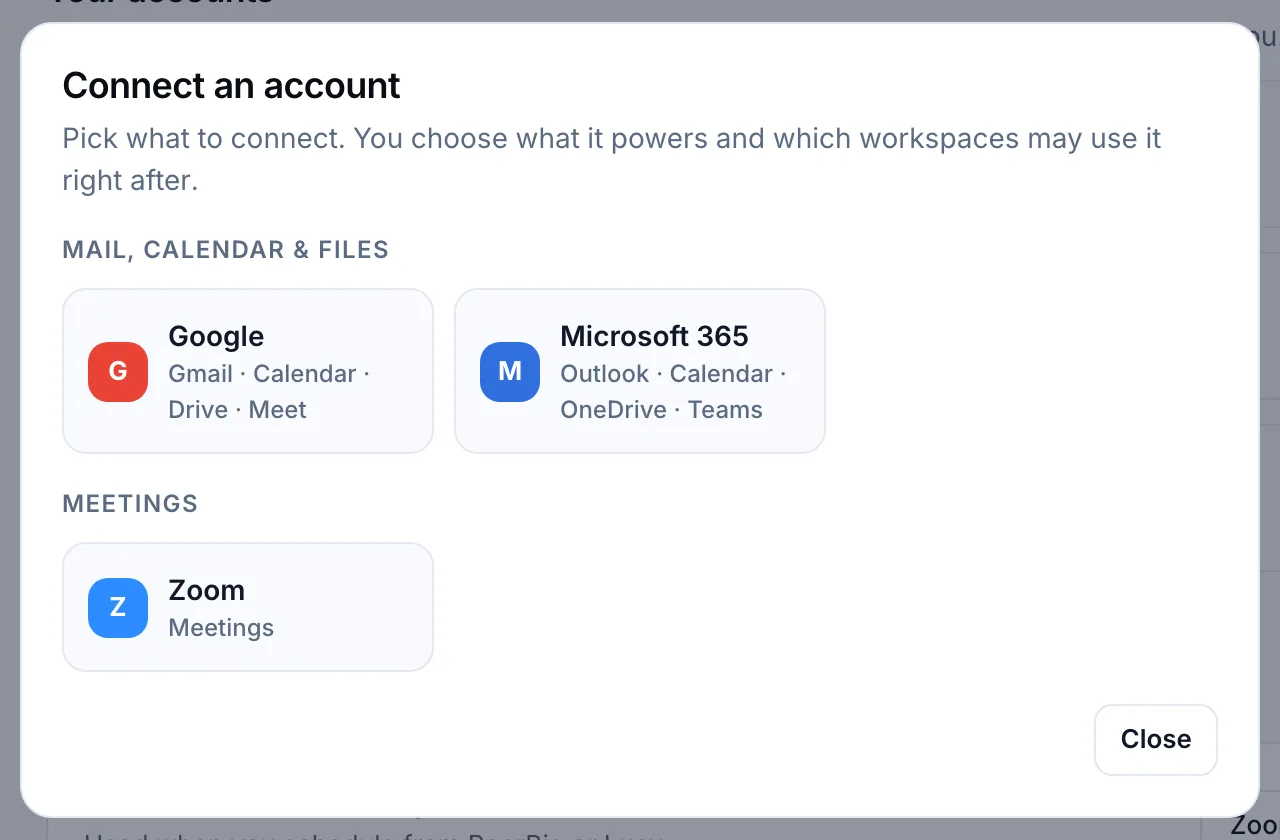
- Click + Connect an account, or Connect next to the account you want.
- Pick Google (Gmail · Calendar · Drive · Meet), Microsoft 365 (Outlook · Calendar · OneDrive · Teams) or Zoom. Depending on your role, the list also offers Work tools such as Slack or HubSpot.
- Sign in with that company and allow access. You come back to PeerBie.
- Choose what the account powers with the switches under it: Mail, Calendar, Files and Meetings. Untick one and it stops being used, everywhere.
- Open Where it’s used — workspaces & AI employees to choose which of your workspaces may use the account. The account stays yours.
If an account shows Needs reconnect, click Reconnect and sign in again. Disconnect stops it everywhere at once: Lucy, meetings and every workspace that uses it.
What each account does
- Google: Lucy reads your Gmail when you ask, sums up threads and drafts replies, and sends only after you approve. She reads your Google Calendar, finds free time and adds events. She opens a Google Drive file when you ask about it. PeerBie books Google Meet calls.
- Microsoft 365: the same for Outlook mail and calendar, plus Teams meetings and your OneDrive and SharePoint files (see below).
- Zoom: PeerBie and Lucy create Zoom meetings for you. Your AI employees use your Zoom when they set up meetings for you.
Lucy reads files on request only, never in the background, and handles files up to 25 MB today. Working with your mail, calendar and files needs the Lucy AI add-on ($20 per user a month on Pro and above, included in the 14-day trial). Booking meetings works on every plan.
PeerBie does not copy your tasks into Google Calendar. Lucy reads your calendar when you ask, and adds events for you when you tell her to.
Microsoft 365: Outlook, Teams, OneDrive and SharePoint
- Connect Microsoft 365 as above. Work, school and personal Microsoft accounts all work.
- Outlook: Lucy reads and answers your mail with your OK, and works with your Outlook calendar for your morning brief and for booking.
- Teams: create a Teams meeting from a post or ask Lucy; it goes on your own Outlook calendar. Lucy’s note-taker can join your Teams calls and bring back the action items as tasks.
- OneDrive and SharePoint: ask about a file and Lucy finds it, reads it and answers. Files up to 25 MB are read today; a larger file is not opened. Turn on Files for the account first.
- AI employees can work in SharePoint, create Word and Excel files, post to Teams channels and send from Outlook, once a workspace admin connects those tools for them, one at a time.
If your company only lets IT approve new apps, Microsoft asks for an admin’s approval the first time. Your Microsoft 365 admin approves PeerBie once for the whole company; each person still connects their own account. PeerBie Inc is a Microsoft verified publisher. The steps for IT are on the Microsoft 365 page.
Meetings: Zoom, Google Meet and Teams
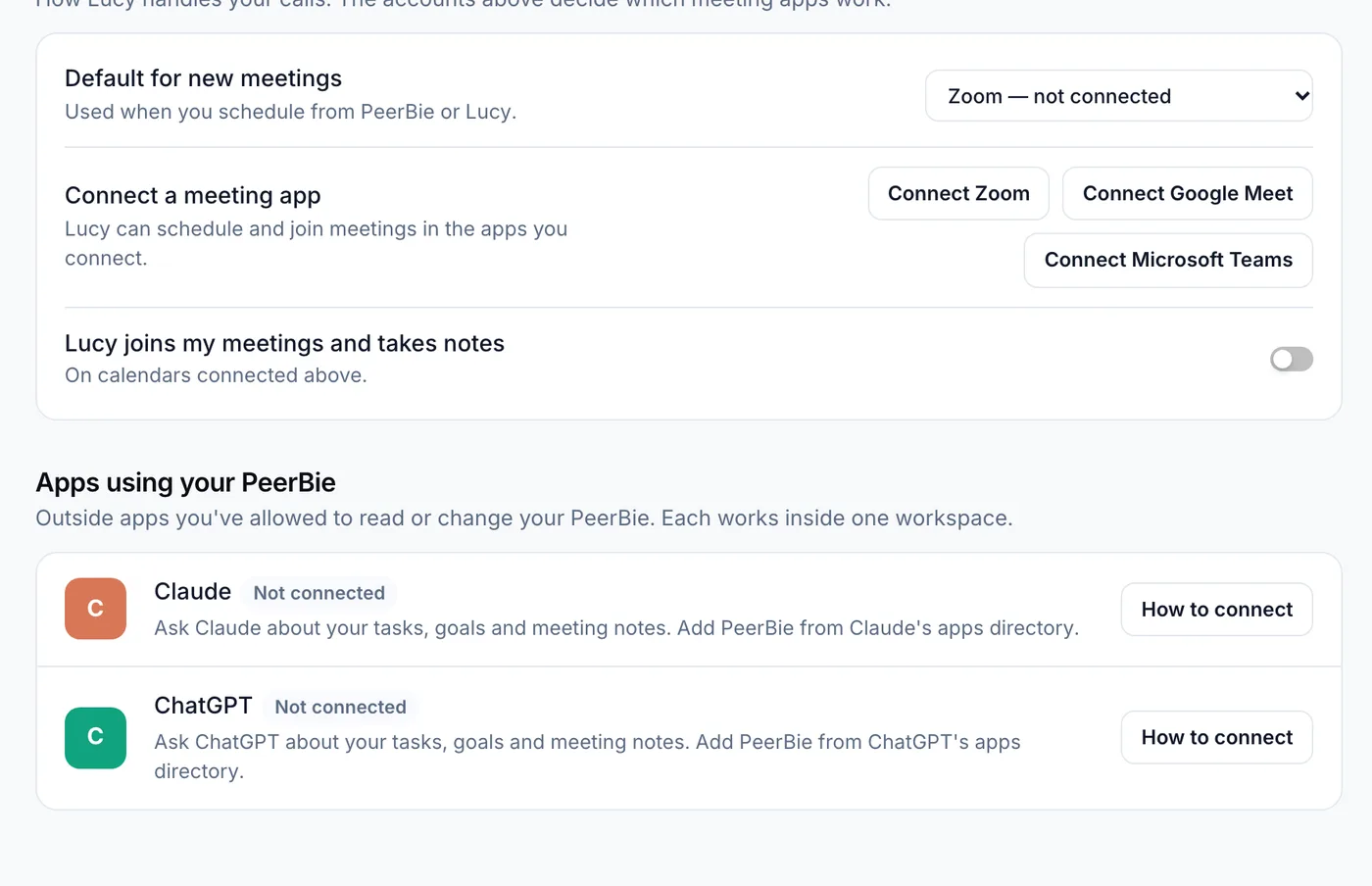
- Under Meetings, pick the Default for new meetings: Zoom, Google Meet or Microsoft Teams.
- Use Connect a meeting app for any app that is not connected yet.
- Switch on Lucy joins my meetings and takes notes and Lucy’s note-taker joins the meetings on your connected calendars.
Everything about meeting notes is in Meetings & notes. Zoom set-up details: Connect Zoom.
Work tools and AI employees
AI employees use work tools on the workspace’s behalf: Gmail or Outlook, Google Sheets, Slack, HubSpot, Notion, Pipedrive, Asana, Linear, GitHub, Airtable, Dropbox, LinkedIn and more. See all integrations.
- The quickest way is while hiring: the Next: Connect Tools → step lists the tools the role needs. See AI employees.
- Or open Connections → + Connect an account → Work tools, pick the tool and sign in.
- A work tool stays owned by the person who connected it, who chooses which workspaces may use it. Every AI employee in that workspace that needs the tool uses the same account.
- Disconnecting a work tool stops the AI employees in every workspace you shared it with from using it.
Slack: the PeerBie app for Slack brings PeerBie into your Slack, including weekly goal check-ins. See PeerBie for Slack.
Use PeerBie from Claude or ChatGPT
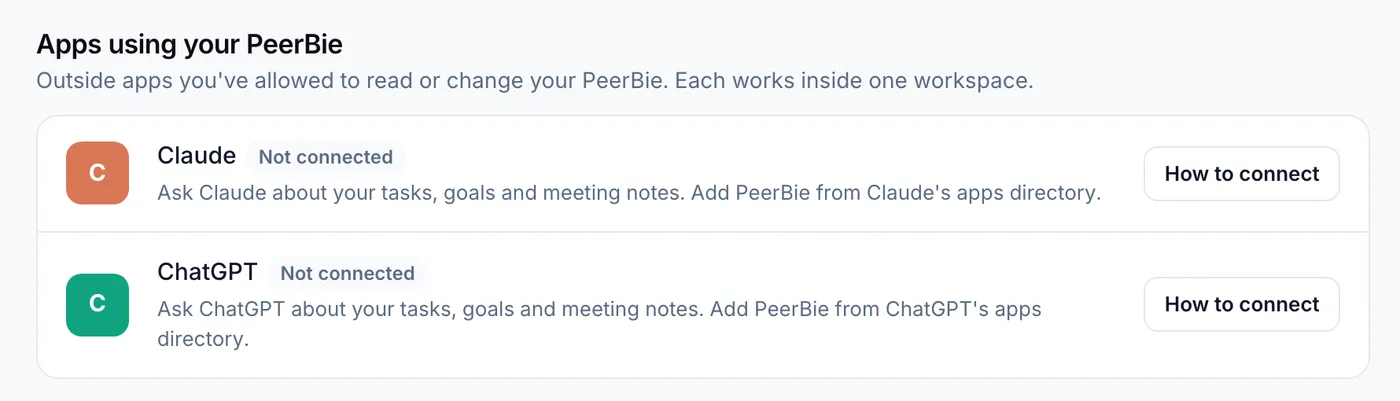
The PeerBie connector lets Claude or ChatGPT read your tasks, goals and meeting notes, and if you allow it, update them.
- In Connections, under Apps using your PeerBie, click How to connect next to Claude or ChatGPT.
- In Claude, add PeerBie from Claude’s apps directory. In ChatGPT, add it in developer mode for now; How to connect shows the steps. Then sign in to PeerBie and pick the one workspace it may use.
- Choose “Read only” or “Read and change”. There are no delete tools, so nothing can be deleted this way.
- Back in Connections, the app shows as connected. Change workspace moves it to another workspace without reconnecting; Disconnect cuts it off right away.
More, including what it can do: PeerBie for Claude and ChatGPT.
Questions
How many integrations does PeerBie have?
More than 30 with real actions, including Gmail, Google Calendar, Drive, Docs and Sheets, Outlook, OneDrive, SharePoint, Teams, Slack, Zoom, HubSpot, Notion, Asana, Linear and GitHub. See all integrations.
Can Lucy read big files from SharePoint or OneDrive?
She reads files up to 25 MB today, when you ask about them. She does not scan your drive in the background.
Can my admin see my email if I connect it?
No. Your Google or Microsoft account is yours. Lucy only uses it for you, and you decide which workspaces may use it on the Connections page.
Do my tasks show up in Google Calendar?
No, PeerBie does not copy tasks into Google Calendar. Lucy reads your calendar when you ask and adds events when you tell her to.
What happens when I disconnect an account?
It stops working everywhere straight away: for Lucy, for meetings and in every workspace that used it. What was derived from your mail and files is deleted.
