
Workflows that start themselves.
Forms, stages and approvals on one canvas, with no code. Describe the process to Lucy and she lays it out. Then let it start on its own — from an email, a schedule, a webhook, Claude or anything that happens in PeerBie.
Up to 5 workflows free · unlimited from Basic
One item, from request to done.
A form comes in, an AI employee reads it, a rule sends it to the right person, and the client’s reply finishes the job.
Everything a process needs. Nothing to code.
Requests, approvals, intake, onboarding, reviews — any repeatable process becomes a workflow your team can see.
Forms
The fields you need, filled in by your team — or shared by link with people outside your workspace. Every submission becomes an item that moves through the stages.
Stages and owners
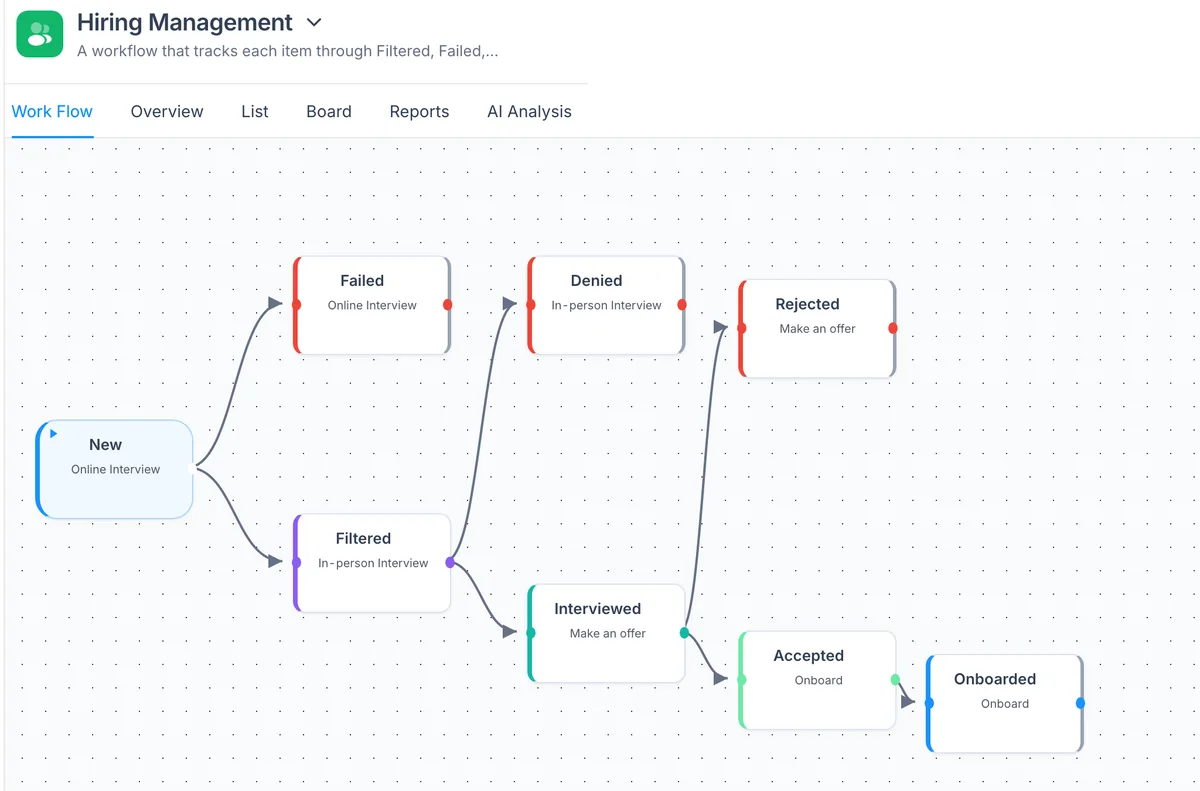
Lay the steps out on a freeform canvas. Each stage has an owner — a person on your team, or an AI employee.
Approvals
Put a person at any point in the flow, so nothing goes further until they have looked at it.
Ready-made apps
Start from a ready-made app instead of a blank canvas, and change it to fit your team.
Everyone knows their turn
When an item reaches a stage, its owner is notified. Everyone can see where each item is.
On your phone, too
See how each workflow starts, and pause or resume it, in the PeerBie app for iPhone and Android.
Run log
A step-by-step history of every item: who moved it, what each AI employee did, and why.
Automatic retries
If an AI step can’t reach its tools for a moment, PeerBie tries again by itself and tells you if it still can’t.
Wait steps
“Wait 3 days, then go to Follow-up” — or wait until a date in the form.
App steps without AI
Add a row to Google Sheets, post in Slack or Teams, send a Gmail — the same way every time, filled from the item’s fields.
Webhook steps
Send an item’s details to any other system when it reaches a stage.
Describe it in a sentence. Lucy lays it out.
Tell Lucy what should happen — or use the AI builder on the web. She proposes the form, the stages, the owners and how it starts. You look it over, change what you want and publish.
- Drafts first. Whatever Lucy builds stays a draft until you publish it. Automatic starts wait for the published version.
- Say how it should start, in plain words: “every Monday at 9” or “when an investor emails us”.
- Manage the starts by chat, too: “Pause the investor workflow until Monday.”
- Starts when an email matches “Is this from an investor?”Gmail
- Form: sender, fund, what they ask4 fields
- Research & draft replyRemy
- ApprovalYou
Seven ways a workflow can start.
A form is only the beginning. Open a workflow, choose Starts when…, and add as many starts as you need.
Someone fills in the form
The classic start, in PeerBie or through a shared link.
An email arrives
Gmail or Outlook (Microsoft 365) — Outlook is checked every few minutes.Match the sender, words in the subject or the body — or write a rule in plain words that AI checks. The sender, subject and body fill in the form.
On a schedule
Run it every day, week or month at a set time in your time zone — for example, the weekly report every Friday at 16:00.
A scheduled fill-in request
Ask everyone, certain people, roles or departments to fill in the form — say on the 1st of each month. Each person gets a task, a notification and a reminder, and it closes when they submit.
A webhook
Every workflow has its own web address. Any system that can send a web request can start it with data. Make a new address any time.
Claude, ChatGPT or the API
With the PeerBie connector, ask Claude or ChatGPT to start a workflow for you. Your own code can use the API.
Something happens in PeerBie
A task is completed, a new member joins, or another workflow finishes. That last one chains workflows together, up to three in a row.
The rows in the cards show example content.
Pause it. Nothing gets lost.
Going on holiday, or changing the process? Pause the starts of one workflow — or, as an admin, of the whole workspace — with an end date if you like.
- Emails are held, not dropped. When you resume, run them or discard them. They wait for up to 30 days.
- Scheduled runs are skipped while paused, and events are ignored.
- Forms, the webhook and assistants keep working, because a person or a system asked for them on purpose.
- From anywhere: the Starts when… panel on the web, “How it starts” in the PeerBie phone app, or just ask Lucy.
Weekly pipeline review · Mon 09:00
Rules move items for you. The moment they arrive.
Set a rule on any stage — one a person owns or one an AI employee owns — and matching items go straight to the right next step.
- When a field matches, go to a stage. Is, is not, contains, greater than, less than, is empty.
- Numbers the way people write them, like 10,000 or 10.000 TL.
- Or guide the AI instead: “For Finance requests, check the budget policy first.”
- Every move is noted on the item, so anyone can see why it went where it did.
Amount is greater than 10,000
Manager approval
Moved by rule: Amount > 10,000 → Manager approval
Watch it run. Before it goes live.
Press Test run on the workflow canvas and a sample item moves along the arrows, stage by stage. Your AI employees really do their work — but nothing leaves PeerBie.
- Nothing is sent. Emails, Slack messages, webhooks and notifications are only previewed, so you see exactly what would go out.
- AI employees really work. A side panel shows each AI decision and its reason, so you know why an item went where it did.
- At a person’s step, you choose the path — just as a real item would wait for someone. Then run it again and try another path.
- Every route, loops and endings included. Workflows Lucy designs can branch, loop back (On hold, Reopen) and end in more than one way (Won, Lost) — test each one.
Test runs are free: up to 10 a day per workspace.
Remy → Send quote. Reason: the email gives a budget and a start date.
Start from a real email
Paste an email, or pick a recent one from the mailbox the trigger watches — it is only read, never marked, labelled or moved. Each of the workflow’s email rules shows ✓ or ✗, along with the fields the email would fill. If it matches, the test run carries on.
Workflow Health
One panel lists every problem: a missing tool, a tool that isn’t connected, a paused AI employee, a broken route, or an AI asked to do something it has no tool for. Each comes with a one-click fix. Only problems that would fail in a real run block Publish.
Templates that keep up
The official template gallery shows what is Installed and when there is an Update. A new version installs side by side, so your workflow and its items stay as they are. Move items over from the older version when you are ready — with Undo.
What we are building next.
These are in development now. We will mark each one live on this page as it ships.
Zapier and Make Coming soon
Start a PeerBie workflow from Zapier or Make, and react when an item reaches a stage. Today you can already start one from a webhook.
What teams build.
A new member joins the workspace and the onboarding checklist starts by itself.
On the 1st, everyone is asked to fill in the form, with a reminder before it is due.
A Gmail rule catches enquiries; an AI employee researches the company; sales approves the reply.
Your monitoring tool calls the webhook and an IT request opens with the details filled in.
Start free. Grow without limits.
Workflows and their triggers are on every plan. The AI parts come with Lucy.
Free forever, for up to 5 people.
- Up to 5 workflows
- 3 ready-made apps + 2 of your own
For growing teams.
- Unlimited workflows
- Forms, stages, approvals and triggers
Everything in Basic, and the plan Lucy runs on.
- Unlimited workflows
- Ready for the Lucy add-on
On Pro and above.
- Workflows built by Lucy
- AI-employee stages
Prices per user per month, billed annually (monthly: Basic $13, Pro $19). Pro with Lucy is $35 per user a month. 14-day free trial. Enterprise: talk to us. Full pricing →
Questions people ask.
Do I need to code?
No. You build workflows on a canvas with forms, stages and approvals — or describe the process to Lucy or the AI builder and edit what they propose.
How can a workflow start?
From its form, an incoming email that matches your rules (Gmail or Outlook), a schedule, a scheduled fill-in request, a webhook, Claude or ChatGPT through the PeerBie connector, the API, or an event in PeerBie: a task completed, a member joining, or another workflow finishing.
Does the email trigger work with Outlook?
Yes. An email trigger reads the Gmail or Outlook (Microsoft 365) mailbox of the person who set it up. Gmail starts the workflow as soon as the email arrives; Outlook is checked every few minutes.
Will a workflow start while I’m still building it?
Emails, schedules and events only start published workflows. Lucy and the AI builder always create a draft, so nothing runs until you publish it.
What is a scheduled fill-in request?
A schedule that asks people to fill in the form instead of running it — for example, a monthly report on the 1st. Each person gets a task, a notification and a reminder, and the request closes when they submit.
Can an AI employee own a stage?
Yes, with the Lucy AI add-on. The AI employee does its stage with your connected tools and hands the result to the next stage, so a person can approve it before anything is sent.
How many workflows can I have?
Up to 5 on the free Starter plan: 3 ready-made apps and 2 of your own. Unlimited on Basic, Pro and Enterprise.
Can I pause a workflow?
Yes. Pause one workflow’s starts, or all of them for the workspace if you are an admin, optionally until a date. Matching emails are held for up to 30 days, and you choose to run or discard them when you resume.
Can I test a workflow before it goes live?
Yes. Press Test run on the canvas and a sample item moves through the workflow. AI employees really do their work, but emails, Slack messages, webhooks and notifications are only previewed, never sent. At a person’s step you choose the path. You can also start the test from a real email to check the workflow’s email rules. Test runs are free, up to 10 a day per workspace.
Describe the process. Let it run.
Start free with up to five workflows, or walk around the live demo first. Add Lucy when you want her to build them for you.