
AI Employees in PeerBie: What They Are, How to Hire One and How Approvals Work

AI employees are named AI teammates with a role, such as a Content Writer, a Data Analyst or an Executive Assistant. They sit in your Directory next to the people, take tasks, use the tools you connect for them, and propose work toward your goals. They never act on their own: a person approves first. The screenshots come from our demo workspace, Brightloop Agency, where the AI employee Nova works as a research analyst. You can open it in the live demo.
What you need: AI employees come with the Lucy AI add-on, $20 per user a month on Pro and above. Hiring them needs the Pro plan. The 14-day free trial includes both, so you can try everything in this guide.
AI employees and Lucy: what is the difference?
- Lucy is your own AI Chief of Staff. She works for you: your tasks, your inbox, your calendar, your questions. See Lucy basics.
- AI employees work for the team. Each one has a role, a department, its own tools and a memory, and anyone allowed can give it work, just as with a colleague.
- Lucy is also the quickest way to manage AI employees: hire one, check on its work or change its instructions, all by asking her.
Hire an AI employee
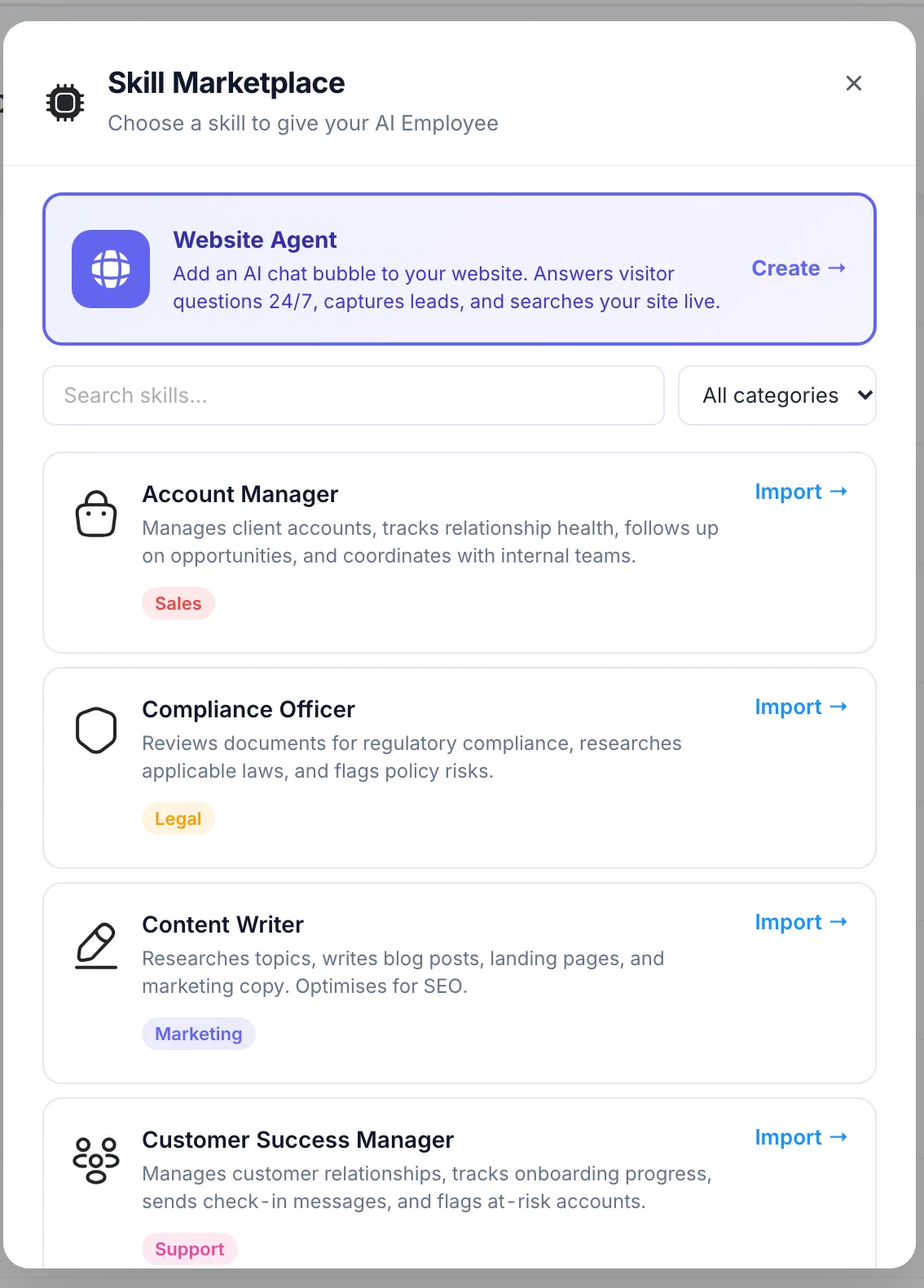
- Open Directory in the left menu and click Add AI Employee.
- The Skill Marketplace opens. Search for a role or filter by category (Marketing, Sales, Support, HR, Finance, Operations and more), then click Import → next to the one you want.
- Under Name your AI Employee, give it a name and, if you like, a department. To share it with one team only, make it a team employee and choose the team under Assign to a Team; that team then shares one memory with it.
- Click Next: Connect Tools → and connect the tools the role needs, for example Google Sheets for a Data Analyst. These are shared workspace connections: every AI employee that uses the same tool uses the same account.
- Your new AI employee appears in Directory with an AI badge, ready for work.
Don’t see the role you need? Click Build Custom Skill at the bottom of the marketplace and describe it. The Website Agent at the top is something else: a chat bubble for your own website that answers visitors.
Or ask Lucy: open Lucy and say, for example, “Hire a content writer called Skyler for the marketing team”. She sets it up for you and tells you which tools to connect.
Give an AI employee work
- Assign a task to it like you would to a person, with a clear title, a due date and the details in the description.
- It works on the task and reports back in the task’s comments.
- When the work has to leave PeerBie, such as a social post or an email, it posts a draft on the task and waits. Read it, ask for changes in a comment, and reply “go ahead” (or “publish”, “send it”) when it is right. The person who assigned the task, its collaborators or a workspace admin can approve.
- You can also message an AI employee directly, bring it into a Huddle by voice, or have it join a Zoom, Google Meet or Teams call.
Every email an AI employee sends names it in a footer, and every AI action is recorded.
Approve what your AI team suggests
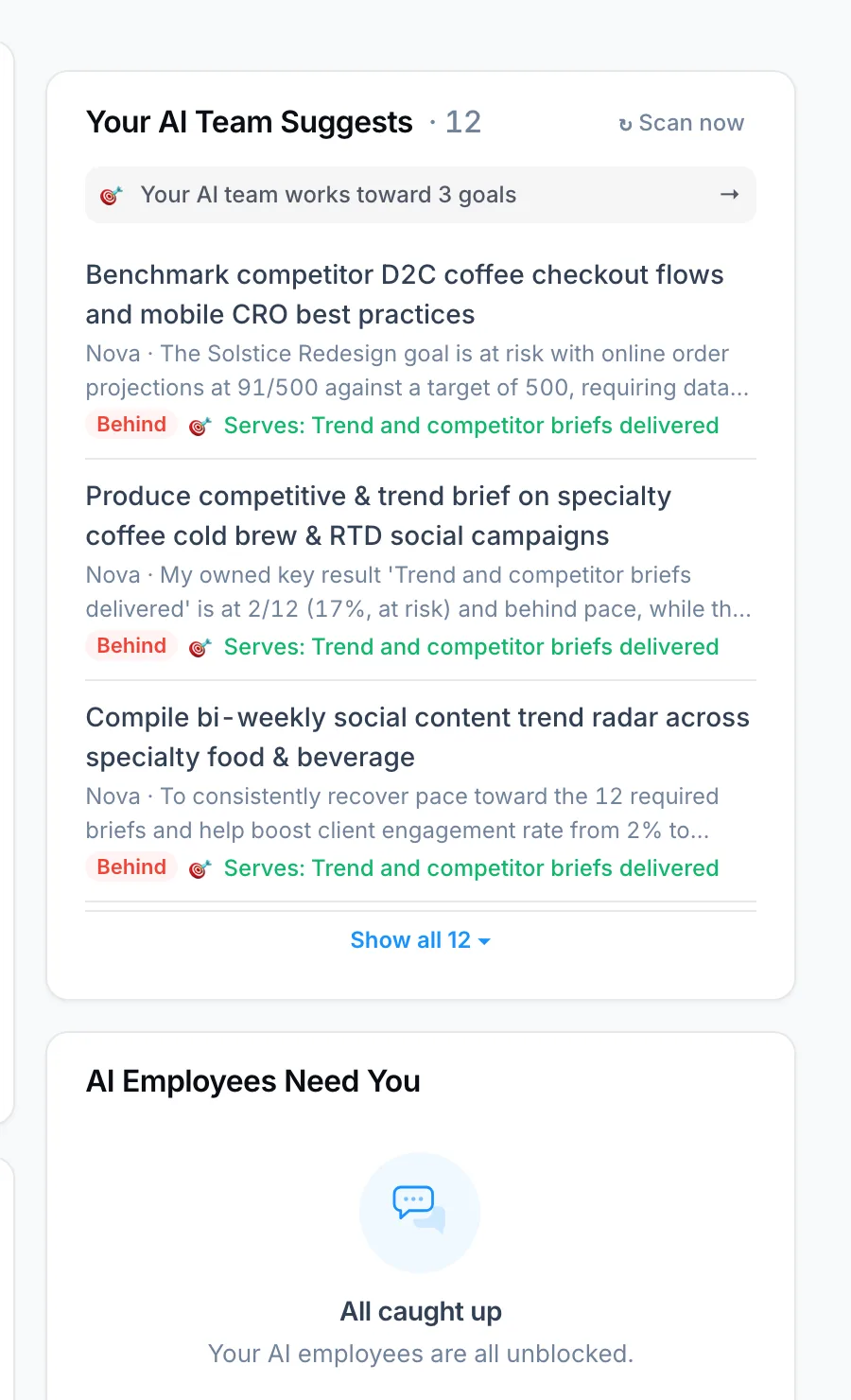
Each morning your AI employees look at your goals and open work and propose what to do next. You find their proposals on Home under Your AI Team Suggests.
- Each suggestion says who proposes it, why, and which goal or key result it serves.
- If you are allowed to act on it, you see Approve, Later and Dismiss. Approve creates the task and the AI employee starts. Later keeps it to decide on another day.
- When you dismiss one, pick a reason. Your AI team learns from it.
- Click Scan now to ask for fresh suggestions. A workspace gets at most 12 a day, so the list stays short.
AI Employees Need You next to it lists any AI employee that is waiting for you: a question it asked, or a draft waiting for your go-ahead.
See who is on your AI team
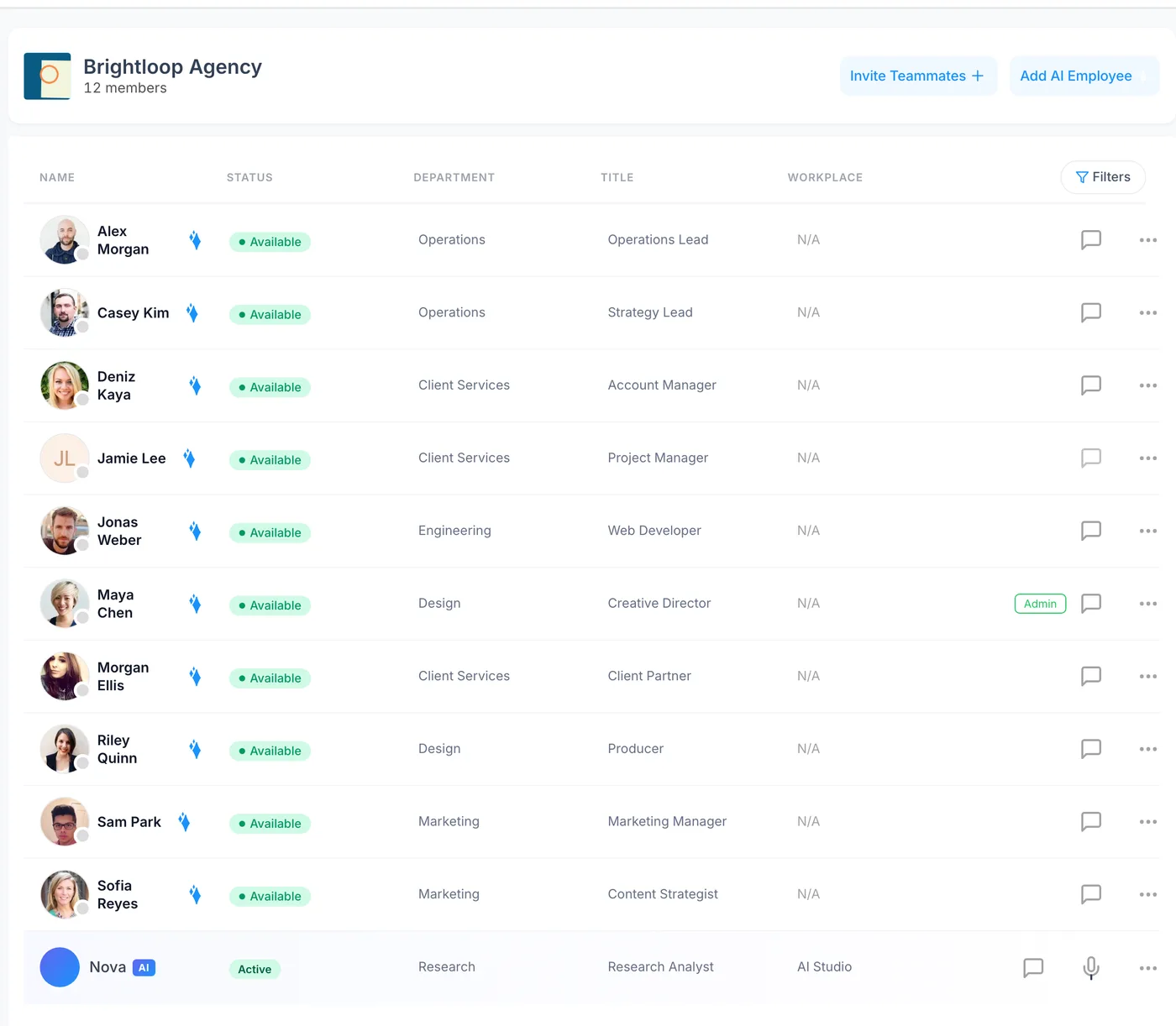
AI employees are listed in Directory with an AI badge, their department and title. For each one you can see what they do, the tools they have, which integrations are connected (with a Connect button for missing ones), the documents in their knowledge base and what they remember. Upload a document with + Upload document to teach them about your company.
Workspace admins can rename an AI employee, change its department or remove it from the ⋯ menu on its row. To give it a different role, remove it and hire again.
Change an AI employee’s instructions
You can tell an AI employee how to work, for example “always cite your sources” or “write in British English”. Do it by asking Lucy:
- Ask “What are Nova’s instructions?”. Lucy shows what Nova is told today.
- Ask for the change: “Add to Nova’s instructions: always end a brief with three recommendations.”
- Lucy shows you the new version and asks you to confirm. Nothing changes before you do.
- After saving, Lucy reads the instructions back from PeerBie and quotes what is really stored, so you can see the change took. Nova uses them from the next message on.
Only a workspace admin or the person who hired the AI employee can change its instructions. If the same role is shared by other AI employees, this one gets its own copy and the others stay as they were.
Questions
Do AI employees act without asking?
No. They propose work and draft things, and a person approves before anything is sent, published or created from a suggestion.
What do AI employees cost?
They come with the Lucy AI add-on, $20 per user a month on Pro and above, with no credits and no per-agent fees. The 14-day free trial includes it. See pricing.
Which tools can an AI employee use?
The tools its role needs and you connect: for example Gmail or Outlook, Google Sheets, Slack, HubSpot, Notion, SharePoint or LinkedIn. See Connections & integrations.
Who can change what an AI employee does?
Workspace admins and the person who hired it can change its instructions through Lucy. Admins can also rename or remove it in Directory.
