
Learn PeerBie, one job at a time
Step-by-step guides with real screenshots, grouped by what you want to get done. Every guide is checked against the app as it works today.
No guide matches that yet. Try another word, or write to [email protected].
 New
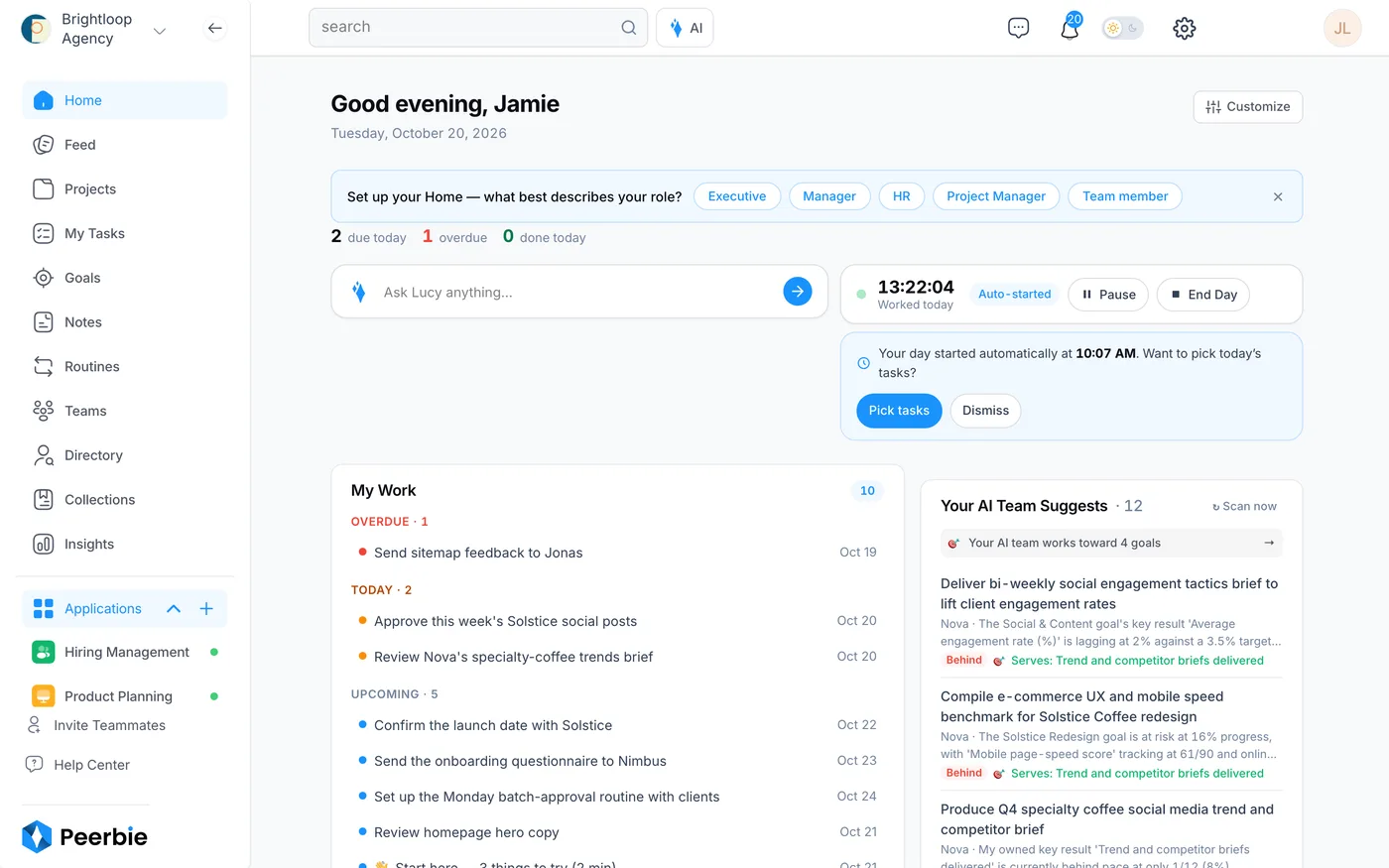
Get started in 5 minutes
Seven short steps from sign-up to a working team: Home, invites, a first project, tasks, connections and Lucy.
Start here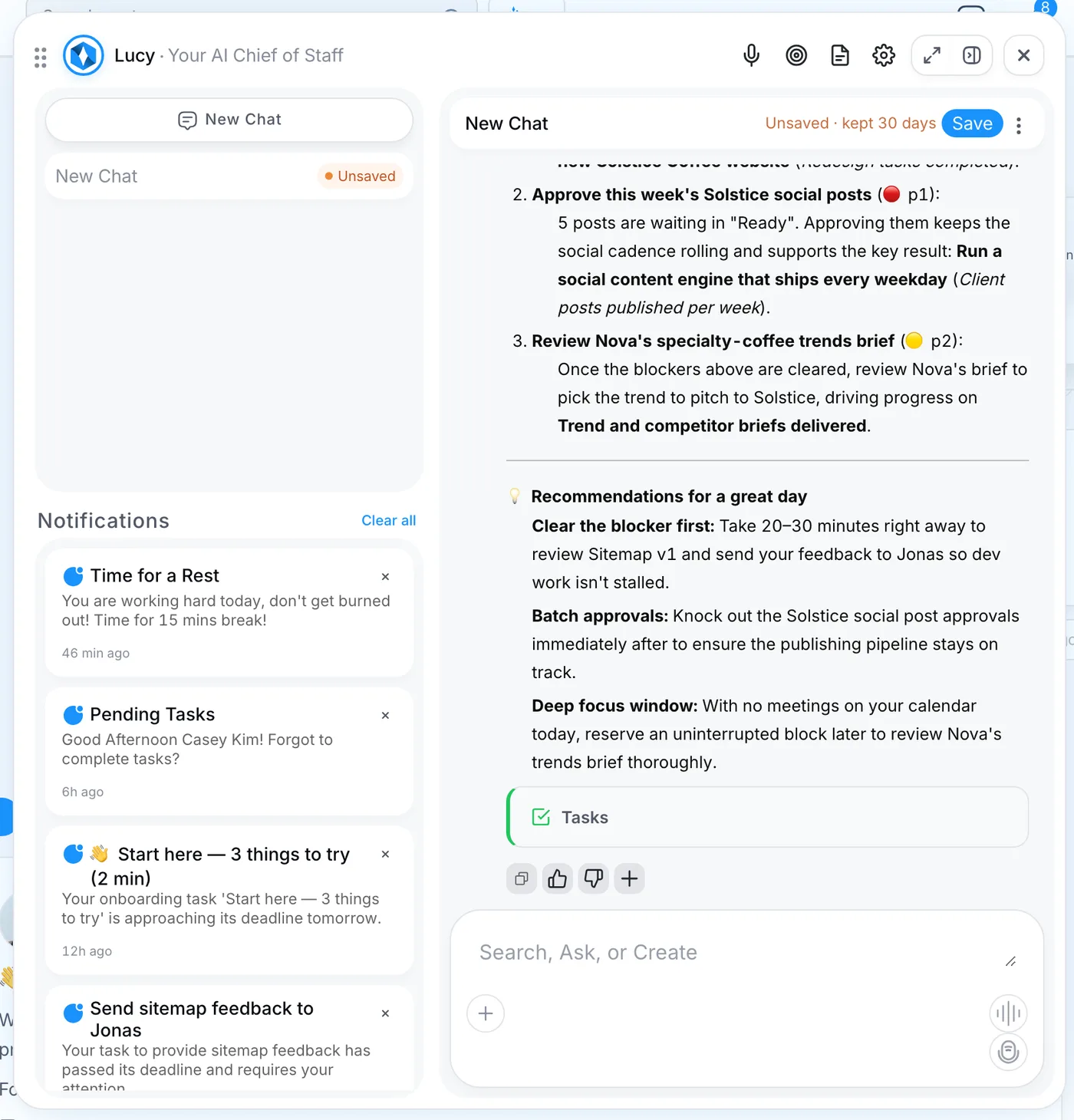 New
Lucy basics, and what to ask her
Open Lucy, ask in your own words, and 40 questions worth asking, from planning your day to drafting goals.
Meet Lucy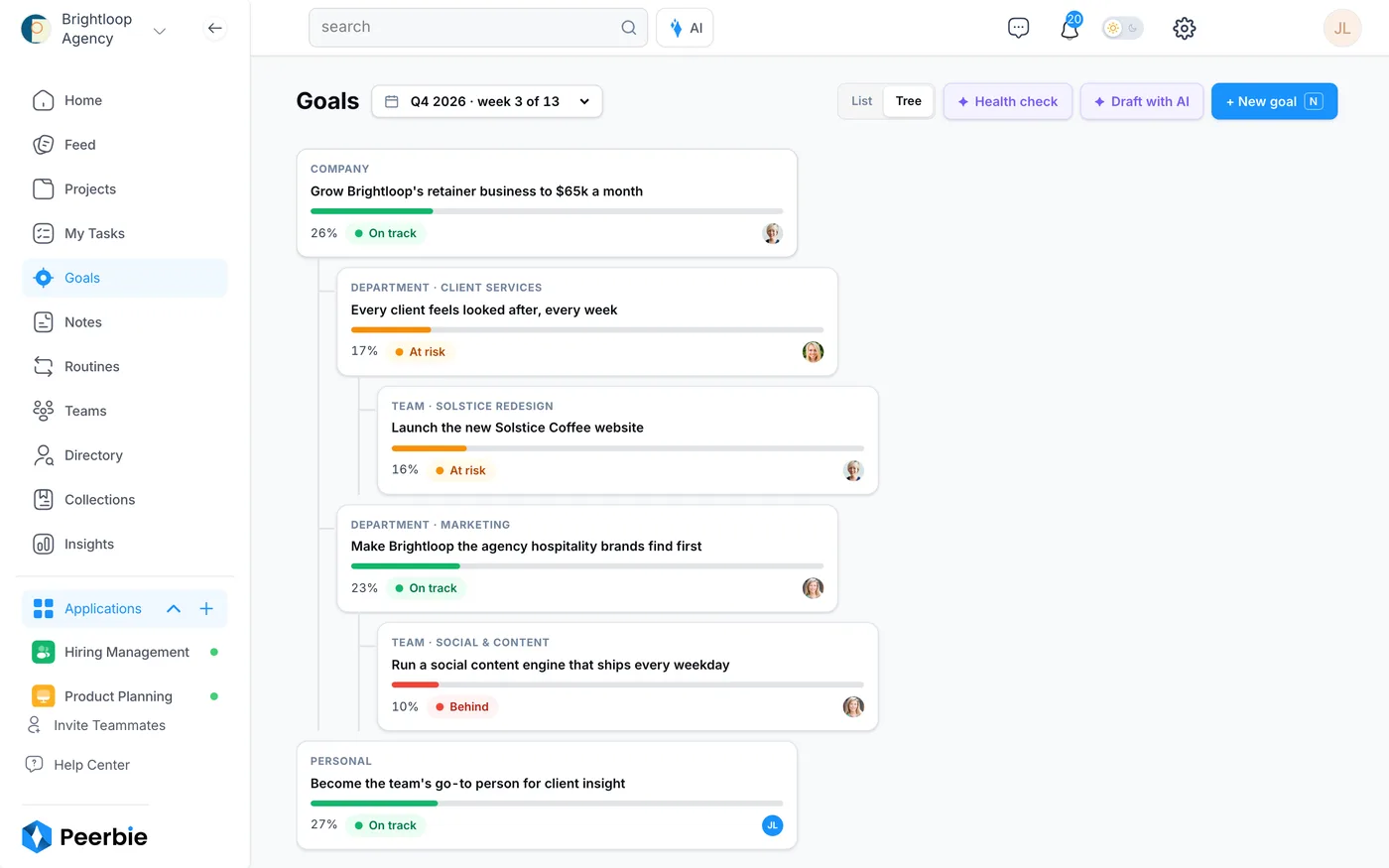 Live demo
Click around a real workspace
The screenshots in these guides come from Brightloop Agency, our demo workspace. Open it and follow along. It resets every night.
Open the demoGet started
Set up your workspace and bring your team in.
Get started in 5 minutes
Sign up, invite people, create a project, add tasks and connect your calendar.
Read the guideRoll PeerBie out to your team
A 30-day plan for admins: set-up, onboarding, habits and a review.
Read the guideThe company feed
Posts, polls, events, documents and pinned announcements.
Read the guideTeams, chat and messages
Teams, direct and group messages, threads and @mentions.
Read the guideTasks & projects
Plan the work, follow it and close it well.
Tasks & projects
Create projects and tasks, use the board, calendar, Gantt and reports, and track costs against a budget.
Read the guideYour workday and time
Plan the day, protect focus time and wrap up at the end of it.
Read the guideTeam insights and performance
See workload and progress across the team, from real work, not status reports.
Read the guideProject management in PeerBie
What the project tools do, in one page.
See the pageMeetings & notes
Book calls, let Lucy take the notes, and turn decisions into tasks.
Meetings & notes
Lucy’s note-taker in Zoom, Google Meet and Teams, recording in the browser, and action items that become tasks.
Read the guideMeetings in PeerBie
Book Zoom, Google Meet or Teams calls and get the notes in one place.
See the pageConnect Zoom
Add, use and remove the PeerBie app for Zoom.
See the pageLucy
Your AI Chief of Staff, with the Lucy AI add-on.
Lucy basics, and what to ask her
Opening Lucy, 40 questions worth asking, routines, notifications and how she asks before she acts.
Read the guideLucy and your email
Connect Gmail or Outlook and let Lucy summarise, draft and send, with your OK.
Read the guideLucy and your calendar
Check your schedule, find a time for a group and block focus time.
Read the guideTeach Lucy about your company
Add policies, processes and FAQs so Lucy can answer your team’s questions.
Read the guideThe Lucy app
Lucy for your phone: record meetings and voice notes, a morning brief and an evening close-out.
See the pageGoals & OKRs
Set the quarter’s goals and let the numbers keep themselves current.
Workflows
Turn a recurring process into a workflow that starts by itself.
AI employees
Named AI teammates who propose work and act after your approval.
Integrations & Microsoft 365
Connect the tools your team already uses: 30+ integrations.
Connections & integrations
Connect Google, Microsoft 365 and Zoom, share work tools with your AI employees, and use PeerBie from Claude or ChatGPT.
Read the guidePeerBie for Claude and ChatGPT
Ask Claude or ChatGPT about your tasks, goals and meeting notes, with your own permissions.
Set it upPeerBie for Microsoft 365
Outlook mail and calendar, Teams meetings, OneDrive and SharePoint.
See the pagePeerBie for Slack
Bring PeerBie into Slack, including weekly goal check-ins.
See the pageAll integrations
Gmail, Outlook, Slack, Zoom, HubSpot, Salesforce, Notion and more.
See the listAdmin & security
Settings, people and sign-in for workspace admins.
Mobile apps
PeerBie and Lucy on iPhone and Android.
Questions
Where should I start?
With Get started in 5 minutes. It takes you from sign-up to a working team, and links to the next guide at every step.
Which guides need the Lucy AI add-on?
The ones marked Lucy AI add-on: Lucy, AI employees and the meeting note-taker. The add-on is $20 per user a month on Pro and above, and the 14-day free trial includes it. Everything else follows your PeerBie plan.
Are the screenshots real?
Yes. They come from Brightloop Agency, our demo workspace for a made-up marketing agency. You can open the same workspace with the live demo and follow along.
I can’t find what I need. Who can help?
Write to [email protected], or use the contact page. Tell us what you were trying to do, and we will answer and add a guide if one is missing.
Ready to try it?
Start free, or look around the demo workspace first. Lucy and AI employees come with the Lucy AI add-on, $20 per user a month on Pro and above.
More: Pricing · Lucy & AI employees · Blog · Contact us