
PeerBie on Your Phone: Home, Tasks, Recording, Offline Reading and Sharing
The PeerBie app for iPhone and Android keeps your tasks, feed, messages and workday clock in your pocket, in sync with PeerBie on the web. Sign in with the account you use at my.peerbie.com and you find the same workspace.
Get the app and sign in
- On your iPhone or Android phone, search for PeerBie in your phone’s store and install it.
- Sign in with the same account you use on the web.
- If you belong to more than one workspace, pick the one you want; you can switch later.
Looking for Lucy just for yourself? The Lucy app is a separate personal app with its own plans: see the Lucy app.
Find your way around
The bar at the bottom has five places:
- Home: your day at a glance (below).
- Feed: company posts, events and announcements.
- + in the middle: create something new, such as a post.
- Messages: your chats and group chats.
- More: everything else, such as your profile and settings.
Notifications are behind the bell at the top of Home.
Home and your tasks
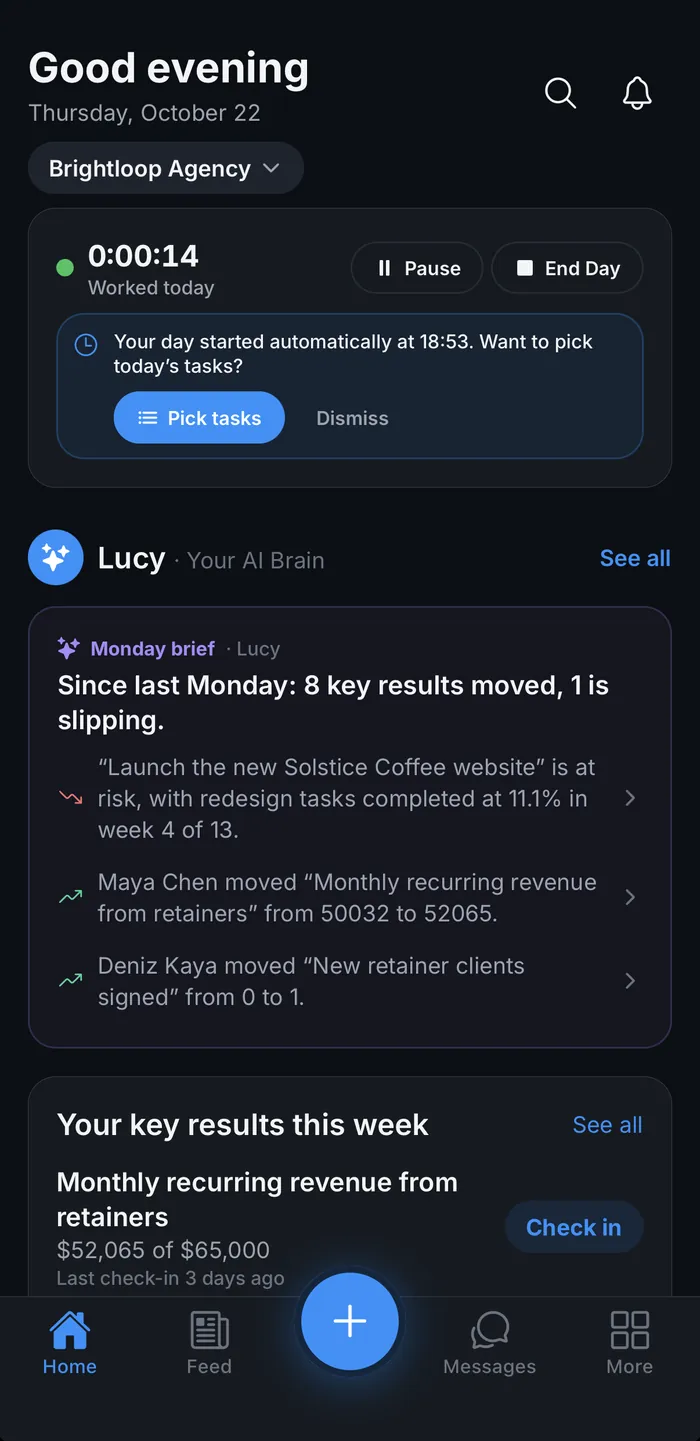
- At the top of Home, shortcuts open AI, Projects, Workflows, Performance and Collections. With the Lucy AI add-on, a Record shortcut appears too.
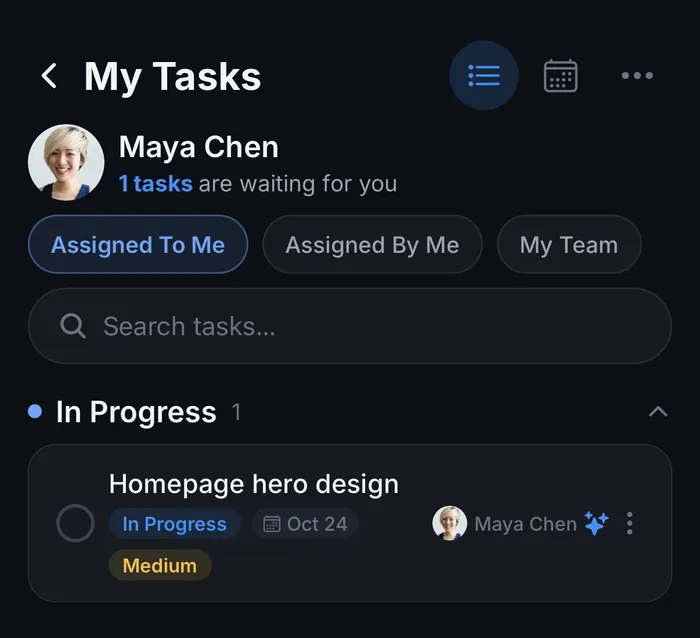
- My Work lists your tasks for today, the overdue ones and what is coming. Tap See all for the full list.
- Tap a task to open it, change it, comment or mark it done.
- Use the workday clock to Start Day, pause and End Day. Your hours flow into timesheets, just as on the web.
Record a meeting or a voice note
- On Home, tap Record.
- Record a meeting, a call or a voice note, or import an audio file.
- Lucy turns it into notes with the decisions and action items, and you can turn the action items into tasks.
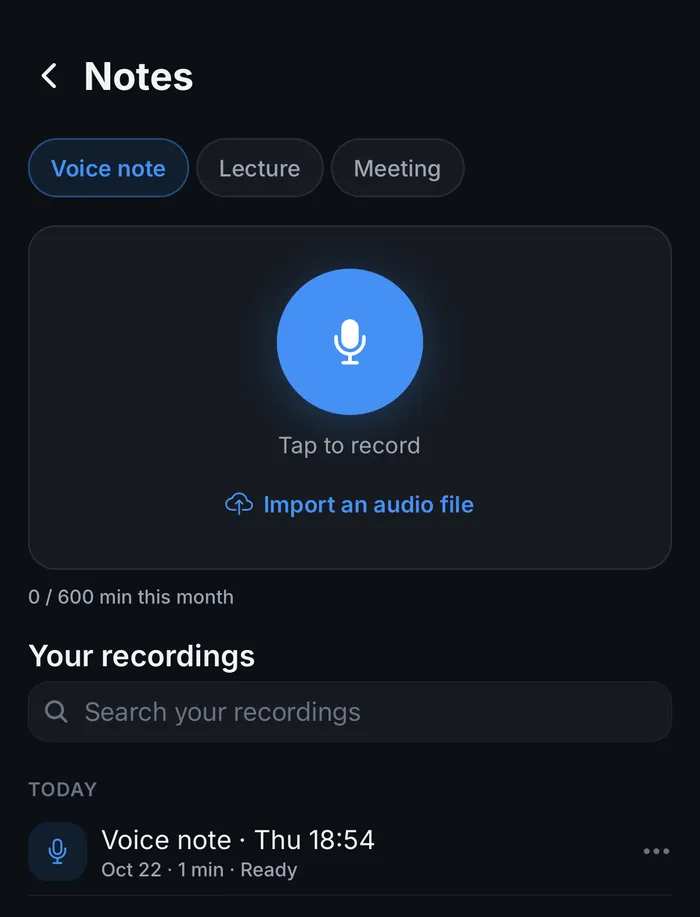
Recording on the phone needs the Lucy AI add-on ($20 per user a month on Pro and above; the 14-day free trial includes it). Meetings on Zoom, Google Meet or Teams can also be noted by Lucy’s note-taker: see Meetings & notes.
Your goals and Lucy on the phone
Your goals come with you too. On Home, Your key results this week shows the key results you own with a Check in button. The Goals screen lists the goals for the quarter under Mine, Team, Department, Company and All, each with its progress and whether it is On track or At risk. How goals work: see Goals & OKRs.

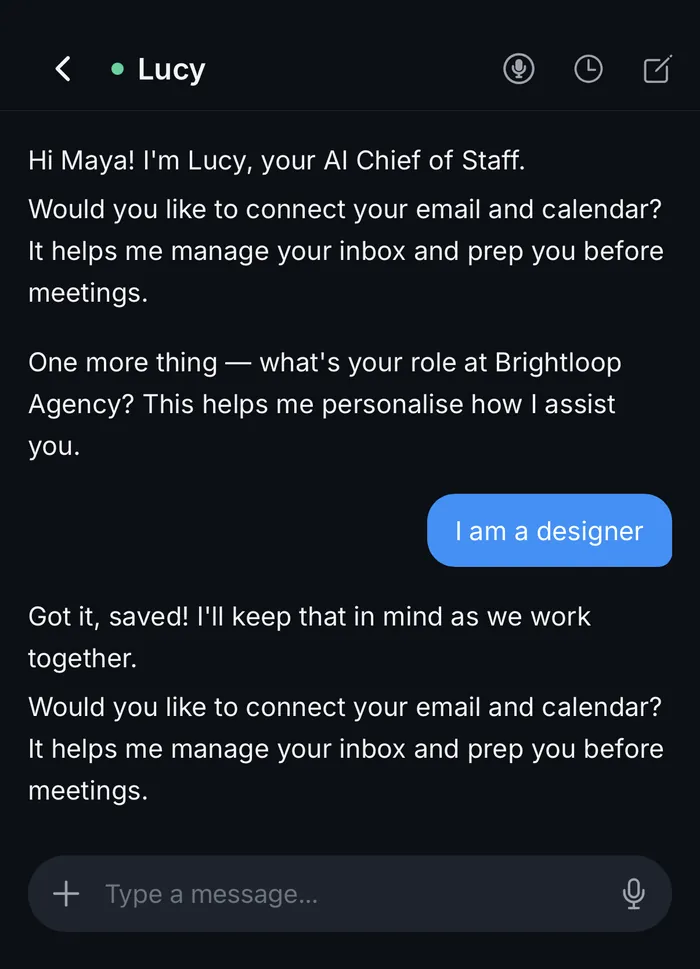
With the Lucy AI add-on, you can also talk to Lucy in the app: type in your own words or use the microphone. Ideas for what to ask: see What to ask Lucy.
When the signal is weak or gone
The app is made for the metro and the lift.
- What you opened recently stays readable without a connection. A small note at the top says “Offline — showing saved content” and when it was last updated.
- Keep working: messages, comments and task changes you make offline are marked Waiting to send.
- They are sent automatically when you are back online. If one cannot be sent, it says “Not sent — tap to retry or delete”.
Screens you have never opened with a connection cannot be shown offline; open them once with signal and they are saved on the phone. Signing out clears what was saved.
Share into PeerBie from any app
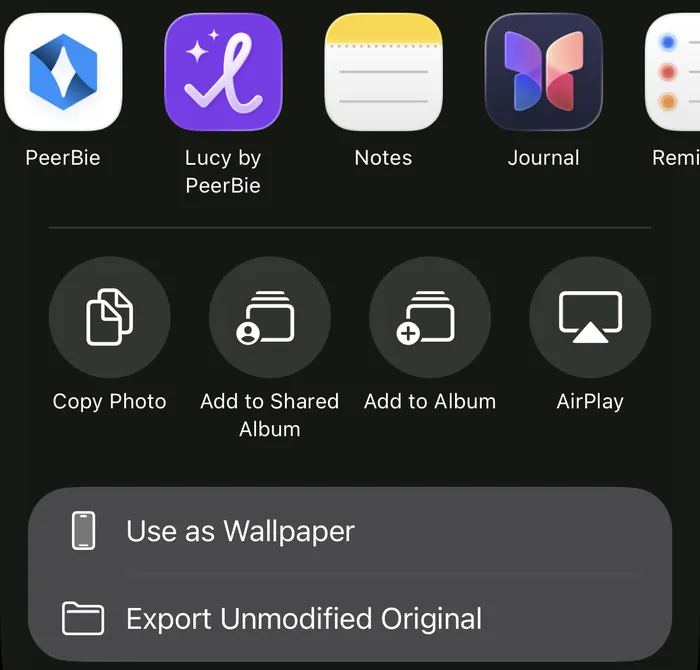
You can send a photo, a video, a PDF, an Office document, a link or a piece of text from another app (Photos, Files, Gmail, WhatsApp and so on) straight into PeerBie, on both iPhone and Android.
- In the other app, tap its share button and choose PeerBie. On iPhone, tap More in the share menu if PeerBie is not in the first row.
- If you are in more than one workspace, pick one under Choose a workspace.
- Under Share to, choose where it goes:
- Send to a chat: to a person or a group chat.
- Post to a group: as a post in the feed.
- Attach to a task: added to one of your tasks.
- Ask Lucy: for text and links, with the Lucy AI add-on; she can summarize it, save it or turn it into a task.
Posts with documents, photos and video
- Tap + to write a post.
- Tap Attach file to add documents: up to 5 files of 25 MB each, such as PDFs, Word or Excel files.
- Or add up to 4 photos, or one video of up to 3 minutes (150 MB). A post carries either photos and video or files, not both.
- Admins can pin an important post: open the post’s menu and tap Pin to top. Pinned posts carry a Pinned tag at the top of the feed.
Questions
Is the PeerBie app free?
Yes, the app is free on iPhone and Android and follows your workspace’s PeerBie plan. Recording and Lucy need the Lucy AI add-on on Pro and above.
Does PeerBie work offline on my phone?
Partly. What you opened recently stays readable offline, and what you write offline is sent when you are back online. New content needs a connection.
What is the difference between the PeerBie app and the Lucy app?
The PeerBie app is for your team’s workspace: tasks, feed, messages and AI employees. The Lucy app is a personal assistant for one person, with its own plans. See the Lucy app.
Can I share a file from another app into a task?
Yes. Use your phone’s share menu, choose PeerBie, then Attach to a task.
