
Goals & OKRs in PeerBie: Set, Track and Close a Quarter
Goals in PeerBie follow the OKR method: an objective says what you want to achieve, in plain words, and two to five key results prove you got there, each with a start value, a target and a unit. Goals sit at four levels (company, department, team and personal) and each one can support a goal one level up, so everyone can see how their work adds up.
Which plan? Goals are on every paid plan. Basic ($10 per user a month, billed yearly) includes goals at all four levels, key results, check-ins and 20 AI goal drafts a month. Pro ($15) adds unlimited drafts, breaking goals down across teams, the goal health check and key results that update from connected tools. The free Starter plan does not include goals. See pricing.
The Goals page
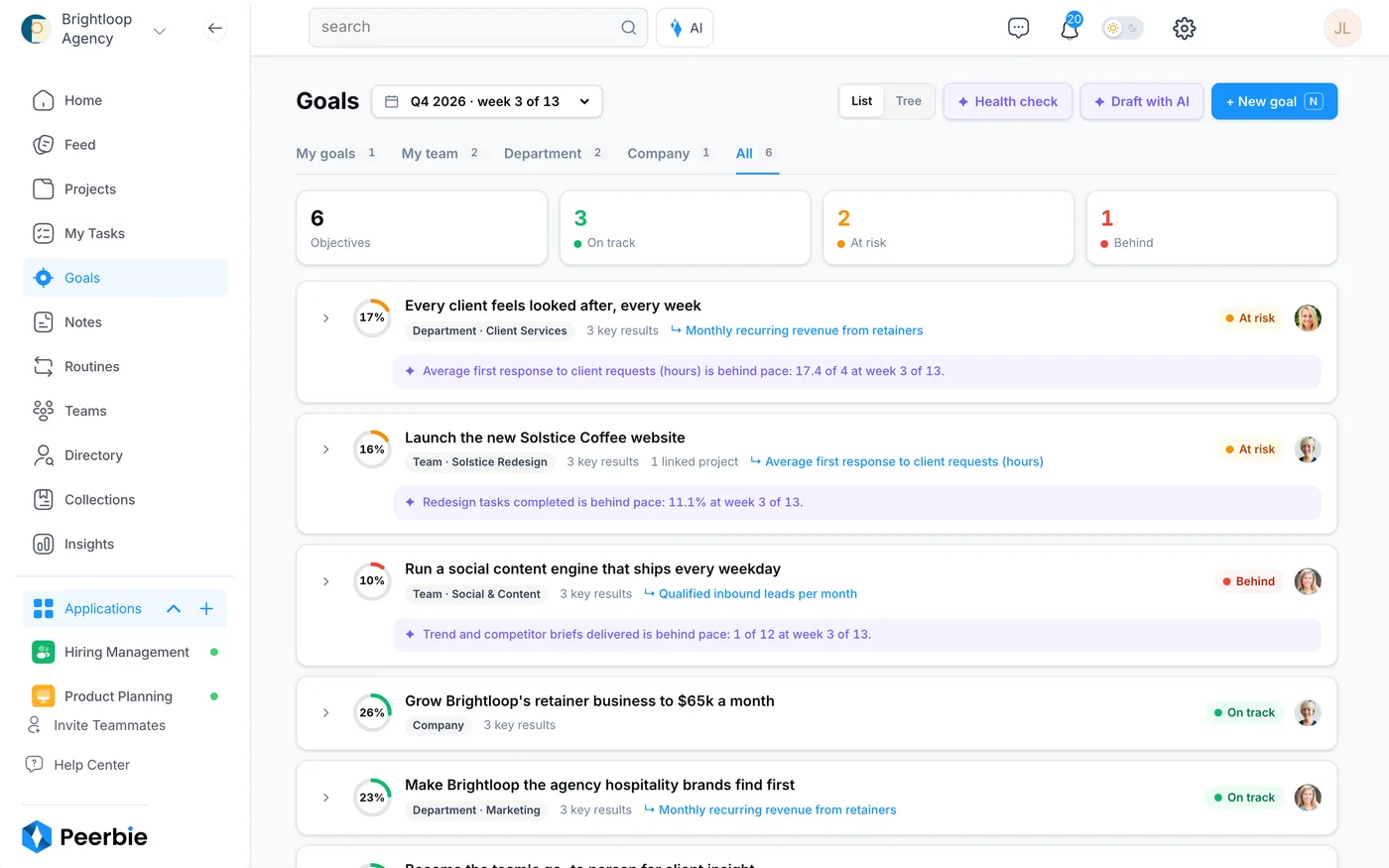
Open Goals in the left menu.
- Period: the menu at the top picks the quarter or year, and shows where you are in it, for example “Q4 2026 · week 3 of 13”.
- Tabs: My goals, My team, Department, Company and All.
- Totals: how many objectives are on track, at risk or behind.
- Each goal shows its progress ring, its level, how many key results it has and the goal it supports. When a key result is behind, a line says by how much, for example “behind pace: 11.1% at week 3 of 13”.
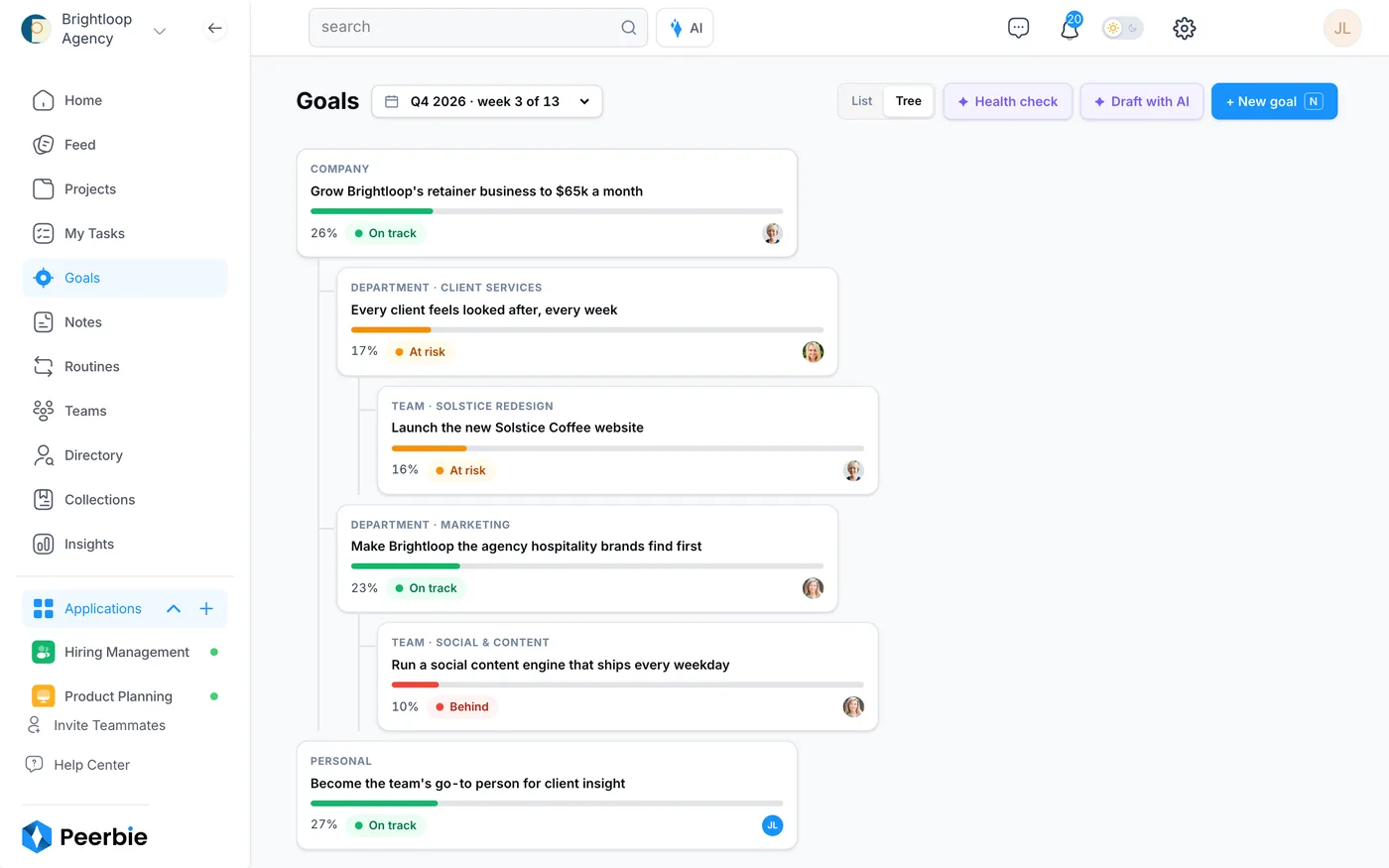
- Views: List or Tree. The tree shows how personal and team goals feed the company goal.
Create a goal
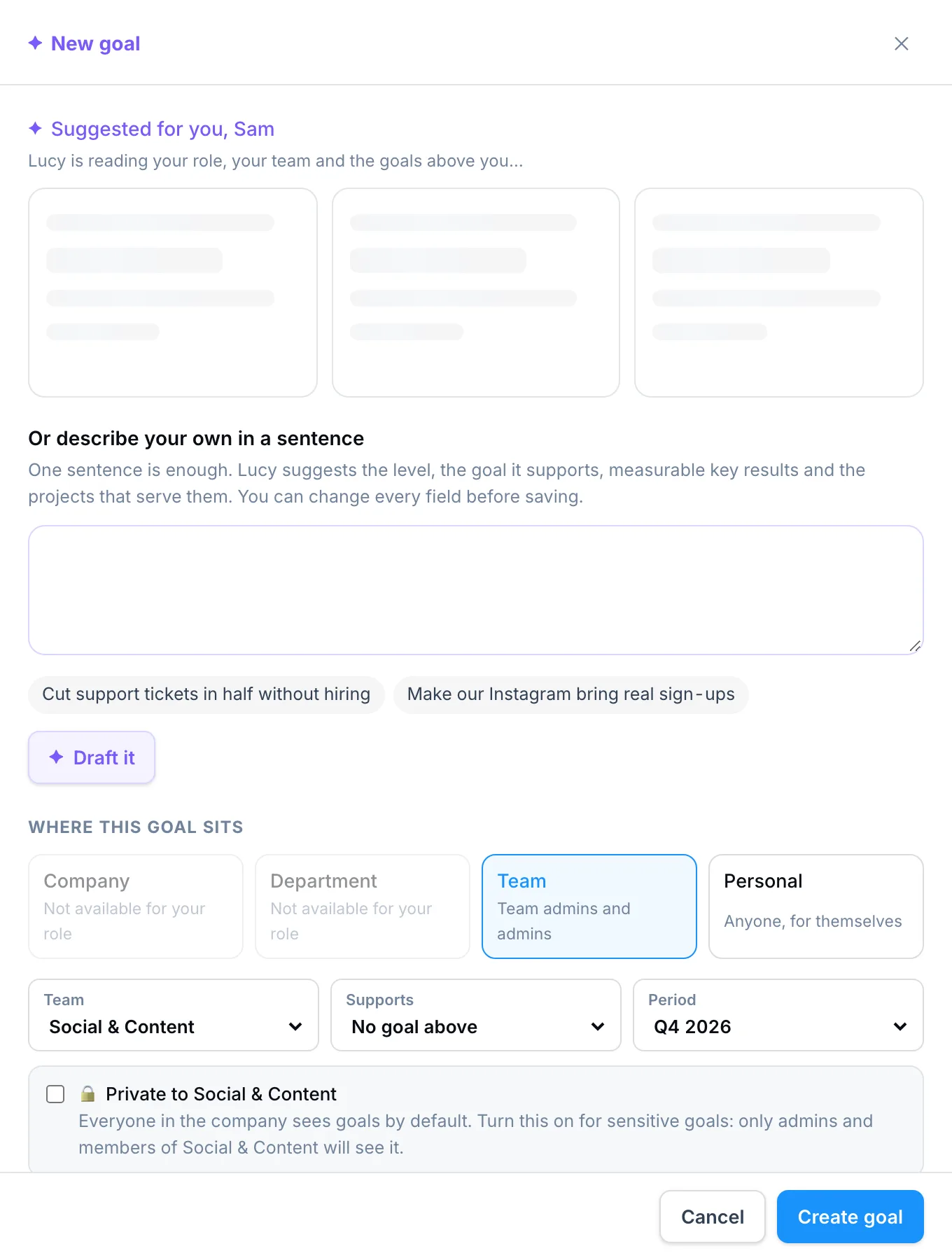
- Click + New goal.
- Lucy suggests a few goals based on your role, your team and the goals above you. Pick one, or describe your own in a sentence and click Draft it. Lucy writes the objective and measurable key results, and you can change every field before you save.
- Under Where this goal sits, choose the level: Company (admins), Department (admins and the department head), Team (team admins and admins) or Personal (anyone). Personal goals are private to you by default.
- Choose the team, the goal it Supports and the Period.
- Check the key results (see below) and click Create goal.
Prefer to write it yourself? Choose the option to skip the AI and fill in the fields.
Write good key results
For each key result, set what it measures, the unit (a plain number, money, a percentage or yes/no), the start value, the target and an owner. The owner can be a person or, with the Lucy AI add-on, an AI employee. A goal can have up to 10 key results; three is usually enough.
A key result is a number, not a task. “Launch the new website” is a task; “Online orders: 0 → 300 a month” is a key result. Lucy points it out when a key result reads like a task.
Then choose how the number is measured:
- Numbers we report: the owner checks in with the latest number.
- Linked project progress: goes from 0% to 100% as tasks close in the projects you link. Nobody needs to check in.
- Workflow results: counts the runs of a workflow, for example qualified leads from a lead workflow.
- A connected tool (Pro): Lucy reads the number every few hours from HubSpot, Stripe, Salesforce, Google Sheets, Excel, Jira, Pipedrive or Linear.
Follow a goal and check in
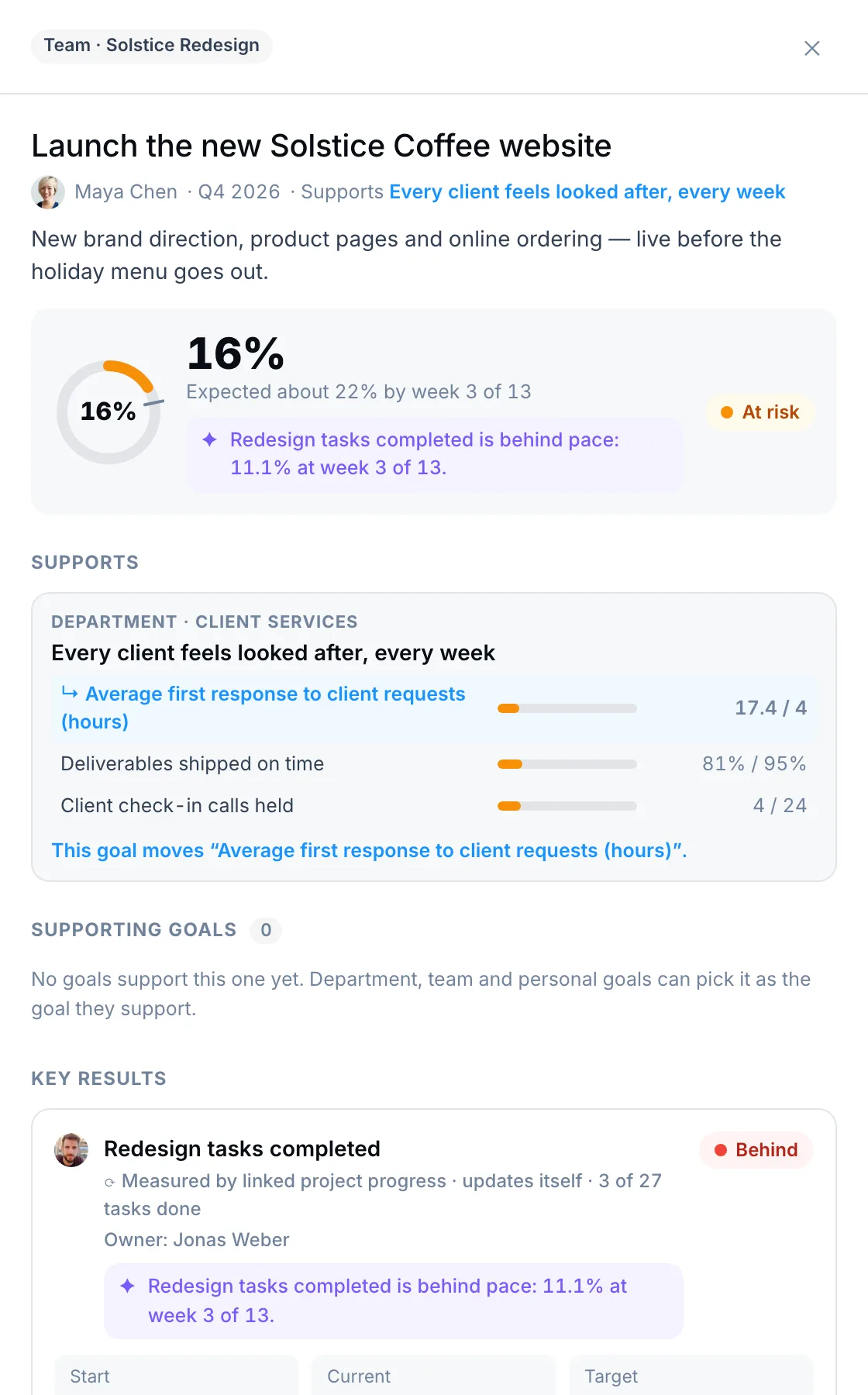
- Click a goal to open it. You see its progress against the pace it should have by now, the goal it supports, the goals that support it, and its key results.
- For a key result measured by check-ins, click Check in, enter the latest number and how confident you are, and save.
- Check in once a week. Goal owners get a reminder when a check-in is due. If your workspace uses the PeerBie app for Slack, the weekly check-in can be done right in Slack.
- Every Monday the Goals page shows a short brief of what moved since last week.
Run the goal health check (Pro)
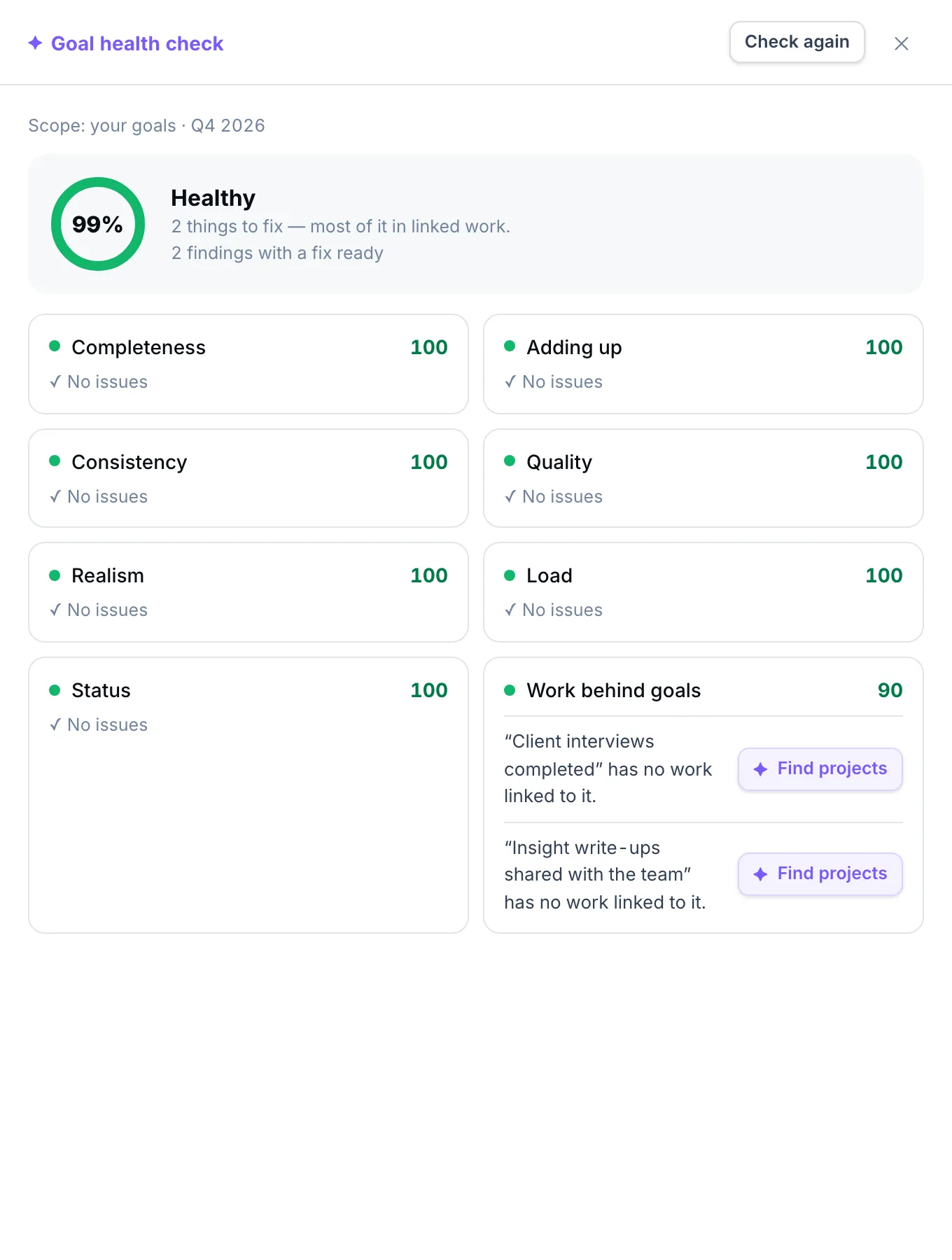
- Click Health check at the top of the Goals page.
- Lucy checks your goals for gaps: key results without a target, targets that do not add up, owners with too much on their plate, and goals with no work linked to them.
- Each finding has a fix button, for example Find projects to link the work that moves a goal.
With Pro you can also break a company or department goal down into goals for the teams below it.
Close the quarter
When a period ends, each unfinished goal asks its owner to decide:
- Close as it stands: keep the result as it is.
- Carry over: move the goal into the next period.
- Extend: give it more time.
Need to report to your board? Turn the period’s progress into a board-pack deck in a few clicks.
More: Goals & OKRs in PeerBie · Weekly check-ins in Slack
Questions
Can key results update by themselves?
Yes, in three ways: from linked projects as tasks close, from workflow results, and, on Pro, from connected tools such as HubSpot, Stripe, Salesforce, Google Sheets, Excel, Jira, Pipedrive or Linear.
Who can see my personal goals?
Only you, by default. You can choose to share a personal goal with your team. Company, department and team goals are visible to the workspace unless you mark them private.
How many key results should a goal have?
Two to five. Three is a good default. PeerBie allows up to ten per goal.
Can an AI employee own a key result?
Yes, with the Lucy AI add-on. The AI employee proposes the work that moves its number, and nothing happens until a person approves it.
Do goals work on the free plan?
No. Goals are on every paid plan, starting with Basic. The 14-day free trial includes them.
