
Workflows in PeerBie: Build One with AI and Make It Start by Itself
A workflow is a process your team runs again and again: a purchase request, a job application, a new client, a bug report. Each run starts with a form or a trigger and then moves through stages, such as Submitted, Approved and Done. A person or an AI employee handles each stage. In the left menu, workflows are listed under Applications.
Which plan? Workflows are on every plan. The free Starter plan includes up to 5 workflows: 3 ready-made ones and 2 of your own. Stages handled by AI employees, and building with Lucy in chat, need the Lucy AI add-on ($20 per user a month on Pro and above).
Step 1: Describe the process, and let Lucy build it
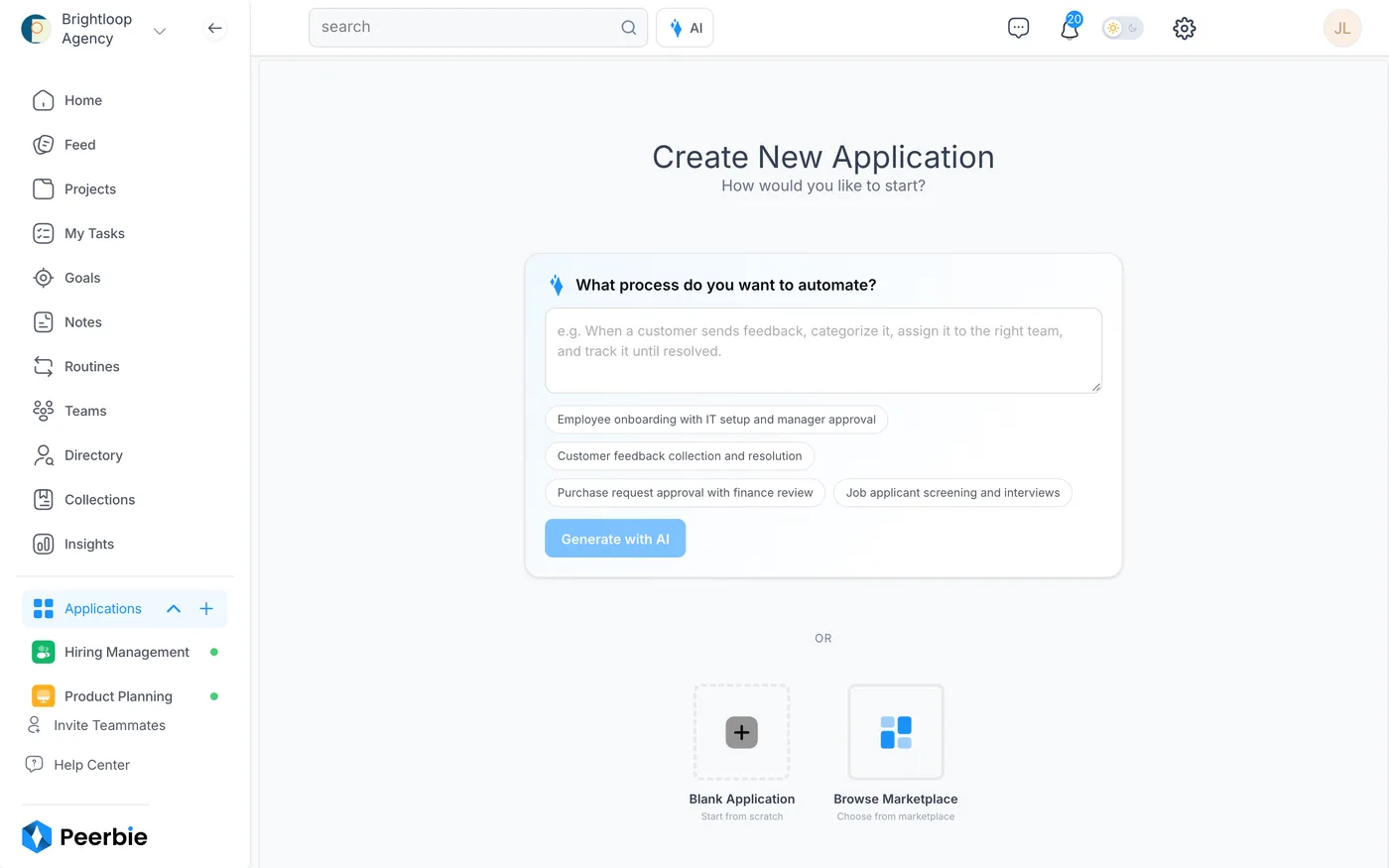
- Click + next to Applications in the left menu.
- Under What process do you want to automate?, describe it in your own words, for example “Purchase requests: the requester fills in a form, finance reviews anything over $500, the manager approves.” Or click one of the examples.
- Click Generate with AI. Lucy designs the stages, the form fields and who handles each step.
- Check the result. Not quite right? Click Modify prompt, change your description and generate again.
You can also start from a Blank Application, or pick a ready-made workflow from Browse Marketplace. With the Lucy AI add-on you can simply ask Lucy: “Create a workflow for client onboarding.”
Step 2: Shape the stages on the canvas
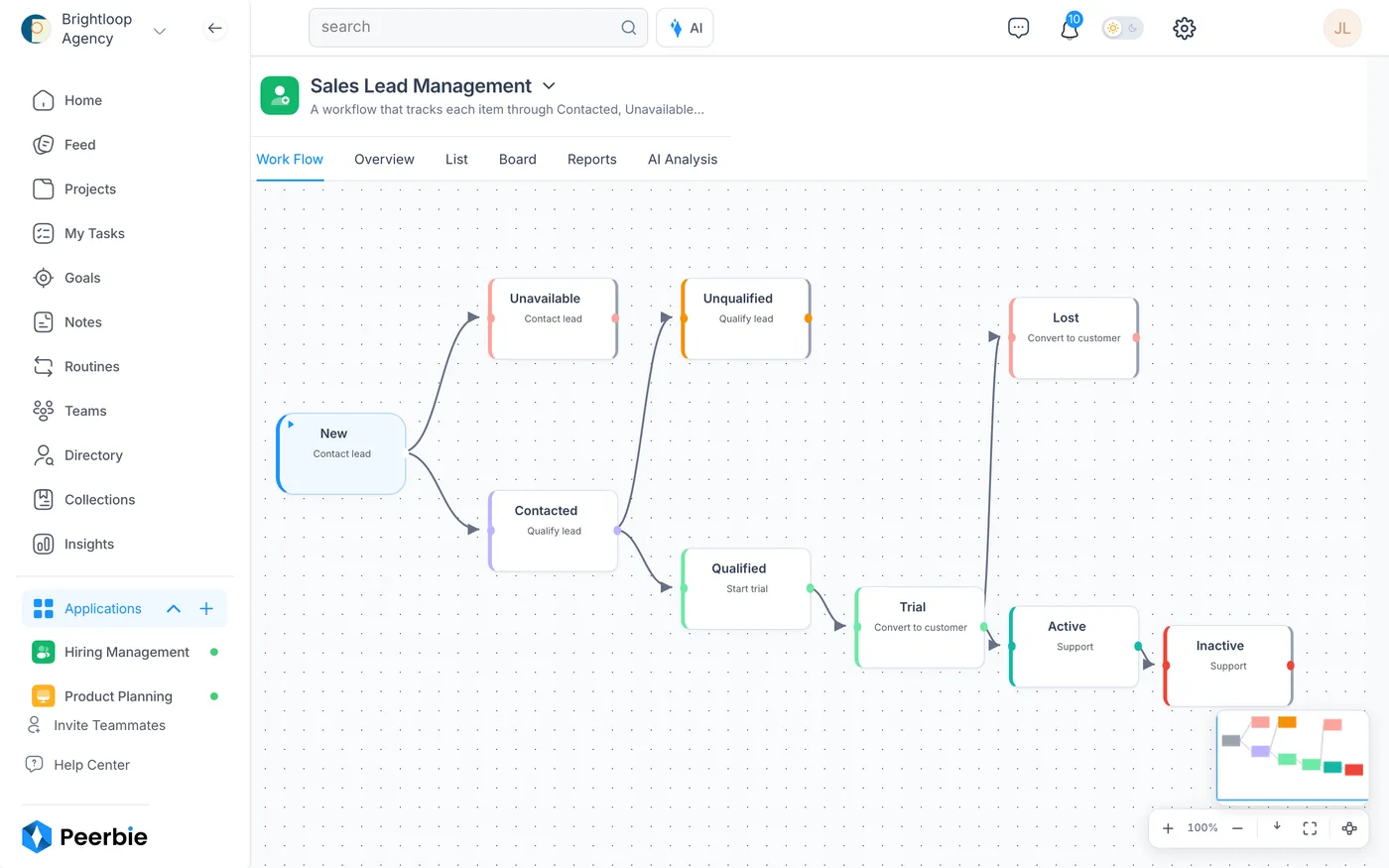
- Open the Work Flow tab. Each card is a stage; the arrows show where a run can go next.
- Click a stage to rename it, choose who handles it (a person, a team or an AI employee) and set what happens there, such as an approval or a form to fill in.
- Click + on any arrow to add a step in the middle. Use sticky notes to explain a step to your team, and the minimap to find your way in a big workflow.
Step 3: Choose how it starts
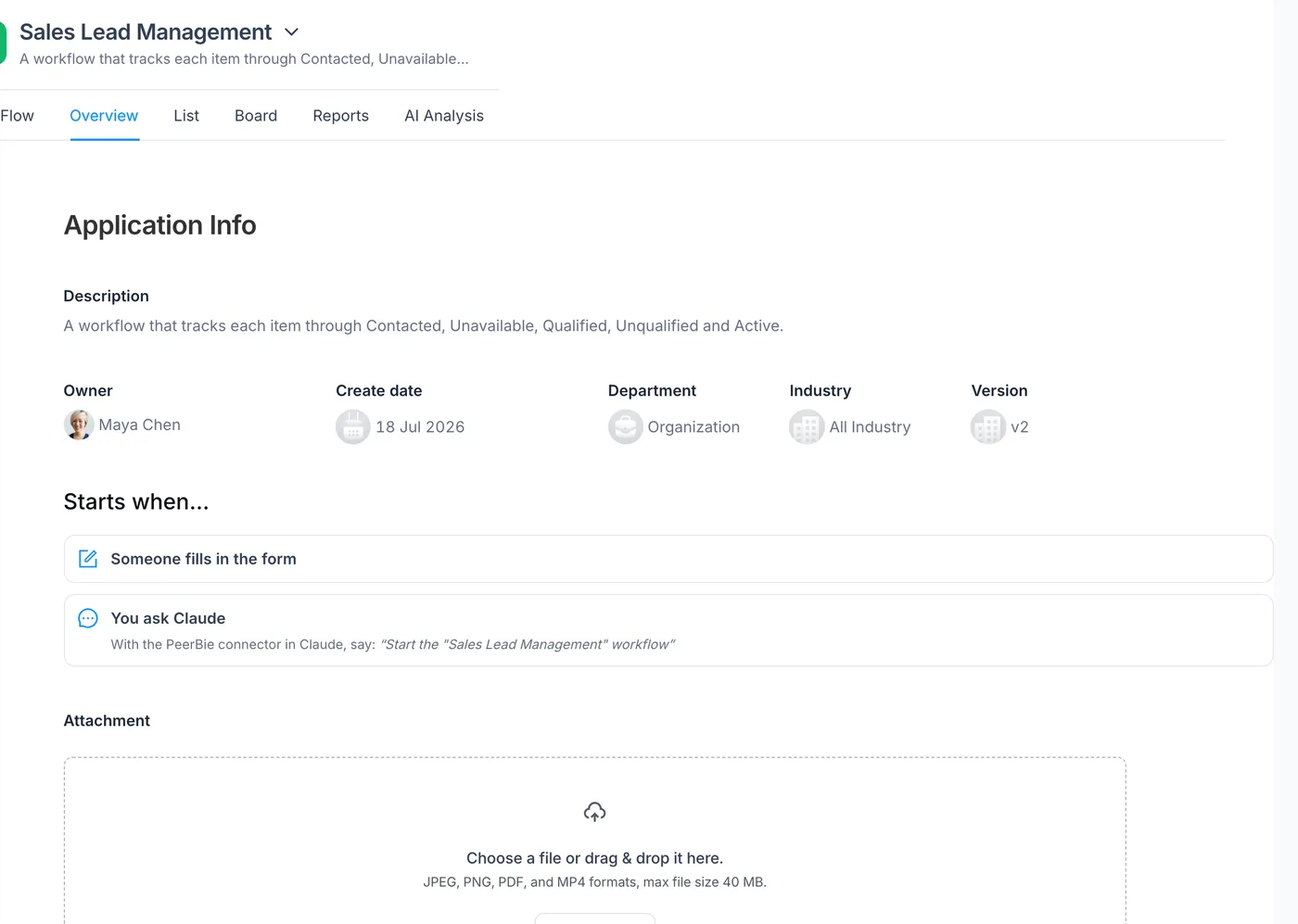
Open the Overview tab. The Starts when… box lists every way the workflow can start. Workflow owners and admins can click Add a trigger there. A trigger only works once the workflow is published.
- Someone fills in the form. Share the form link with your team, or with people outside PeerBie, such as applicants or clients.
- An email arrives (Gmail or Outlook). Lucy reads your own connected mailbox. Set who it is from (addresses or @domains), words in the subject or the text, or describe the email for the AI, for example “Is this email from an investor or about investing in us?” Each run gets the sender, subject and full text in its fields.
- On a schedule. Every day, week or month, at a time and in a time zone you choose. Either the workflow runs by itself, or it asks people to fill it in: each person gets a task and a notification once per period, plus one reminder, and submitting the form closes their task. A monthly report on the 1st is a good example.
- Another system calls its web address (a webhook). Send any JSON to the address PeerBie gives you; keys that match a field name fill that field. Slack, Zapier and most other tools can do this.
- You ask Claude. With the PeerBie connector in Claude, say: “Start the Purchase requests workflow.” See PeerBie for Claude and ChatGPT.
- Something happens in PeerBie: a task is completed, someone joins the workspace, or another workflow finishes, so one workflow can hand over to the next.
Need to stop everything for a moment, for example during a migration? Admins can pause all automatic starts for the whole workspace. Schedules are skipped while paused, matching emails are kept, and the form keeps working.
Step 4: Follow the runs
- Open List to see every run with its stage and owner, or Board to see runs as cards in stage columns. Click Add new to start a run by hand.
- Open Reports for charts of your runs by stage, owner and time.
- With the Lucy AI add-on, open AI Analysis for Lucy’s read of where runs get stuck and what to change.
- Workflow results can also feed a key result. See Goals & OKRs.
Ideas to start with
- Purchase requests: form → finance review over a set amount → manager approval → done.
- Job applicants: form on your careers page → screening → interview → offer or no.
- Investor emails: an email trigger with “from an investor” → an AI employee drafts a reply → you approve.
- Monthly report: a schedule on the 1st that asks each team lead to fill in the numbers.
- New client onboarding: starts when the sales workflow reaches Won → kickoff tasks for the account team.
More: Workflows in PeerBie · Lucy & AI employees
Questions
Do I need to know how to code?
No. You describe the process, and Lucy builds the stages and forms. You adjust them by clicking on the canvas. Webhooks are there if a developer wants them.
Which email accounts can start a workflow?
Gmail and Outlook (Microsoft 365); Outlook is checked every few minutes. The email trigger reads the mailbox you connected yourself, and only emails that match every rule you set start a run.
How many workflows can I have for free?
Up to 5 on the free Starter plan: 3 ready-made workflows and 2 of your own. Paid plans allow more. See pricing.
Can an AI employee handle a stage?
Yes, with the Lucy AI add-on. The AI employee does the work at that stage, such as drafting, researching or updating a tool, and posts the result for a person to approve.
Can Claude or ChatGPT start a workflow?
Claude can, with the PeerBie connector: just ask it to start the workflow by name. The connector also works in ChatGPT through developer mode. Everything runs with your own permissions.
