
AI Employees in Your Workflows: What They Do at Each Step (and What You Approve)
“Put AI in the workflow” can mean anything from a single summarise step to an agent that runs off and emails your customers on its own. For a team, neither end is what you want. You want an AI that does a real share of the work at a known point in the process, uses the same tools your team uses, explains what it did, and stops for a person before anything sensitive leaves the building.
That is how AI employees work in PeerBie workflows. This guide explains what they do at each kind of step, what stays with you, and how to set one up and check it before it touches a real request.
The short answer
- An AI employee owns a stage, the same way a colleague would. When an item reaches that stage, it does the work: research, a first draft, a summary, an update in your tools.
- It uses your connected tools, such as Gmail or Outlook, Google or Microsoft Calendar, Slack, Google Sheets and Docs, and HubSpot.
- You approve sensitive actions. Drafts come to a person before anything is sent or posted, and every step is on the record.
- You can see its reasoning. The run log, and the decision panel in a test run, show what it did and why.
What an AI employee is, and what it is not
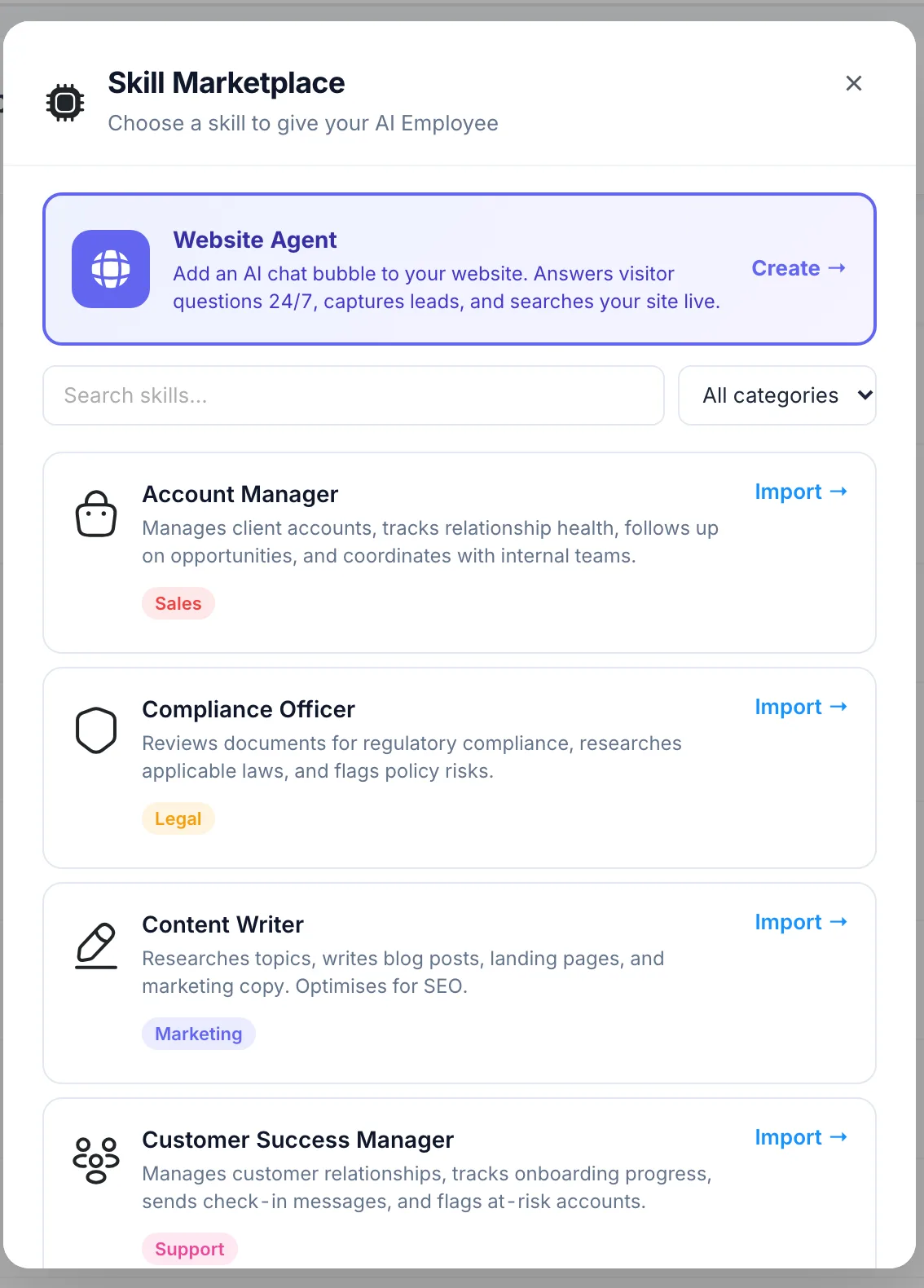
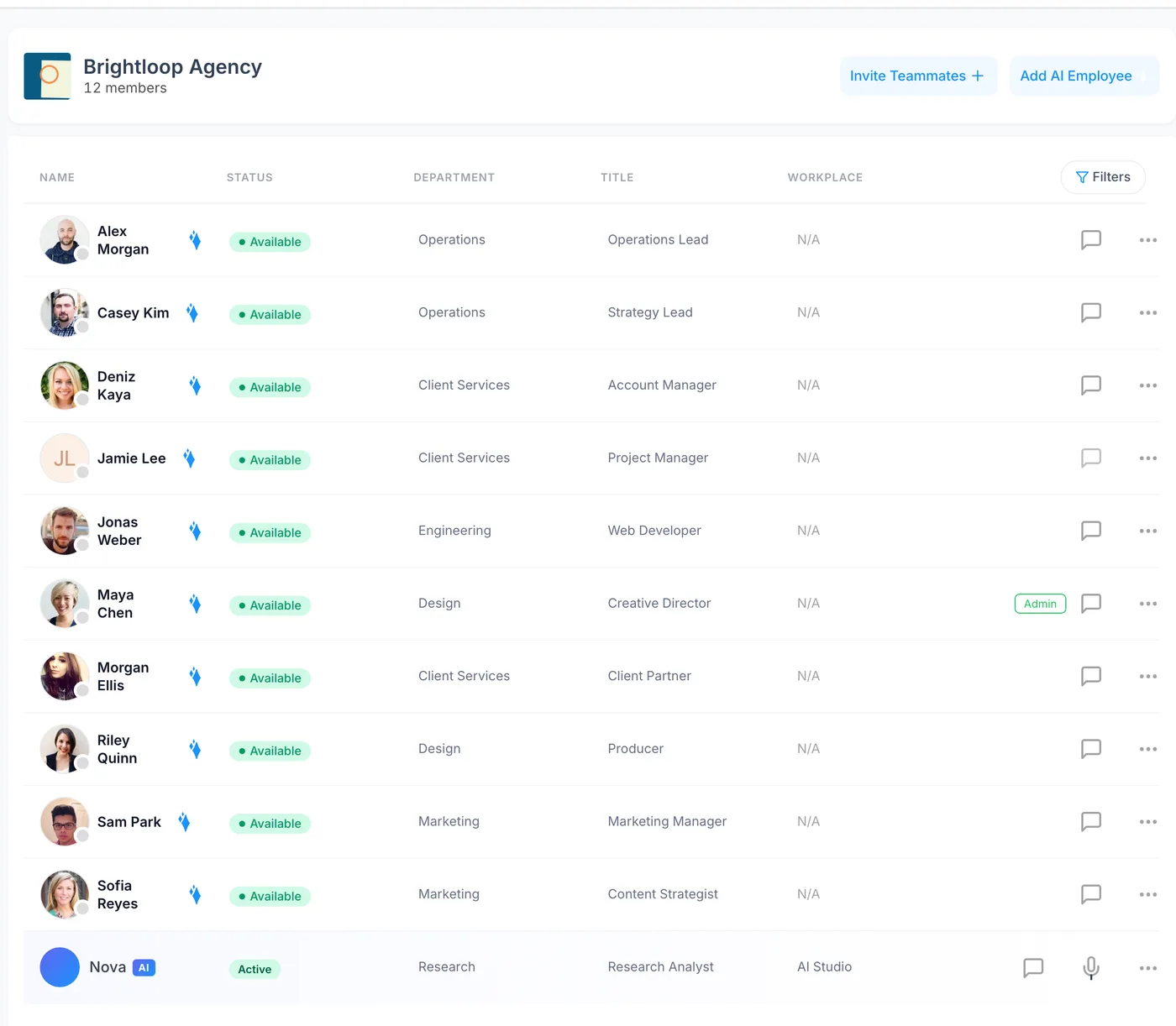
An AI employee is a member of your workspace with a role. You hire one from a list of roles, such as account manager, content writer or compliance officer, and it appears in your directory with an AI badge, next to your people. You give it stages in your workflows, and it works on whatever arrives there.
It is not a pipe between two apps. Tools like Zapier, Make and n8n are built for moving data from one system to another, and they do that well. An AI employee is closer to a junior colleague: it reads, thinks, drafts and updates, and then hands the item to the next person. It is also not unsupervised: it works inside the stage you gave it, with the tools you connected, and the steps that matter wait for you.
What AI employees do at each step
Most team workflows are built from the same few kinds of stages. Here is what an AI employee typically does in each, and what you keep:
| Stage | What the AI employee does | What stays with you |
|---|---|---|
| Intake and triage | Reads the form or email, pulls out the facts, decides whether it belongs here | The rules for where items go next |
| Research | Looks up the company, the person or the history, and writes a short brief on the item | Deciding what to do with it |
| Drafting | Writes the reply, the proposal, the post or the summary | Approving it before it is sent or posted |
| Updating tools | Adds the contact in HubSpot, a row in Sheets, a document in Docs, a message in Slack | Which tools it may use at all |
| Waiting for outside replies | Emails a client or supplier, waits for the answer, picks it up and carries on, with a reminder after 3 days | What it may promise in that email |
| Handoff | Posts its result on the item for the next person to check | The final decision |
The common thread: the AI does the reading and writing, and people keep the decisions that commit the company.
What you approve
The safest place for an approval is just before something becomes hard to undo. In practice that means:
- Anything sent outside the company: emails to customers, suppliers or candidates.
- Anything published: social posts, public pages.
- Anything that changes records other people rely on, if you are not yet comfortable with how the AI handles it.
Put a person stage right after the AI stage. The draft comes to them, they approve and send it or edit it, and the workflow carries on. Because every step is recorded on the item, you can always see who approved what.
Step by step: give a stage to an AI employee
- Hire an AI employee for the role. Pick the closest role to the work: a research analyst for briefs, an account manager for client follow-up, a content writer for drafts.
- Connect the tools it needs. Email, calendar, Slack, Sheets, HubSpot and the rest are connected once for the workspace. A stage cannot use a tool that is not connected, and the workflow’s health check will tell you if one is missing, with a button to connect it in place.
- Assign it to a stage and write the instructions. Describe the job as you would to a new colleague: what to read, what to produce, where to put it, and what to do when something is unclear.
- Add the approval. Put a person stage after any AI stage whose output leaves the company.
- Add rules where the path depends on the result. For example, send items to a manager when the amount is above your limit. Every move is noted on the item, so anyone can see why it went where it did.
- Run a test. In a test run the AI employee really reasons, while emails, Slack messages, webhooks and notifications are only previewed. A panel lists each AI decision with its reason. See how to test a workflow before it goes live.
- Publish, and read the run log for the first week. It shows what each AI employee did on every item, and why.
Prefer not to build from scratch? Official PeerBie templates are a quicker start. The gallery shows which templates are already installed, offers an Update when a newer version comes out, and lets you move your existing items into the new version, with Undo.
Writing instructions an AI employee can follow
The quality of an AI stage depends mostly on its instructions. A few habits help:
- Name the output. “Write a 5-line brief: who they are, what they ask, the size of the deal, any risk, a suggested next step.”
- Say where the information is. “Use the form fields and the original email. Check HubSpot for earlier contact.”
- Say what to do when in doubt. “If the amount is missing, ask the sender before going further.”
- Set the tone for anything it drafts. “Short, friendly, no promises about delivery dates.”
- Keep one job per stage. Research in one stage and drafting in the next is easier to check than both at once.
Then read the reasons it gives in the test run. If a reason surprises you, the instructions were probably unclear.
When not to use an AI employee
Not every step needs AI. If a step should do exactly the same thing every time, such as adding a row to Google Sheets, posting in Slack or Teams, or sending a fixed Gmail filled from the item’s fields, use an app step without AI. It is predictable and does not need reviewing. Save AI employees for the steps that need reading, judgement or writing.
What it costs
Workflows are on every PeerBie plan, including the free Starter plan with up to five workflows. AI-employee stages and workflows built by Lucy come with the Lucy AI add-on: $20 per user a month on Pro and above, with no credits or meters. Pro is $15 per user a month billed annually ($19 monthly), so Pro with Lucy is $35 per user a month billed annually. Check the pricing page for the current figures, and the AI page for everything Lucy and the AI team can do.
Checklist before an AI employee goes live
- ☐ The AI employee’s role matches the work of the stage.
- ☐ Every tool the stage needs is connected, and the health check is clear.
- ☐ The instructions name the output, the sources and what to do when in doubt.
- ☐ A person approves everything that leaves the company.
- ☐ Steps that never change use app steps without AI.
- ☐ A test run showed decisions and reasons you agree with.
- ☐ Someone reads the run log during the first week.
For the bigger picture on building workflows, see the Workflows page. For which jobs to hand to AI in the first place, read AI agents for small business.
Frequently asked questions
What is an AI employee in a workflow?
A member of your workspace with a role, hired from a list of roles, that owns one or more stages. When an item reaches its stage, it does the work you described, using your connected tools, and posts the result for the next person.
Can an AI employee send emails on its own?
Only if you build the workflow that way. The usual set-up puts a person stage after the AI stage, so drafts come to someone before anything is sent or posted, and every step is recorded on the item.
Which tools can AI employees use?
The tools your workspace has connected, such as Gmail or Outlook, Google or Microsoft Calendar, Slack, Google Sheets and Docs, and HubSpot. PeerBie connects with 30+ tools.
How do I check what an AI employee decided?
In a test run, a panel lists each AI decision with its reason. In live runs, the run log shows what each AI employee did on every item, and why.
How much do AI employees cost?
AI-employee stages come with the Lucy AI add-on, $20 per user a month on Pro and above, with no credits or meters. Pro is $15 per user a month billed annually, so Pro with Lucy is $35.
Try it before you build your own
Walk around the demo workspace without signing up, or start free: the Starter plan includes up to five workflows.
Product details checked in PeerBie on 29 October 2026. If you spot something out of date, tell us at [email protected].
