
Turn Incoming Emails into a Workflow: Triage, Assign, Reply
Some emails are one-off requests. Others arrive every day in the same shape: a supplier invoice, a customer asking for a quote, a partner introduction, a job application. Each one needs the same steps: someone reads it, decides what it is, hands it to the right person, maybe gets an approval, and replies. When that happens inside a shared inbox, the steps live in people’s heads, and the email that nobody owned is the one that gets lost.
This guide shows how to turn that kind of email into a workflow: the email starts it, the triage is done for you, the right person gets it, and the reply goes out only after someone has checked it. The steps use PeerBie workflows with Gmail or Outlook. If you only need to turn a single email into a to-do, our guide on turning emails into tasks covers the quicker options.
The short answer
- Use a workflow, not a task, when the same kind of email arrives again and again and more than one person touches it.
- Start it with an email rule: match the sender, words in the subject or body, or a rule in plain words that AI checks.
- Triage, assign, reply: an AI employee or a person sorts the item, rules send it to the right owner, and the reply waits for approval.
- Test the rule with a real email before you publish, so you know which emails will start work and which will not.
Task or workflow?
A task is one piece of work for one person. A workflow is a path that every email of a certain kind follows, with stages, owners and decisions along the way. A simple test:
| Question | If yes |
|---|---|
| Does this kind of email arrive every week? | A workflow saves you setting it up each time. |
| Do two or more people touch it before it is done? | A workflow shows whose turn it is. |
| Does someone need to approve something? | A workflow can stop until they do. |
| Does it end with a reply to the sender? | A workflow can draft it and hold it for review. |
If you answered no to all four, a task is enough. Otherwise, read on.
Sketch it first: triage, assign, reply
Before you open any tool, write the path down. Almost every email workflow has the same three parts:
- Triage. What is this email, and is it for us? Pull out the facts that matter: who sent it, the company, the amount, the deadline.
- Assign. Who should handle it? Usually this depends on a fact from triage: the amount, the region, the type of request.
- Reply. What goes back to the sender, and who checks it first?
Here are three common examples:
| Triage | Assign | Reply | |
|---|---|---|---|
| Supplier invoice | Read the supplier, amount and due date | Over your limit goes to a manager, the rest to finance | Confirm receipt after approval |
| Quote request | Read the company, product and quantity | The sales owner for that region | Draft a quote reply for the owner to check |
| Partner or investor intro | Research the sender’s company | The founder or partnerships lead | Draft a reply proposing a call |
Step 1: Connect the mailbox
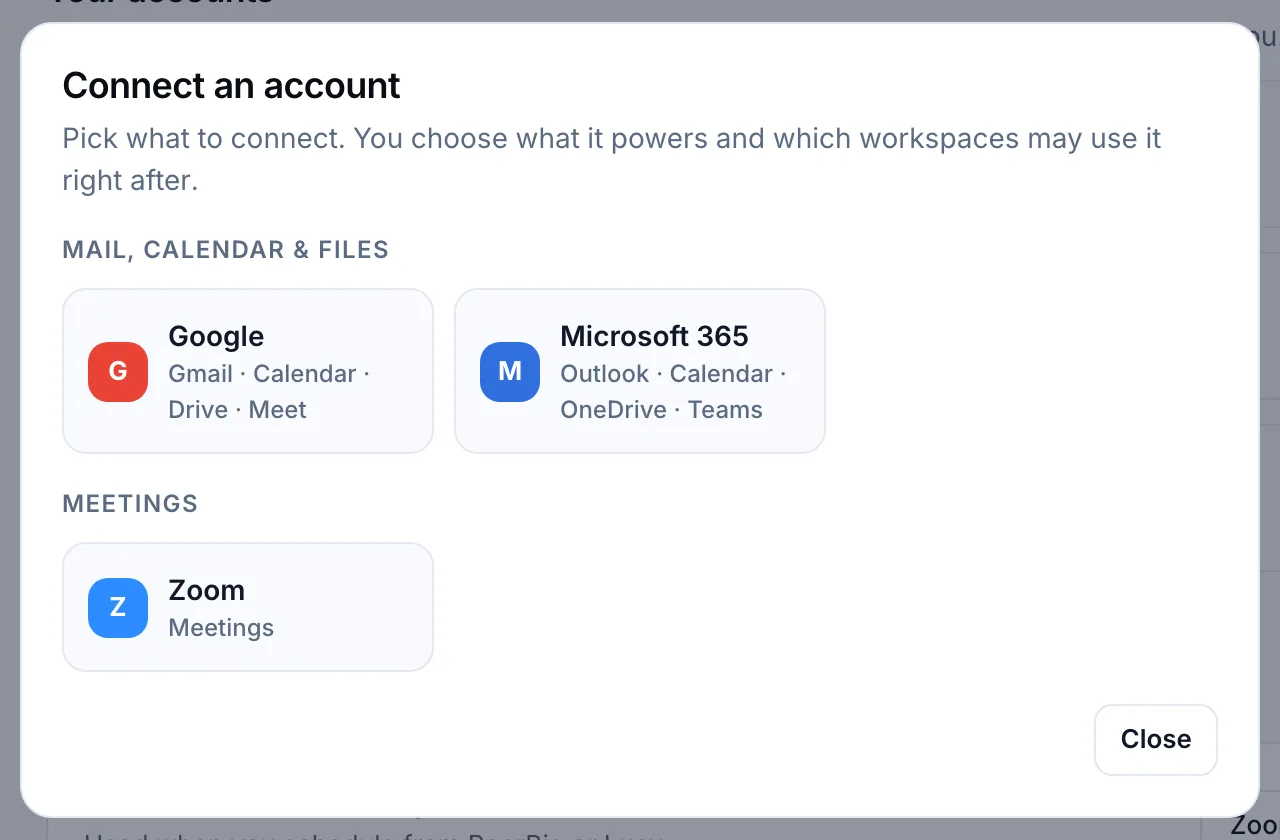
An email trigger reads the Gmail or Outlook (Microsoft 365) mailbox of the person who sets it up. Connect that account first. Gmail starts the workflow as soon as a matching email arrives; Outlook is checked every few minutes.
Use the mailbox the emails really arrive in. If invoices go to a shared address, set the trigger up from an account that receives them.
Step 2: Add the email trigger
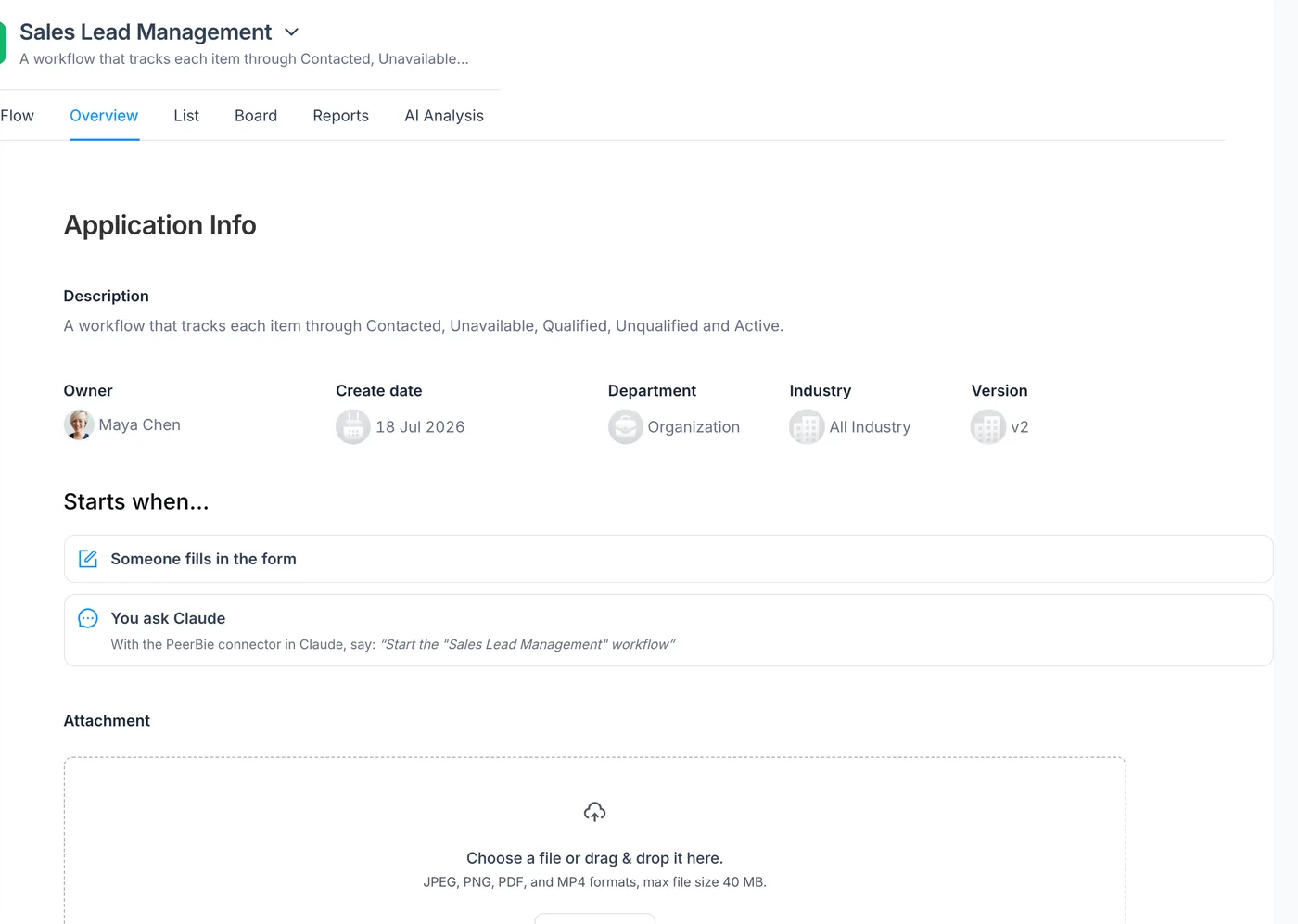
Open the workflow, go to Starts when… and add An email arrives. Then decide which emails count:
- By sender: for example everything from @supplier.com.
- By words in the subject or the body: “invoice”, “quote”, “application”.
- By a rule in plain words that AI checks, such as “Is this from an investor?” or “Is this a supplier invoice?”. This catches emails that do not use the words you would have guessed.
The sender, subject and body fill in the workflow’s form, so every item starts with the original email attached to it. Nobody has to copy and paste.
Step 3: Let an AI employee do the triage
Give the first stage to an AI employee. When an item arrives, it reads the email and does the work you describe for that stage: pull out the amount and due date, look up the sender’s company, summarise what they are asking, or decide that the email is not for this workflow at all. It uses the tools your workspace has connected, and it posts its result on the item for the next person to see.
If you prefer, a person can own this stage instead. Many teams start with a person and hand the stage to an AI employee once they trust the instructions.
AI-employee stages come with the Lucy AI add-on; see the AI page for what AI employees can do.
Step 4: Route it with rules
Put a rule on the stage so matching items go straight to the right next step:
- When a field matches, go to a stage: is, is not, contains, greater than, less than, is empty. For example: Amount is greater than 10,000 → Manager approval.
- Or guide the AI in words: “For invoices from new suppliers, check the supplier list first.”
Every move is noted on the item, so anyone can see why it went where it did. When an item reaches a stage, its owner is notified, and everyone can see where each email stands, without anyone forwarding anything.
Step 5: Draft the reply, and approve it
The last stage drafts the reply. An AI employee can write it from what happened in the earlier stages, and the draft comes to a person before anything is sent. If the workflow needs an answer from the sender, the AI employee can email them, wait for the reply, pick it up and carry on, with a reminder after 3 days.
Keep the approval with a person for anything that leaves the company. That is the step that protects your name.
Step 6: Test with real emails, then publish
Before publishing, use Start from an email in a test run: paste an email or pick one from your inbox. PeerBie checks it against your real trigger rules, shows a ✓ or ✗ for each rule and the fields it would fill, and, if it matches, runs the rest of the workflow as a test. AI steps really run, while emails, Slack messages and notifications are only previewed, so nothing reaches the sender.
Test at least two emails: one that should start the workflow and one that should not. Our guide to testing a workflow before it goes live goes through the full routine.
Then publish. Email triggers only start published workflows.
Pausing without losing emails
Going on holiday or changing the process? Pause the workflow’s starts, with an end date if you like. Matching emails are held, not dropped: when you resume, you choose to run them or discard them. They wait for up to 30 days.
Email-to-workflow checklist
- ☐ The emails really arrive in the mailbox the trigger is connected to.
- ☐ The trigger rule was tested with one email that should match and one that should not.
- ☐ The form has a field for every fact the later stages need.
- ☐ The triage stage has clear instructions, including what to do with emails that are not for this workflow.
- ☐ Rules send each kind of item to a named owner.
- ☐ A person approves every reply before it is sent.
- ☐ Everyone who owns a stage knows the workflow is going live.
What Gmail and Outlook can do on their own
Gmail filters and Outlook rules can already label, move, forward or flag emails as they arrive, and that is enough for simple sorting. What they do not give you is stages, owners, approvals and a shared view of where each request stands. That is the gap a workflow fills.
To see the other ways a workflow can start, visit the Workflows page. Workflows and email triggers are on every plan, including the free Starter plan with up to five workflows; plans are on the pricing page.
Frequently asked questions
Can an email start a workflow automatically?
Yes. In PeerBie, add An email arrives under Starts when. The workflow starts when an email in the connected Gmail or Outlook (Microsoft 365) mailbox matches your rule: a sender, words in the subject or body, or a rule in plain words that AI checks.
Does it work with Outlook?
Yes. Email triggers work with Gmail and Outlook (Microsoft 365). Gmail starts the workflow as soon as the email arrives; Outlook is checked every few minutes.
Can AI triage incoming emails?
Yes. Give the first stage to an AI employee: it reads the email, pulls out the facts you ask for, and posts the result on the item. Rules then send the item to the right next stage. AI-employee stages come with the Lucy AI add-on.
Will replies be sent without my approval?
Not if you put an approval stage before the reply. Drafts come to a person before anything is sent, and every step is recorded on the item.
What happens to emails while a workflow is paused?
They are held, not dropped. When you resume, you choose to run or discard them. Held emails wait for up to 30 days.
Try it before you build your own
Walk around the demo workspace without signing up, or start free: the Starter plan includes up to five workflows.
Product details checked in PeerBie on 29 October 2026. If you spot something out of date, tell us at [email protected].
