
How to Test a Workflow Before It Goes Live (Without Sending Anything)
You have built a workflow. A form comes in, an AI employee reads it, a manager approves it, and a reply goes out to the customer. It looks right on the canvas. But the only way to know whether it really works is to run it, and running it for real means real emails, real Slack messages and real notifications to colleagues who did not ask for them.
So many teams skip the test, publish, and let the first real request be the test. This guide shows a safer way: how to dry-run a workflow end to end, see every decision it makes, and check every message it would send, without sending anything. The steps use PeerBie, where a test run is built into the workflow editor. The checklist at the end works with any tool.
The short answer
- Fix what is broken first. A health check catches missing connections, steps without the tool they need and paused AI employees before you run anything.
- Then do a test run. A sample item moves through the real workflow. AI steps really think; emails, Slack messages, webhooks and notifications are only shown as previews.
- Choose the path yourself at every step a person owns, so you can walk each branch on purpose.
- Test the start, too. If the workflow starts from an email, check a real email against your trigger rules before you publish.
Why testing a workflow is harder than testing a form
A form is easy to test: fill it in and look at the result. A workflow is a chain, and every link can fail in its own way:
- The start does not fire. An email rule that looks right never matches the emails you actually receive.
- The wrong person gets it. A rule sends a large purchase request to the wrong approver, or the item stops at a stage nobody owns.
- A tool is missing. The step that should post in Slack or add a row to a sheet has no connected account, so it fails at 2 a.m. on the first real item.
- The AI decides differently than you expected. It sends a request to the wrong stage, or drafts a reply in a tone you would never use.
- Something leaves the building too early. A test email reaches a real customer, or forty colleagues get a notification about a request that does not exist.
The last one is why people avoid testing. A good test has to run the real logic while holding back everything that leaves the workflow.
Step 1: Clear the Workflow Health list
Open the workflow in the editor and look at Workflow Health first. It lists the problems PeerBie can see without running anything, and most of them have a one-click fix right next to them:
- A tool is not connected: connect it in place, without leaving the editor.
- A step needs a tool it does not have: add the tool to that step.
- An AI employee is paused: resume it.
- Anything else: the fix button opens the exact editor where the problem is, so you do not have to hunt for it.
Only problems that would really fail at run time block Publish. Everything else is advice you can act on now or later, so the list never holds you hostage over cosmetic issues.
Step 2: Start a test run
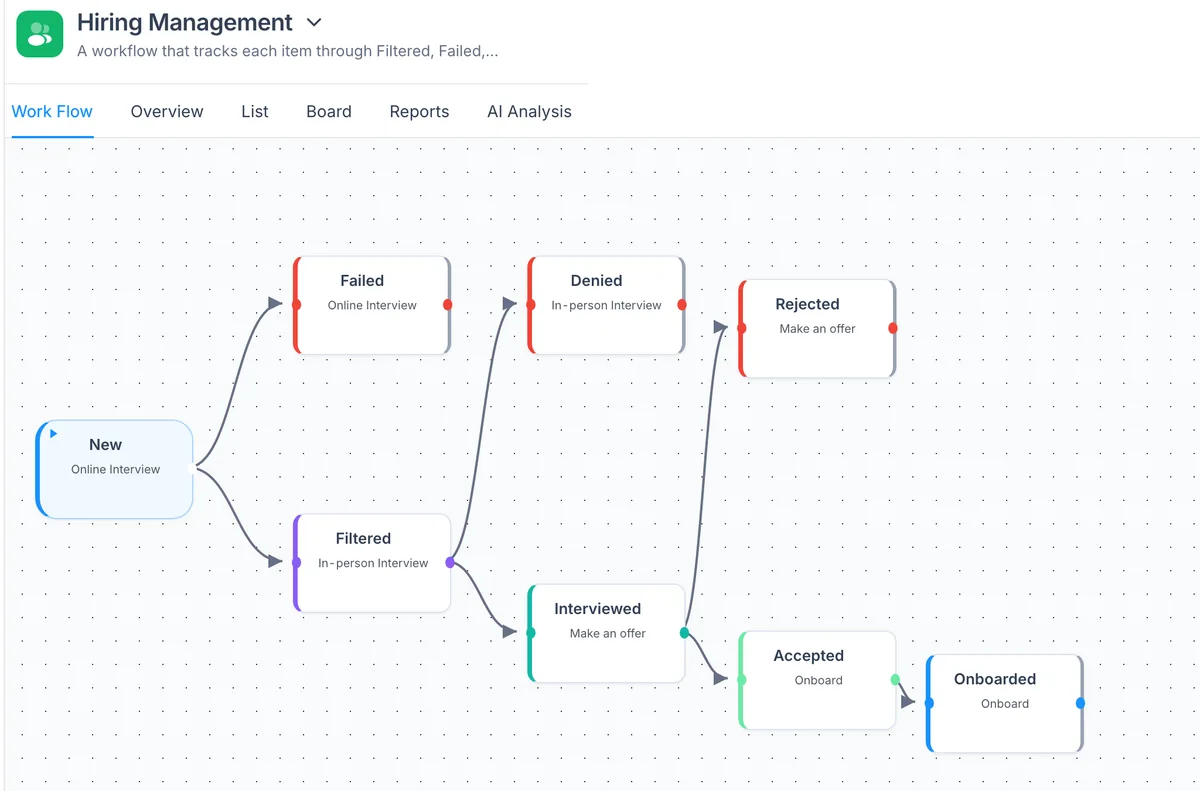
Start a Test run from the workflow. A sample item appears at the start of the workflow and you can watch it move across the canvas, stage by stage, along the same arrows a real item would follow.
What happens at each kind of step:
| Step | In a test run | In a live run |
|---|---|---|
| AI employee stage | Really reasons and decides | Really reasons and decides |
| Email, Slack message, webhook | Shown as a preview, not sent | Sent |
| Notification to a colleague | Shown as a preview, not sent | Sent |
| Person stage or approval | You choose which path to take | The owner decides |
This split is the point. The AI parts are the ones you cannot predict by reading the canvas, so they really run. The parts that reach other people or other systems are the ones you cannot take back, so they are only shown.
Test runs are free. Each workspace has 10 a day, which is plenty for walking every path of a workflow, as long as you plan which path each run should cover (see Step 4).
Step 3: Read every AI decision and every preview
While the item moves, a panel lists each decision an AI employee makes, with the reason it gave. Read these as you would read a new colleague’s first week of work:
- Did it pick the stage you expected? If not, does its reason show that your instructions were unclear?
- Did it use the right information from the form, or did it miss a field?
- Is the drafted email or message something you would send under your own name?
Then open the previews. Check the recipient, the subject, the wording and every field filled in from the item. A preview that says “Dear {name}” is a bug you just caught for free.
If a decision is wrong, change the stage’s instructions or the rule that moves items, and run the test again.
Step 4: Walk every path on purpose
Most workflows branch: approved or rejected, above or below an amount, a reply received or not. A single happy-path test checks only one of them. Since you choose the path at every person step, you can plan your runs:
- Run 1: the normal case, approved at every step.
- Run 2: rejected at the first approval. Does the item end where it should, and does the requester hear about it?
- Run 3: the edge case for each rule, for example an amount just above your approval limit.
- Run 4: an input the AI should push back on: a vague request, a missing attachment, an email that is not really for this workflow.
Write down what you expect before each run. A test without an expected result is just a demo.
Step 5: Test how it starts
If the workflow starts from an email, the riskiest part is the trigger itself. A rule like “the sender is from @fund.com” or “the email is a supplier invoice” decides which emails create work for your team, and a rule that is too loose floods the workflow while one that is too strict misses everything.
Use Start from an email: paste an email, or pick one from your inbox. PeerBie checks it against your real trigger rules and shows a ✓ or ✗ for each rule, plus the form fields it would fill from the sender, subject and body. If the email matches, the test run continues with that email as the item, so you see the whole journey from the inbox to the last stage.
Try one email that should match and one that should not. Both answers matter.
For the other ways a workflow can start (a form, a schedule, a webhook, Claude or ChatGPT, an event in PeerBie), see the seven triggers on the Workflows page.
Step 6: Publish, and watch the first real items
When the health list is clear and every path behaves, publish. Automatic starts (emails, schedules and events) only start published workflows, so nothing you did while building and testing reached anyone.
For the first days, keep an eye on the run log, the step-by-step history of every item: who moved it, what each AI employee did and why. Real items are messier than sample ones, and the first week is when you tune your rules and instructions.
Before-you-publish checklist
- ☐ Workflow Health shows nothing that blocks Publish.
- ☐ Every tool the workflow uses is connected (email, calendar, Slack, sheets).
- ☐ Every stage has an owner: a person or an AI employee.
- ☐ Each branch was walked in at least one test run.
- ☐ Each rule was tested just above and just below its limit.
- ☐ Every AI decision in the panel had a reason you agree with.
- ☐ Every email and message preview has the right recipient and no empty fields.
- ☐ The email trigger was checked with one email that should match and one that should not.
- ☐ The people who own each stage know the workflow is going live.
If you use a different tool
The same principles apply anywhere: test with sample data rather than live customers, point outgoing messages at your own address while testing, and look at the execution history after each run. General automation tools such as Zapier, Make and n8n each have their own way of testing a step or a whole scenario; we compare them in Zapier vs Make vs n8n vs PeerBie for team workflows. For how PeerBie workflows are built in the first place, start with Workflows in PeerBie.
Workflows are on every plan, and the free Starter plan includes up to five; AI-employee stages come with the Lucy AI add-on. Details are on the pricing page and the AI page.
Frequently asked questions
Can I test a workflow without sending real emails?
Yes. In a PeerBie test run, emails, Slack messages, webhooks and notifications are shown as previews and not sent. The AI steps still really run, so you see the decisions they would make.
Does a test run use real AI?
Yes. AI employees really reason during a test run, and a panel shows each decision with its reason. Only the actions that would reach people or other systems are held back as previews.
How many test runs can I do?
Test runs are free, with 10 runs a day per workspace.
How do I test an email trigger?
Use Start from an email: paste an email or pick one from your inbox. PeerBie shows a tick or a cross for each trigger rule and the form fields it would fill. If the email matches, the test run continues with it.
What blocks a workflow from being published?
Only problems that would make it fail when it runs, such as a step whose tool is not connected. Workflow Health lists everything it finds, with a one-click fix for most problems, but only real run-time failures block Publish.
Try it before you build your own
Walk around the demo workspace without signing up, or start free: the Starter plan includes up to five workflows.
Product details checked in PeerBie on 29 October 2026. If you spot something out of date, tell us at [email protected].
