
PeerBie for Zoom
On this page
OverviewRequirementsAdding the appUsing the appReconnectingRemoving the appPermissionsTroubleshootingSupport
Overview
PeerBie is a workspace where teams share updates, plan projects, manage tasks and message each other. The Zoom integration lets you schedule a Zoom meeting from PeerBie. PeerBie creates the meeting in your own Zoom account and posts it to your team’s feed as a meeting card, so everyone you invite can join with one click.
With the integration you can:
- Schedule a Zoom meeting from PeerBie’s Video Conference composer: title, description, start time, duration and who is invited.
- Share it in the feed as a meeting card. You, the organiser, get Start. Everyone else gets Join, plus Add to calendar and Copy link.
- See when it’s live. The card shows Live now when the host starts the meeting in Zoom and Ended when it’s over.
- Keep it in sync. When you edit the meeting in PeerBie, the Zoom meeting is updated. When you delete it in PeerBie, it’s deleted in Zoom too.
PeerBie does not access your Zoom recordings, transcripts or the content of your meetings.
Requirements
- A PeerBie account and a workspace you are a member of. Sign up or sign in at my.peerbie.com.
- A Zoom account. Each person who schedules meetings connects their own Zoom account. People who only join a meeting don’t need to connect Zoom to PeerBie.
- A web browser on a computer to connect Zoom and schedule meetings at my.peerbie.com. The PeerBie apps for iPhone and Android show the meeting cards and let you join, but connecting Zoom and scheduling happen on the web.
Adding the app
You connect Zoom once. After that, every Video Conference you post is created in your Zoom account.
Option A: from PeerBie (recommended)
- Sign in at my.peerbie.com and open your workspace.
- Start a new post and choose Video Conference as the post type.
- The composer shows a Connect Zoom card: “A video conference is a Zoom meeting. Connect your Zoom account so we can create it and give everyone a Join link.” Click Connect Zoom.
- Zoom opens in a new browser tab. Sign in to Zoom if asked, review the permissions PeerBie requests (see Permissions) and click Allow.
- Zoom returns you to PeerBie, which completes the connection. Go back to the tab with your composer. The form unlocks by itself; if it doesn’t, click I have connected Zoom. Anything you had already typed is kept.
You can also connect from PeerBie’s settings menu (the gear icon at the top of the page): turn on Integrate Zoom and click Link Account.
Option B: from the Zoom App Marketplace
- Sign in at marketplace.zoom.us, find PeerBie and click Add.
- Review the permissions and click Allow.
- Zoom sends you to my.peerbie.com. If you aren’t signed in to PeerBie, sign in; the connection then completes.
Using the app
Schedule a meeting
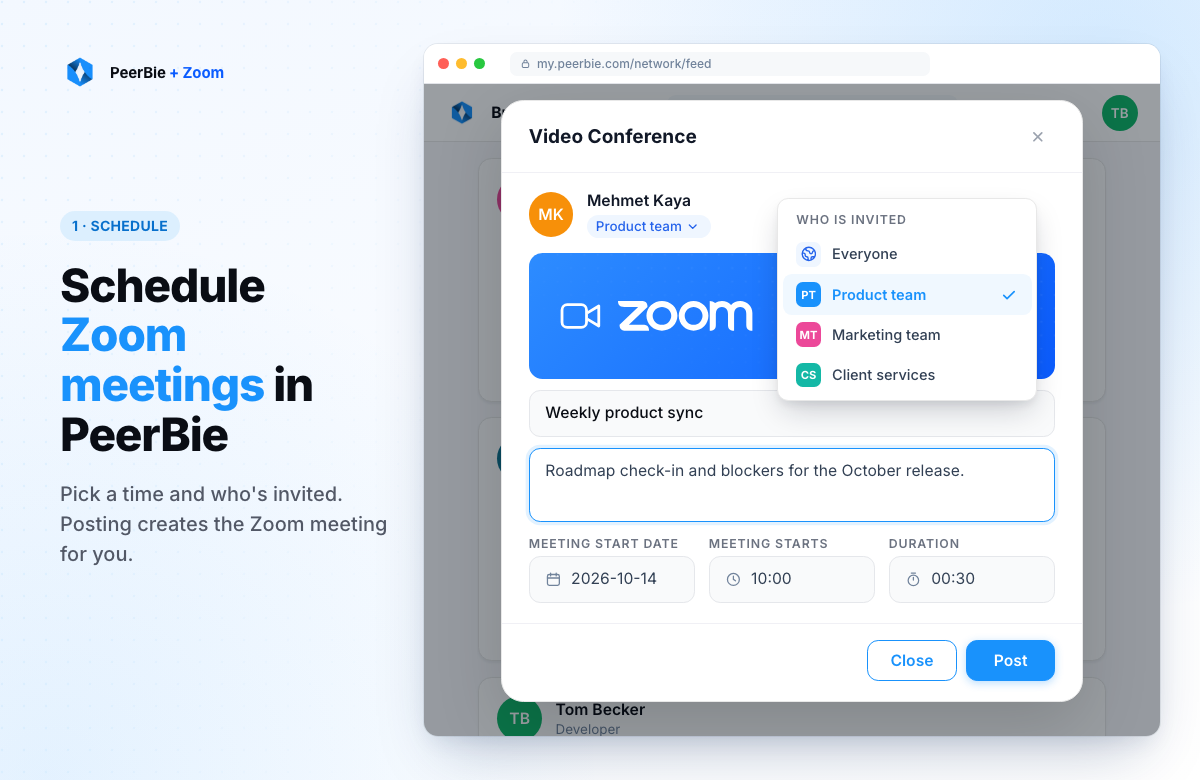
- In your workspace, start a new post and choose Video Conference.
- Choose who is invited: everyone in the workspace, a team, a department or a group.
- Enter a title and, if you like, a description. The description becomes the meeting’s agenda in Zoom.
- Set the start date, the start time and the duration.
- Click Post. PeerBie creates the meeting in your Zoom account and posts the meeting card to the feed.
If Zoom can’t create the meeting, nothing is posted and PeerBie tells you why (see Troubleshooting). A meeting is never shared without a working Join link.
The meeting card
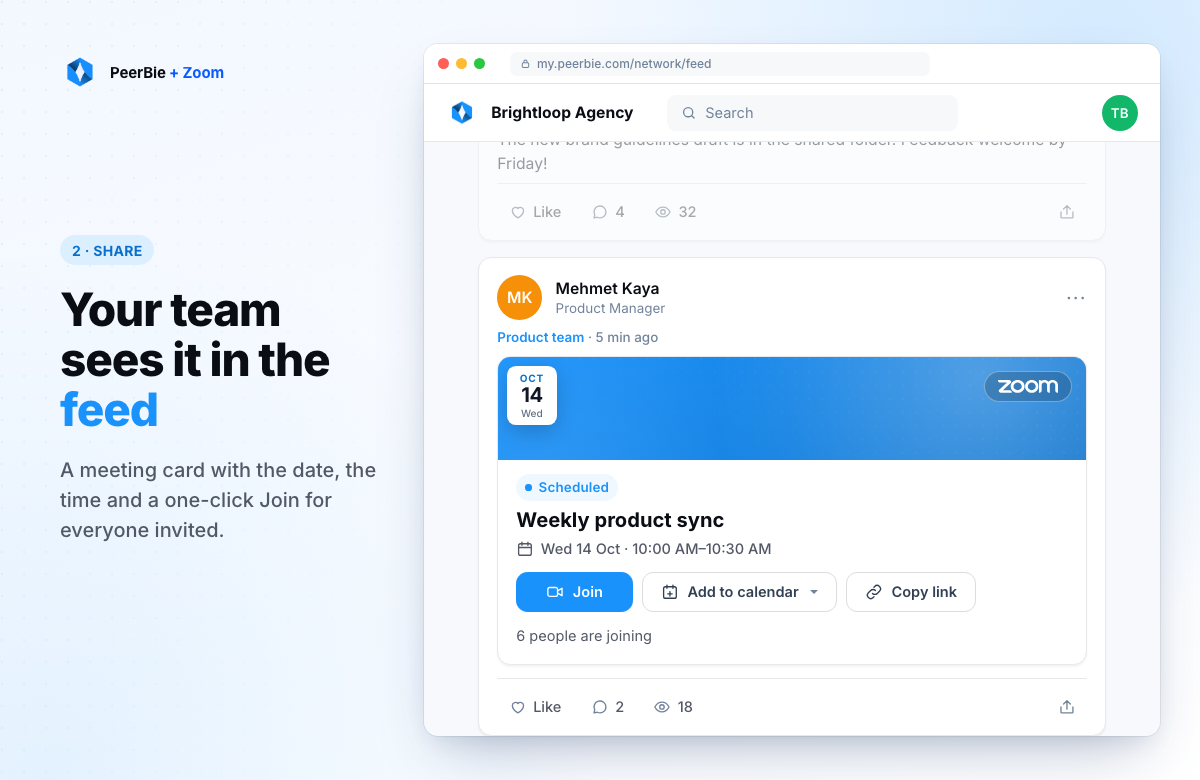
Everyone you invited sees the meeting in the feed as a card with the date, the time, the host and the meeting passcode.
- Start appears only for you, the organiser. It opens the meeting in Zoom as the host.
- Join appears for everyone else. It opens the meeting’s Zoom join link.
- Add to calendar adds the meeting to Google Calendar, or downloads an
.icsfile for Apple Calendar, Outlook or any other calendar app. It’s available until the meeting ends. - Copy link copies the Zoom join link so you can share it.
Live status
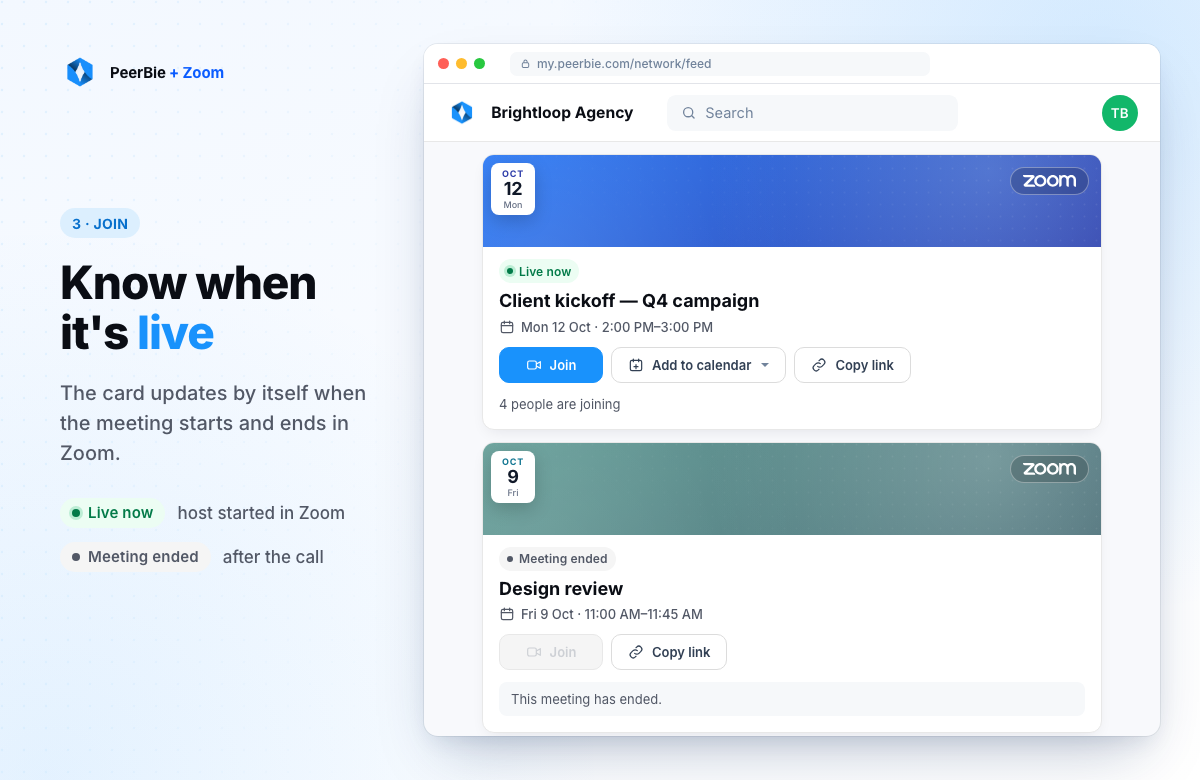
The card’s label follows the meeting:
- Scheduled: the meeting is in the future.
- Starting soon: the meeting starts within 10 minutes.
- Live now: the host has started the meeting in Zoom.
- Ended: the meeting has ended in Zoom or its scheduled time has passed. Join is turned off and the card says “This meeting has ended.”
Live now and Ended come from Zoom’s own notifications, so they appear within a few seconds of the meeting starting or ending.
Edit or delete a meeting
- Edit: as the organiser, edit the meeting post to change its title, description, start time or duration. PeerBie updates the Zoom meeting with the same changes.
- Delete: delete the meeting post and PeerBie deletes the meeting from your Zoom account too.
- Workspace admins can also edit or delete a meeting post. PeerBie applies the change to the organiser’s Zoom meeting.
Meeting settings PeerBie uses
Meetings created from PeerBie let participants join before the host, mute participants when they join, and only allow people signed in to Zoom to join. You can change these settings in Zoom. If you later edit the meeting in PeerBie, PeerBie applies these settings again.
Reconnecting
Your Zoom connection can stop working, for example if you removed the PeerBie app in Zoom, or if PeerBie hasn’t used the connection for about 90 days and Zoom has expired it.
PeerBie checks your connection when you open the Video Conference composer. If it no longer works, you see a Reconnect Zoom card: “Your Zoom connection has expired. Reconnect it so we can create the meeting and its Join link.” If PeerBie has already received Zoom’s notice that the app was removed, the card says Connect Zoom instead.
Click the button and follow the same steps as in Adding the app. You can’t post a meeting until Zoom is connected again. Meeting cards you posted earlier keep their Join links.
Removing the app
In Zoom
- Sign in at marketplace.zoom.us.
- Click Manage, then Added Apps.
- Find PeerBie, click Remove and confirm.
In PeerBie (optional)
On the web, open the settings menu (the gear icon at the top of the page), turn off Integrate Zoom and click Unlink Zoom. This removes your Zoom connection from PeerBie. It does not remove the app from your Zoom account, so to remove the app completely also follow the steps under “In Zoom”.
What happens in PeerBie afterwards
- You can no longer create Zoom meetings from PeerBie. The Video Conference composer asks you to connect Zoom again.
- Meeting posts you already created stay in the feed with their Join links. PeerBie does not delete the meetings in your Zoom account; you manage them in Zoom.
- Their Live now and Ended labels may stop updating, because Zoom no longer sends PeerBie notifications for your meetings.
- If you edit one of those meetings, PeerBie asks you to reconnect Zoom first. If you delete one, it’s removed from PeerBie but the meeting stays in your Zoom account; delete it there if you no longer need it.
Your data
- When you remove the app in Zoom, Zoom notifies PeerBie and PeerBie deletes the Zoom access tokens it stored for you, together with your Zoom user ID and account ID.
- When you click Unlink Zoom in PeerBie, PeerBie deletes the Zoom access tokens it stored for you.
- Meeting posts you created (title, description, time, duration, passcode and Zoom links) are part of your workspace and stay until you or a workspace admin delete the post. Deleting a post deletes that information from PeerBie.
- To ask us to delete any other data, email [email protected]. See also our Privacy Policy.
Permissions
PeerBie asks Zoom for three permissions (scopes) and nothing else:
| Scope | What PeerBie uses it for |
|---|---|
meeting:write |
Create the meetings you schedule from PeerBie, and update or delete them when you edit or delete the meeting post. |
meeting:read |
Read the details of those meetings, such as the join link and the passcode. |
user:read |
Read your Zoom user ID and account ID, so PeerBie can recognise your account, for example when Zoom tells us you removed the app. |
PeerBie also receives Zoom’s notifications when a meeting it created starts or ends, and when you remove the app. PeerBie does not request access to your recordings, transcripts, meeting summaries, chat messages, contacts or account settings.
Troubleshooting
The composer shows “Connect Zoom” or “Reconnect Zoom”
Your Zoom account isn’t connected, or the connection has expired. Click the button and follow Adding the app.
“Your Zoom connection has expired. Reconnect Zoom and try again.”
Zoom ended PeerBie’s access while you were posting or editing a meeting. Reconnect Zoom, then post or save again.
“Zoom could not set up the meeting. Please try again in a moment.”
Zoom didn’t answer as expected, usually because of a temporary problem. Nothing was posted. Wait a moment and try again. If it keeps happening, contact us.
“This meeting has no Zoom link.”
The meeting post has no Zoom meeting attached, which can happen with older posts. If you are the organiser, delete the post and create the meeting again. Otherwise, ask the organiser to recreate it.
I allowed access in Zoom, but the composer is still locked
Go back to the tab with the composer and click I have connected Zoom, or reload the page. If you see “This connection attempt expired. Please try again.”, start again from Connect Zoom. A connection attempt must be completed within 15 minutes.
Zoom asks people to sign in before they can join
Meetings created from PeerBie only allow people signed in to Zoom to join. Participants can sign in to any Zoom account, including a free one, or the host can change this setting for the meeting in Zoom.
The card doesn’t show Live now
The label changes when the host starts the meeting in Zoom. Reload the feed if it hasn’t updated. If you removed the PeerBie app in Zoom, labels on your existing meetings no longer update.
I can’t schedule from my phone
Scheduling and connecting Zoom happen on the web at my.peerbie.com. The iPhone and Android apps show the meetings and let you join them.
Support
Email [email protected] or use our contact page. It helps to include your workspace name, roughly when the problem happened and the exact message you saw. Never send us your Zoom or PeerBie password.